Set up components window
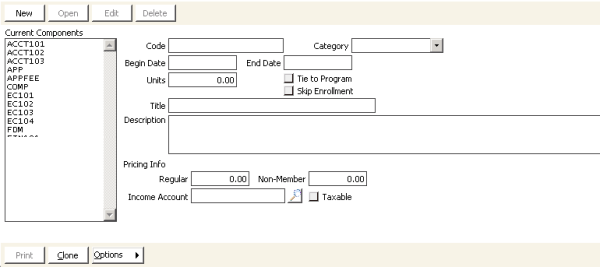
Current Components
A list of current components is displayed in this area of the window.
Code
(required) Specifies the primary abbreviation or identification code to represent this component.
Category
(optional) Specifies the component categories assigned to this item. These categories refer to those defined on the Set up component categories window.
Note: If you do not define categories before you create components, you can edit the components later, after you have created categories.
Begin Date, End Date
(optional) Use Begin Date and End Date fields to record the start and stop times for a component. For example, a class beginning on Monday would have Monday's date in the Begin Date field and a class ending on Friday would have Friday's date in the End Date field.
Units
(optional) Specifies the number of units a customer receives for completing the component
Tie to Program
(optional) Select this option to tie a component to a specific program. Because components are reusable, if a component called Class 1 is part of Program A and a part of Program B, the student's completion counts toward both programs.
Tie to Program works as a link between requirements that cannot be transferred, such as fees and specific program definitions. A component marked with Tie to Program is linked to a specific program when a student registers for the component; however, the component requirement must be satisfied again for each program that requires it.
For example, if you have a General Fee component that is required for all programs and you enabled Tie to Program when you created it, the component is tied to a program every time a student registers for that program. If the student registers for another program requiring the same fee, the student again must pay the fee because it also is linked to the second program.
The following are scenarios you should consider when registering students for components marked Tie to Program:
- If you register a student for a component through a specific program, iMIS automatically ties the component to that program regardless of whether the component is marked Tie to Program. If you do not want it tied to that program, delete the program ID on the Program field on the Register a student by component window.
- If you register a student for a component directly through the Register a student by component window, the only way you can tie it to a program is if you enter the program ID in the Program field.
- If a student completes a component through the Events module, the Program field is not populated. You must edit the component registration and enter the program ID manually to tie the component to a program.
Skip Enrollment
Select this option to specify components that do not require the student's attendance, such as program fees, applications, and resumes.
Title
Specifies a short descriptive title for the component, which displays on the Program Details window and on the Student Transcript report.
Description
(optional) Specifies a lengthy note, description, or comment associated with the component. You can enlarge this scrolling text field by pressing Ctrl+Z.
Pricing Info
In the Pricing Info area, specify pricing information (such as the cost of a component for members and non-members) and a G/L account number. When you register a student for a component with fees, an order is created. The transaction flows down to the iMIS G/L interface.
Regular - Use the Regular field to specify the default unit price (or member price) to apply automatically when a student enrolls in the component. When you enter a component, you can override this default price.
Non-Member - Use the Non-Member field to specify the price for non-members. This price is applied automatically when anyone with non-member status enrolls in the component. This option allows you to avoid most of the manual price overrides.
Income Account
This field identifies the General Ledger income account to credit when sales entries are made for this component. You can click the lookup icon to select an income account.
Note: You do not have to establish G/L accounts if you are not using the iMIS Financial (G/L) interface. If you leave this field blank, iMIS records this entry in the account you designated in the AR/Cash Default Accounts window (from AR/Cash, select Set up module, and click Default Accounts).
Taxable
The Taxable checkbox is enabled by default, indicating that the component is subject to sales tax. Select the checkbox to clear it, which reverses the automatic taxability for the component.
Taxable (Canadian)
Note: (Canadian taxation enabled) Canadian Taxation options are not applicable to the Certification module.
Lets you generate and print a Component Description report for the selected component.
Clone
Lets you clone or copy the selected component. The Component Clone window opens where you can enter the name for the new component.
Options
Opens a drop-down list of component-specific options. You can access six sub-windows from the Set up components window. These windows collect and display details about components, such as address, enrollment statistics, location, and instructors.
- Subcomponents - Opens the Subcomponent List window, which displays the subcomponents associated with the selected component.
- Address - Opens the Component Address window to enter an address for the specified component. If the component is a class, this may be the ballroom number for a convention hall; if the component is a fee, it may be the address where the fee is sent.
- Prerequisites - Opens the Component Prerequisites window to view the prerequisites associated with the selected component.
- Instructors - Opens the Component Instructors window to enter the names of instructors for a component course.
- Locations - Opens the Locations window to add the location, date, and time for a particular component, as well as speaker and provider information. Speakers and providers must have name records in the iMIS database.
- Statistics - Opens the Component Statistics window to display selected course information, including the number of students who enrolled in the component and the number who have passed or failed the component.
To create a component
- From Set up components window, click New.
- Enter the component Code.
- Select a category from the Category drop-down menu, if applicable.
- Enter the Begin Date and End Date for this component, if applicable.
- Enter the number of Units.
- Enable the Tie to Program option if this component is tied to a specific program.
- (optional) Enable the Skip Enrollment option.
- Enter a Title.
- (optional) Disable the Taxable option.
- Click Save.
To attach subcomponents to a component
Components can be comprised of smaller groupings called subcomponents. For example, a course may have requirements for completion, such as a tutorial, study guide, or a proficiency test. You must complete all subcomponents before you can complete the component.
- From Set up components window, select a component from the list of Current Components.
- Click Options and select Subcomponents from the list. The Subcomponent List window opens.
- Click Insert. The Child Components window opens and a list of available subcomponents is shown.
- Select the appropriate subcomponent(s) to attach the subcomponent to the selected component.
- Click OK to return to the Subcomponent List window. The current subcomponents for the selected component display on the window.
- Click Save to return to the Set up components window.
To make a subcomponent required
- From Set up components window, select a component from the list of Current Components.
- Click Options and select Subcomponents from the list. The Subcomponent List window opens.
- Double-click the appropriate subcomponent. The subcomponent displays in the Subcomponent List window with a Y in the Required column.
- To remove the Y and make the subcomponent not required, double-click the subcomponent again.
- Click Save.
To enter component address information
- From Set up components window, select a component from the list of Current Components.
- Click Edit.
- Click Options and select Address from the list. The Component Address window opens.
- Enter the address for the selected component in the address fields.
- Click Save on the Component Address window.
- Click Save on the Set up components window.
To define component prerequisites
A component may have specific prerequisites that the student must complete before enrolling in the component. For example, before a student can take Advanced Accounting, the student must have successfully completed Beginning and Intermediate Accounting. Define component prerequisites on the Component Prerequisites window.
The large text field in this window holds information about requirements that a student must meet before being allowed to register for a component. The data you enter in this field is not validated before enrolling a student in a component, so make sure to check the component prerequisites before enrolling the student.
- From Set up components window, select a component from the list of Current Components.
- Click Edit.
- Click Options and select Prerequisites. The Component Prerequisites window opens.
- Enter the prerequisite information.
- Click Save on the Component Prerequisites window.
- Click Save on the Set up components window.
To enter component instructor information
The Component Instructors window contains a text field for recording the name of the person teaching the course and the instructor's credentials or other pertinent information.
- From Set up components window, select a component from the list of Current Components.
- Click Edit.
- Click Options and select Instructors. The Component Instructors window opens.
- Enter the instructor information.
- Click Save on the Component Instructors window.
- Click Save on the Set up components window.
To create multiple locations for a component
With the Certification module, a single component can have multiple locations or occurrences. In addition, you can maintain unique speaker and sponsor/provider information for each occurrence of the component.
For example, if the course (component) MACCT101 is sponsored by vendors at various locations across the country, create one component record for MACCT101 and create multiple location records for each class offering.
The unique location is assigned at the time the component registration is processed. A CERTIFICAT activity record is created upon the first occurrence of a component registration for the Speaker and the Provider assigned to the location.
- From Set up components window, select a component from the Current Components list.
- Click Options and select Locations. The Locations (name of component) window opens.
- Create a location.
- Click New.
- Enter the name of the location of the course in the Instance Name field.
- Enter the date (day, month, and year) the course begins in the Begin Date field.
- Enter the time that the component begins in the Begin Time field. The default is AM.
- Enter the date (day, month, and year) the course ends in the End Date field.
- Enter the time that the component ends in the End Time field.
- Enter the ID of the speaker in the Speaker field, or click the lookup icon to select an ID.
- Enter the ID of the provider in the Provider field, or click the lookup icon to select an ID. The address and telephone fields fill automatically with the individual's address information.
- Click Notes to open the Location Notes window.
- Enter the information to be maintained for the component location.
- On the Locations Notes window, click OK. The Locations Notes window closes.
- On the Locations window, click Save.
- Repeat for all of the locations that you need to add for this component.
- Close the Locations window.
To view component statistics
View the status of the selected component through the Component Statistics window. The status information includes the number of students enrolled in the component if the component is not marked Skip Enrollment, as well as the number of students with the status of P for passed or F for failed.
- From Set up components window, select a component from the Current Components list.
- Click Options and select Statistics from the list of options. The Component Statistics window opens.
- The number in the Currently Enrolled field is the number of students enrolled in the selected component.
- The number in the Total Passed field indicates the number of individuals who have passed this component.
- The number in the Total Failed field indicates the number of individuals who have failed this component.
- Click OK to close the window.
Detailed information about individuals who are enrolled in, or who have completed the program is displayed in the window.
To locate a component using the Component Find window
Enabling the Subset Component Maintenance with Find window option on the Certification System Options window activates a lookup window that is displayed each time you open the Set up components window.
This window allows you to locate a component by reviewing only a subset of the list. You can view components by ID, Title, Category, Location, or Ad hoc. This is helpful if you have many components because this option allows you to view a few components at a time.
- From Set up components window, select Category under Search Types.
- Click Open.
- Enter the component categories code in the search box, for example ACCT.
- Click OK to view the list. A list of components is shown.