User Defined Tables window
The User Defined Tables window is used to create new tables, add data fields, and modify existing tables.
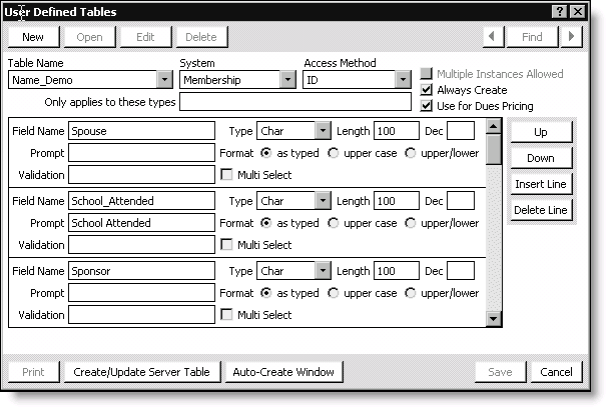
Table Name
Specifies the name of the table you are creating. Use an underscore (_) to separate words; do not use spaces.
System
(Not currently in use) Accept the default (Membership).
Access Method
(Not currently in use) Accept the default (ID).
Multiple Instances Allowed
Enable to allow multiple instances of each user-defined tab for each customer. For example, if you create a Survey tab for the year 2003 and want to re-use it in succeeding years, this feature allows customers to enter information in the same tab, using the same customer ID, for each year.
When creating multiple instance of a user-defined tab, a unique identifier is not required. However, we recommend using the first field as a unique identifier or key field that allows you to stack the data. When Multiple Instances Allowed is enabled, and you designate the first field as a key field, the first field Type must be designated as character (Char). The first field also should be a field that will designate the instance. For example, if you set up a tab for customer surveys, you would want to use SURVEY_YEAR as your first field.
If you select the Auto-Create Window option after defining a tab, iMIS automatically creates a tab with the tab title based on the table name. iMIS defines the table layout and includes all the fields with the Field Name used as the field label.
Always Create
Enable to create records automatically according to the Access Method selected for the appropriate customer types. Make sure to enable this option if the table contains fields used for Dues special pricing.
Use for Dues Pricing
Enable to use the table for Billing special pricing.
Note: If the Always Create and Use for Dues Pricing options are enabled, the Name_All view is automatically created when you click Save.
Only applies to these types
Specifies specific customer types (separated by commas) if you want to restrict availability to a demographic table. Do not use this option if you plan to use the table for Billing special pricing.
Field Name
Use to define a SQL field name. Use an underscore (_) to separate words; do not use spaces.
Type
Select a field type from the drop-down list to define the field format: character, integers, numbers, money, checkboxes, date, time, date/time, and image. (Defaults to character.)
Note: Lookup is unavailable for numeric user-defined fields. When defining a field that uses a general lookup/validation table, make sure you do not assign a numeric Type to the format (for example, a number).
Length
Use to define the size of a character type field, for example, 20 characters.
Dec
Use to define the number of decimal places for specific field types.
Prompt
Specifies the field label you want displayed on the tab. (Defaults to the Field Name. For example, if the Field Name is TEST_EXAMPLE, the Prompt defaults to Test Example.)
Format
The character format option allows you to select an auto capitalization option: as typed, upper case (for codes), and upper/lower case (for titles). If you select upper case or upper/lower, the character format will be auto-corrected. (Defaults to as typed.)
Validation
Specifies which general lookup/validation table to use for data entry. You must refresh the libraries to see the defined values when using the lookup feature on a user-defined field. (Defaults to all caps, exact spelling.)
Note: Lookup is unavailable for numeric user-defined fields. When defining a field that uses a general lookup/validation table, make sure you do not assign a numeric Type to the format (for example, a number).
Multi Select
Enable to allow users to make more than one selection from the validation table.
Note: When creating a general lookup/validation table for a multi-select field in a user-defined table, the Description field on the Set up general lookup/validation window must contain a unique value for each Code.
Up button
Used to move the selected field up in placement.
Down button
Used to move the selected field down in placement.
Insert Line button
Used to insert a new field.
Delete Line button
Used to delete an existing field.
Create/Update Server Table button
Used to update the selected table.
Auto-Create Window button
Used to create a user-defined tab automatically with the title based on the table name. iMIS defines the table layout and includes all of the fields with the Field Name used as the field label. Use the automatic window creation feature when you add a new user-defined table or make changes to an existing user-defined table (for example, if you add or delete a field from a user-defined table).