Window Designer window
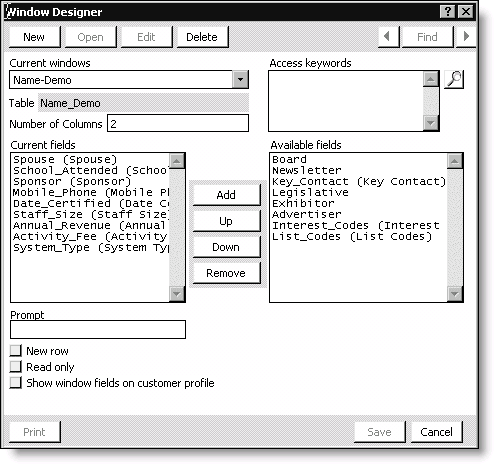
Current windows
Displays a drop-down list of current user-defined tabs.
Access keywords
(optional) Specifies access keywords. Keywords prevent unauthorized users from entering data on the user-defined tab. See Limiting Access and/or Hiding Tabs for more. Select the Find icon to look up defined keywords.
Table
(read only) This field identifies the table used with the tab.
Number of Columns
(Required for single-instance tabs) Specifies the number of columns to display for a single-instance tab.
Current fields
Lists all of the fields that will display on the tab.
Available fields
Lists all of the fields that are available but not displayed on the tab.
Add button
Used to move the selected field from the Available fields list to the Current fields list.
Up/Down buttons
Click these buttons to move the selected field’s placement up or down in the Current fields list.
Remove button
Used to move the selected field from the Current fields list to the Available fields list.
Prompt
Specifies the field label that will display on the tab.
New row
Enable if you want the field to display in a new row in the tab.
Read only
Enable to allow users to view but not edit a tab’s data.
Show window fields on customer profile
Enable if you want all of the Current fields displayed when you print a customer’s profile.