Register a customer window - Overview tab
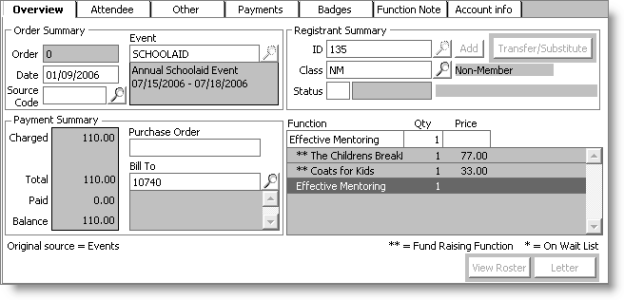
Order Summary
- Order - Displays a system generated order number for the event registration.
- Event - Specifies the event code. The event name and dates are displayed below this field.
- Date - Specifies the registration date. The default date is the current system date, or the batch date if batch control is enabled.
- Source Code - Specifies the source code to be used for response tracking. This maps to Appeal Code in Campaign Management.
Registrant Summary
- ID - Specifies the registrant's identification number. The system displays the registrant's full name, title, and customer type in the data area above the Overview tab.
- Add - Opens the Attendee tab so that you can enter a customer information for someone who is not listed in the iMIS database.
- Transfer/Substitute - Enables you to transfer a registration from one event to another, or to substitute one registrant for another for a specific event.
- Class - Designates the registration class. The field defaults to either M for member or NM for nonmember. The class type's description is shown to the right of the field.
- Status - Designates the cancel/transfer status of a registration. C designates a cancelled registration and CT designates a transferred registration. The field is blank if the registration has not been canceled or transferred.
Payment Summary
- Charged - Displays the total amount charged for any applicable event fees.
- Taxes - (International Taxation only) Displays the total amount of applicable taxes.
- Total - Displays the total amount charged for the event registration excluding any applicable taxes.
- Paid - Displays the amount paid to date towards the total charge for the event registration.
- Balance - Displays the total outstanding balance for the event registration.
- Purchase Order - Specifies a purchase order number or other reference number.
- Bill To - Designates a third party responsible for paying for the registration.
Function
Select a specific function from the list of available event functions. If the function title is longer than the display field, the complete function name will be shown in the status bar at the bottom of the window.
Qty
Enter the number of registrants per function. If a registrant is bringing guests to an event, enter the correct number of registrants for each function.
Price
Designates the attendance cost for the selected event function.
Tax Code
(VAT only) Designates the tax code defined for the selected event function.
VAT
(VAT only) Displays the tax code's tax rate.
View Roster
Opens the Event Roster window which shows all registrants and their registration status.
Letter
Opens the Meeting Standard Letters window.
To enter an event registration
- Select Events > Register a customer to open the Register a customer window.
- Select the Overview tab.
- Click New.
- Enter an Event code or use the lookup icon to look up an event code.
- Enter the registrant's ID (use the lookup icon to look up an ID). The registrant's name and address information will be shown on the Register a customer window.
- (required) Enter the registrant's First and Last name.
- (Required if adding a new customer to the database) Enable the Add to Master option to create an ID for the customer and add the customer record to the database.
- (Recommended) Enter additional information to complete the customer's record including company, address, and phone information.
- Select the Overview tab.
- (optional) Enter the Date. The date defaults to the batch date if Batch Control is used; otherwise, the date defaults to the current system date.
- (optional) Enter the Source Code for the registration.
- (optional) Override the Class code, if necessary.
- (optional) Enter the Payment Summary information:
- Enter a Purchase Order number if there is one.
- Enter the Bill To ID if it is different from the registrant's ID (use the lookup icon to look up an ID).
- Register for event functions:
- Double-click on a function title in the list of functions.
- The function title is shown in the Function box.
- Enter the number of registrants in the Qty field.
The registration price is shown in the Price box.
- (optional) Override the function price if necessary by typing in a new price.
- Repeat for each event function the registrant wants.
- Click Save.
If the registrant does not have a record in the database, click Add to open the Attendee tab and enter the registrant's information: