Configure fundraising options window
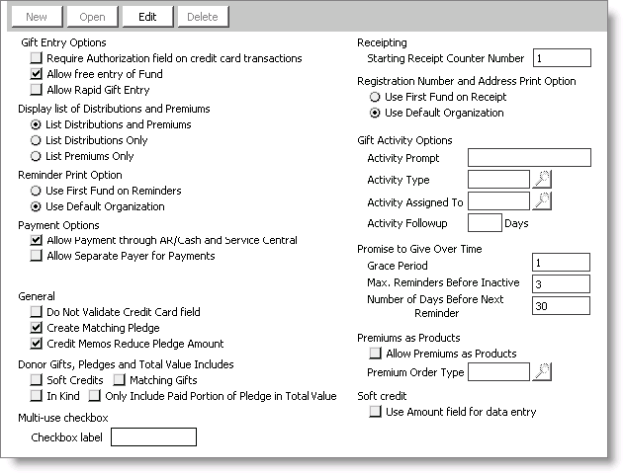
Gift Entry Options
You may check any of the following boxes:
- Require Authorization field on credit card transactions - Enable to make the Authorization field a required field on every credit card transaction entered in the Enter and edit gifts window or the Process payments window.
- Allow free entry of Fund - Enable to freely match distributions and funds at gift entry. This allows you to determine on a case-by-case basis how the gift should be distributed. If you do not enable this option, you must define all valid combinations of funds and distributions. Users can still overwrite the Campaign and Appeal fields even if the Allow free entry of Fund option is not enabled.
- Allow Rapid Gift Entry - Enable to give users the ability to enter Date Received, Gift Type, Gift Amount, Distribution, Appeal, Campaign, and Fund once on the Enter and edit gifts window and have these fields automatically entered in additional records. When this option is checked, the buttons Enable Rapid Gift Entry and Disable Rapid Gift Entry are available to users.
Note: The Single Gift and Single Pledge gift types are the only gift types supported for rapid gift entry. If the gift type is Installment, an error message displays when you click Enable Rapid Gift Entry.
| Rapid Gift Entry Supported Fields | Rapid Gift Entry Unsupported Fields |
|---|---|
|
|
Display list of Distributions and Premiums
You must choose one of the following options:
- List Distributions and Premiums - Enable to display distributions and premiums in the Enter and edit gifts window (from Fundraising, select Enter and edit gifts).
- List Distributions Only - Enable to display only distributions in the Enter and edit gifts window.
- List Premiums Only - Enable to display only premiums in the Enter and edit gifts window.
Reminder Print Option
You must choose one of the following options:
- Use First Fund on Reminders - Enable to print the name of the first defined fund in the title of all reminders and reports. If there is only one fund, the name of this fund prints on reminders and reports.
- Use Default Organization - Enable to print the name of the default organization in the title of all reminders and reports.
Payment Options
You may check any of the following boxes:
- Allow Payment through AR/Cash and Service Central
- Service Central Process customer requests window
- Service Central Enter and edit payments window
- AR/Cash Cash receipts window (AR/Cash > Enter and edit transactions > Cash receipts)
- Allow Separate Payer for Payments - Enable to allow a separate payer for payments made in the Process payments window. If this option is enabled, you can specify a different payer ID for a pledge made by another individual.
- Payer Label - Enter the label that will be displayed for the separate payer field on the Process payments window. If you leave this field blank, the default label is Payer. Displays only if the Allow Separate Payer for Payments option is enabled.
Enabled
Allows fundraising payments through both the Service Central Enter and edit payments window and the AR/Cash Enter and edit cash receipts window. This is helpful if you receive payments for multiple products and some of those products are not related to fundraising.
Disabled
Prevents viewing Fundraising invoices on:
Note: If disabled, staff can only make fundraising payments through the Fundraising Process payments window.
General
You may check any of the following boxes:
- Do Not Validate Credit Card field - Enable to disable the credit card format validation feature when entering gifts in the Enter and edit gifts window and when making payments in the Process payments window or the AR/Cash Enter and edit cash receipts window.
- Create Matching Pledge - Enable to record matching gifts as pledges rather than requests.
- Credit Memos Reduce Pledge Amount - Enable if you want credit memos to reduce a pledge amount. For example, if you pledge $100 and you write off $25 of the pledge, iMIS will recalculate the pledge as $75 and display $75 in the Fundraising History window if the Credit Memos Reduce Pledge Amount option is enabled. However, if this option is disabled and you pledge $100 and write off $25 of the pledge, iMIS will display the pledge amount as $100 with a $25 credit in the Fundraising History window.
Note: When setting up the Fundraising module for Credit Card Authorization, we recommend disabling the Do Not Validate Credit Card field option on the Fundraising Set up module window. If the Do Not Validate Credit Card field option is enabled, the credit card number will not be formatted automatically when it is entered on the Fundraising Enter and edit gifts window. If the Deferred Authorization option is enabled on the AR/Credit Card Authorization window, transactions made on the Enter and edit gifts window with unformatted credit card numbers will not display in credit card searches and will not print on the Deferred Credit Card Pre-Authorization report.
Donor Gifts, Pledges and Total Value Includes
You may check any of the following boxes:
- Soft Credits - Include donation amounts not made by the contact, but made because of the contact.
- Matching Gifts - Include matching gift amounts provided by someone other than the donor.
- In Kind - Include the value of non-cash contributions
- Only Include Paid Portion of Pledge in Total Value - Include the amount actually received from pledges, not the total amount promised.
Multi-use checkbox
You can create a User Defined field to flag a gift record. Use the multi-use Checkbox label field to label the generic checkbox on the Enter and edit gifts window (Fundraising > Enter and edit gifts). This field will appear on the Enter and edit gifts window only if you have entered a label for the Checkbox label field.
Note: The state of the multi-use Checkbox label field checkbox (checked or unchecked) is saved in Trans.FR_CHECKBOX table field.
Receipting
- Starting Receipt Counter Number - (optional) Enter the next receipt number to be automatically generated. The default for the initial counter number is 1. After you generate receipts, the counter increases the number incrementally by 1 for each printed receipt. You can manually change the counter value to a higher number, but not to a lower number. Automatically generated receipt numbers are not duplicated.
Registration Number and Address Print Option
You must choose one of the following options:
- Use First Fund on Receipt - Enable to print the name of the first fund the donor contributed to when donating to multiple funds on the receipt header.
- Use Default Organization - Enable to print the name and address of the default fundraising organization on all receipt headers. When this option is enabled, receipts aggregate by donor ID, even if the payments are to funds with different registration numbers.
Gift Activity Options
The fields in this area are used to specify a user-specified activity that can be created when a gift or pledge is entered or edited.
- Activity Prompt - Enter the prompt for the activity checkbox on the Enter and edit gifts window.
- Activity Type - Enter the activity type for the activity that is created when the activity checkbox is enabled on the Overview tab on the Enter and edit gifts window, or select the lookup icon and select the activity type from the drop-down list.
- Activity Assigned To - Enter the iMIS user who will be assigned the activity, or select the lookup icon and select the iMIS user from the drop-down list.
- Activity Followup - Enter the time (in days) between the gift or pledge entry and the follow-up action.
Promise to Give Over Time
- Grace Period - Enter the number of days beyond the end date that requests with a status other than Active continue to display in the Manage requests window. The default grace period is 1 day.
- Max Reminders Before Inactive - Enter the number of reminders before the request status is changed to Inactive. The default value is 3.
- Number of Days Before Next Reminder - Enter the minimum number of days between the printing of reminder notices for a request. The default value is 30 days.
Premiums as Products
- Allow Premiums as Products - When checked, products can be used as premiums. You can set up stock, non-stock, and kit products so that they can be used as premiums for gifts and pledges with the added benefit of inventory control.
- Premium Order Type - Designates the order type for products used as premiums.
Note: You must have the Full Order Entry module, and all products that are to be used as premiums must be set up for use as premiums on the Orders Manage products window.
Soft Credit
Select the Use Amount field for data entry option if you want iMIS to automatically calculate the amount as a percentage of the entire donation.
To define default Fundraising options
- From Configure fundraising options window, click Edit.
- Select one or more of the Gift Entry Options checkboxes.
- Select one of the Display list of Distributions and Premiums options.
- Select one Reminder Print Option.
- (optional) Select one or more of the Payment Options checkboxes.
- If you checked the Allow Separate Payer for Payments box, fill in the Payer Label field.
- (optional) Select one or more of the General checkboxes.
- (optional) Select one or more of the Donor Gifts, Pledges and Total Value Includes checkboxes.
- (optional) Enter the Starting Receipt Counter Number.
- Select one of the Registration Number and Address Print Options.
- (optional) Enter Gift Activity Options.
- (optional) Enter Promise to Give Over Time Options.
- (optional) Configure Premiums as Products options.
- Click Save.