Set up appeals window
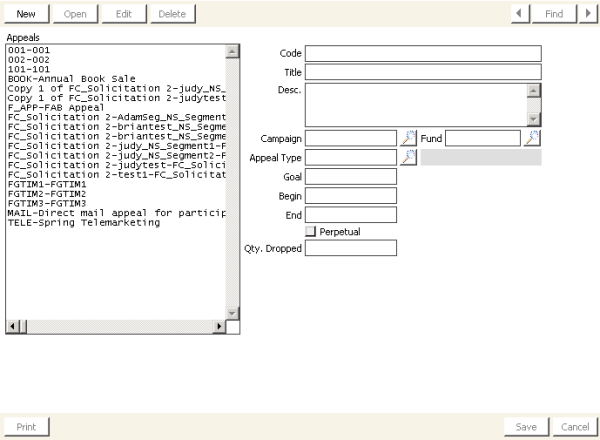
Appeals
Lists all currently defined appeals.
Code
Enter an alphanumeric code for the selected appeal.
Title
(optional) Enter the full title of the appeal.
Desc.
(optional) Enter a detailed description of the appeal.
Campaign
(optional) Enter the campaign associated with the appeal.
Fund
(optional) Enter the fund associated with the appeal.
Appeal Type
(optional) Enter the type of appeal. Appeal types are defined in the APPEAL_TYPE lookup table (from Customers, select Set up tables > General lookup/validation, and select APPEAL_TYPE).
Goal
(optional) Enter the appeal's financial goal. When you enter a monetary value, iMIS automatically formats the value with the appropriate commas. For example, if you enter 1000000 (one million) in the Goal field, iMIS automatically formats the value as “1,000,000.00” when you tab out of the field.
Begin
(optional) Enter the appeal's begin date.
End
(optional) Enter the appeal's end date.
Perpetual
(optional) Enable to specify that the appeal is ongoing.
Note: You cannot enable the Perpetual option if the appeal is associated with a campaign that has a specific end date. You may have to update the information in the Set up appeals window more frequently than in the Set up funds window (from Fundraising, select Set up tables > Funds) or the Set up campaigns window (from Fundraising, select Set up tables > Campaigns) if you conduct several appeals during the year.
Qty Dropped
Enter the quantity dropped for the appeal. This allows you to gauge the response rate to an appeal.
Premiums
Click this button to open the Appeal Premiums dialog and apply a premium against the appeal.
To define an appeal
- From Set up appeals window, click New.
- Enter a unique alphanumeric Code for the appeal.
- (optional) Enter a descriptive Title for the appeal.
- (optional) Enter a detailed Description of the appeal. This description displays only in the Set up appeals window.
- (optional) Enter the Campaign to which this appeal belongs, or click the lookup icon and select a campaign.
- (optional) Enter the Fund to which this appeal belongs, or click the lookup icon and select a fund.
- (optional) Enter the Appeal Type, or click the lookup icon and select an appeal type.
- (optional) Enter the Goal for the appeal.
- (optional) Enter the date that the appeal starts in the Begin field.
- (optional) Enter the date that the appeal ends in the End field, or enable the Perpetual option if the appeal is ongoing.
- (optional) Enter the quantity dropped for the appeal in the Qty Dropped field.
- (optional) Click Premiums to apply a premium to the appeal.
- Click Save.