Enter and edit orders window - Payments tab
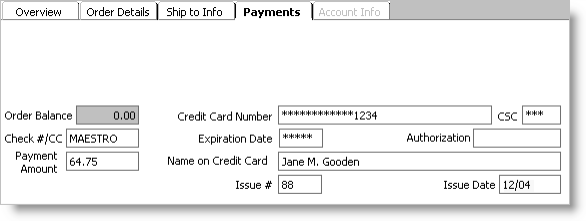
Note: If Advanced PCI Compliance (see Implementing Advanced PCI Compliance options) > Do not retain cardholder information is enabled, iMIS saves transactions without cardholder data and shows only gateway reference number and authorization code fields.
Order Balance
(read only) Displays an order's outstanding payment balance. The Order Balance is recalculated each time the Payment Amount is changed.
Credit Card Number
(Required for credit/debit card payments) Enter a credit/debit card number. When a payment is saved, all but the last four digits of the card number are masked.
Note: If you are using credit card authorization, do not enter credit card payments on the Orders Payments tab. To authorize credit card payments go to AR/Cash > Cash Receipts. See Authorizing Credit Cards in iMIS for more information.
CSC
(Optional/Displays only if a European debit card code is entered in the Check #/CC field and the associated card authorization account uses the Other gateway and accepts a CSC number for deferred authorization) Enter the European debit card CSC number. When a payment is saved, the CSC number will be masked.
Check # / CC
Enter a check number or credit/debit card code. Credit/debit card codes are defined on the Set up cash accounts window (from AR/Cash, select Set up tables > Cash accounts).
Expiration Date
(Required for credit/debit card payments) Enter a card's expiration date (mm/yy). When a payment is saved, the card's expiration date is masked.
Authorization
(Optional for credit card payments) Enter an authorization code when a credit/debit card payment is processed.
Payment Amount
Enter the amount of a check or credit/debit card payment. You can enter payments in one of the following amounts:
- Full - No open accounts receivable item is tracked through the system.
- Partial - Offsets or reduces the accounts receivable amount.
- None - Sales order amount remains an open receivable. If a customer is paying by credit/debit card, you can enter a credit/debit card code and leave the Payment Amount field blank. If you leave the Payment Amount field blank for a credit/debit card payment, the payment amount will equal the invoiced total when an order is invoiced. If you select this option, a cash entry is generated when you invoice an order.
Name on Credit Card
(Required for credit/debit card payments) Enter the name of the customer whose credit/debit card is used when making a payment. The 'Bill to' customer's full name displays by default.
Issue #
(Optional/Displays when a European debit card code is entered in the Check #/CC field and the associated cash account accepts an issue number) Enter the European debit card issue number.
Issue Date
(Optional/Displays when a European debit card code is entered in the Check #/CC field and the associated cash account accepts an issue date) Enter the European debit card issue date (mm/yy).
To enter a prepayment
When you enter a payment during order entry or before an order is invoiced, the payment is considered a prepayment. Prepayments are entered on the Payments tab.
When you record check prepayments, the payment is applied to the prepaid orders account. Credit/debit card payments are applied immediately to the prepaid orders account when a nonzero payment amount is entered and the Recognize Credit Card Order Payments as Prepaid Cash option is enabled on the AR/Cash Set up module window (from AR/Cash, select Set up module).
- From Orders, select Enter and edit orders to open the Enter and edit orders window. The Overview tab displays by default.
- Enter a new order (see Entering orders), or open an existing order (see Finding orders).
- While in edit mode, select the Payments tab.
- If entering a payment by check:
- Enter a check number in the Check #/CC field.
- Enter the amount in the Payment Amount field.
- If entering a payment by credit card:
- Enter a credit card code, such as VISA or AMEX, in the Check #/CC field. When you enter a credit card code, additional fields display which validate the credit card number, expiration date, authorization code, and name on the credit card.
- Enter the credit card number in the Credit Card Number field. All but the last four digits of the number will be masked when the payment is saved.
- Enter the credit card expiration date in the Expiration Date field. The expiration date will be masked when the payment is saved.
- Enter the name on the credit card in the Name on Credit Card field. Defaults to the 'Bill to' customer's name.
- (optional) Enter a code in the Authorization field.
- Enter the amount in the Payment Amount field.
- If entering a payment by European debit card:
- Enter a European debit card code, such as MAESTRO, in the Check #/CC field. When you enter a European debit card code, additional fields display which enable you to enter the card number, expiration date, authorization code and name on the card. Depending on the card authorization account used for the European debit card, fields might also display which enable you to enter the card's CSC number, issue number, and issue date.
- Enter the card number in the Credit Card Number field. All but the last four digits of the number will be masked when the payment is saved.
- Enter the card expiration date in the Expiration Date field (mm/yy). The expiration date will be masked when the payment is saved.
- (optional) Enter the card CSC number in the CSC field. The CSC number will be masked when the payment is saved.
- Enter the name on the card in the Name on Credit Card field.
- (optional) Enter a code in the Authorization field.
- Enter the amount in the Payment Amount field.
- (optional) Enter the card issue number in the Issue # field.
- (optional) Enter the card issue date in the Issue Date field (mm/yy).
- Click OK.
To edit a prepayment
Follow this procedure to edit an order's payment amount only. To edit an order's payment type, see Editing Payment Types.
- From Orders, select Enter and edit orders to open the Enter and edit orders window. The Overview tab displays by default.
- Open the order (see Finding orders) for which you want to edit a prepayment.
- Select the Payments tab.
- Click Edit.
- Edit the amount in the Payment Amount field.
- Click OK.
To enter a post-invoice payment
After an order has been invoiced, it no longer can be edited. You must make payments on invoiced orders in AR/Cash on the Enter and edit cash receipts window (from AR/Cash, select Enter and edit transactions > Cash receipts).
See Entering Cash Receipts in AR/Cash for details about entering such payments.