Entering debit memo orders
Invoiced orders cannot be edited, so the quantity of products purchased cannot be increased for an invoiced order. Debit memo orders are used to increase the number of products purchased for an original invoiced order. As with a credit memo order, a debit memo order also is entered against an original order's invoice number. However, because the audit trail would be lost, entering a debit memo order does not update an original, invoiced order.
All transactions attached to an original invoice number can be viewed through the AR/Cash Transaction Ledger window. A Trial Balance report can be printed from the AR/Cash Generate reports window, showing all transactions associated with an order.
If entering a debit memo for a bad check or credit card payment, setting up an order type specifically for this situation is recommended.
To enter a debit memo order
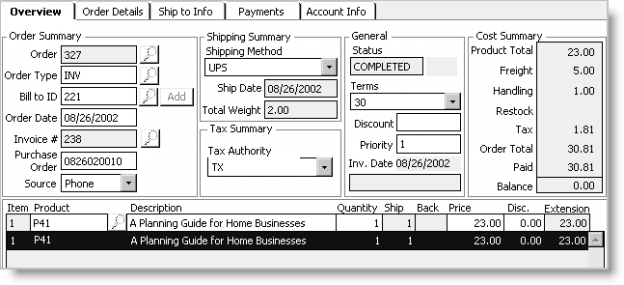
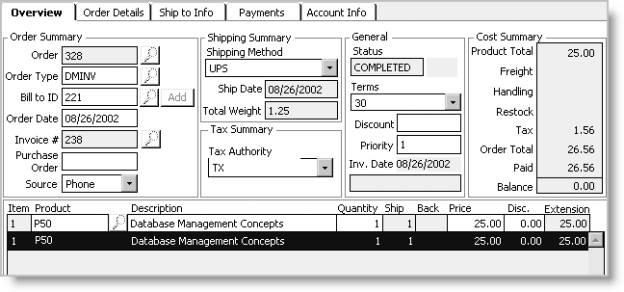
- From Orders, select Enter and edit orders to open the Enter and edit orders window. The Overview tab displays by default.
- Click New. The Order Date defaults to the batch date if batch control is used; otherwise, the Order Date defaults to the system date.
- Enter the debit memo (DMINV) order type in the Order Type field (select the Find icon to look up the order type).
- Press Tab to go to the Bill to ID field. The Invoice # field enables.
- Enter the Bill to ID.
- Override the Order Date if necessary.
- Enter the original order's invoice number in the Invoice # field (select the Find icon to look up the invoice number).
- Enter a source code in the Source field.
- Enter the Product code of the product you want to add to the order.
- Enter the Quantity of the product you are adding to the order, and press Tab.
- Repeat this process for each additional product you want to add to the order.
- Click Save.
- Invoice the order (see Generating an order invoice).
If entering a debit memo for a bad check or credit card payment, set up a product code specifically for the bad check or credit card payment.
To view debit transactions
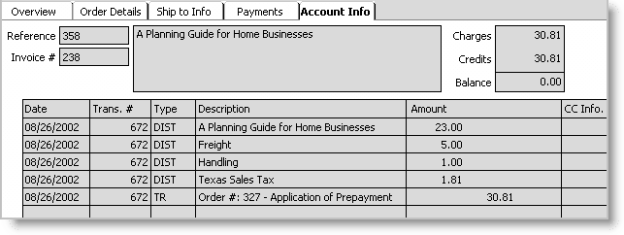
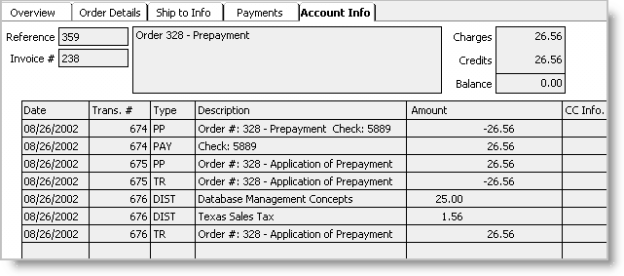
Because the audit trail would be lost, entering a debit memo order does not update an original, invoiced order. However, you can view all transactions attached to an original invoice number through the Enter and edit orders window's Account Info tab.
- From Orders, select Enter and edit orders to open the Enter and edit orders window. The Overview tab displays by default.
- Open (see Finding orders) either the original order or the debit memo order with the same invoice number.
- Select the Account Info tab listing all transactions for the same invoice number.