Manage customers window - Orders tab (History view)
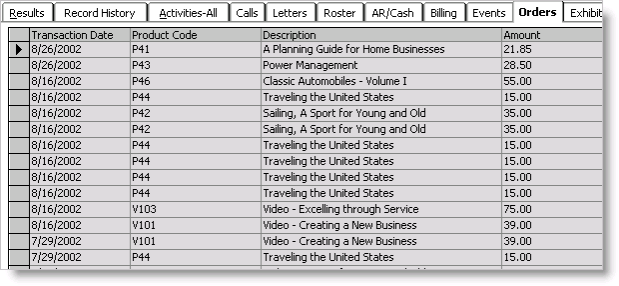
Transaction Date
Displays the date of the transaction.
Product Code
Displays the code for the purchased product.
Description
Displays a description of the product.
Amount
Displays the amount of the order.
New Order button
Opens the Enter and edit orders window and enter an order.
Current button
(Not shown in example) Click to toggle between viewing historical invoiced orders and current open orders.
To access the Orders module from Customer Portfolio
- From Customers, select Manage customers to open the Customer Portfolio.
- Open a customer record.
- Select the Orders tab. The Current view displays by default.
- To access the Orders module, do one of the following:
- Click New Order to open the Enter and edit orders window for the customer. When you click New on the Enter and edit orders window, the customer's ID automatically populates the Bill to ID field.
- Double-click the gray box to the left of the Date field to open the customer's selected order in Enter and edit orders window. You then can view or edit the customer's order.
To access the Customer Portfolio from the Orders module
You can go directly to a customer's Customer Portfolio record from that customer's order in the Orders module.
- Open a customer order.
- Click Customers.
The customer record is displayed in the Customer Portfolio.