Select Open Payments window (Orders)
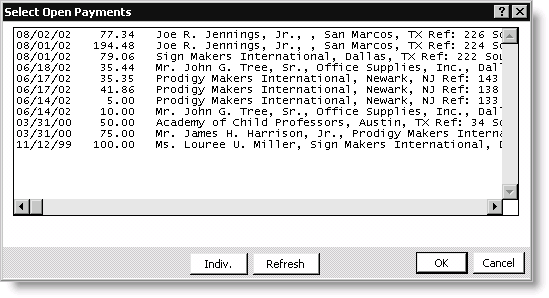
Credit Balances
Displays the credit balances for either a single customer or all of your customers depending on which view is enabled. Each line indicates an individual credit balance and includes the following information:
- The date the credit balance was generated
- The amount of the credit balance
- The name of the customer
- The customer's city and state
- The reference number of the credit balance transaction
- The iMIS system module in which the credit balance was generated
All/Indiv button
Click to toggle between the All and Individual views. The Individual view displays all of the open credit balances for a given customer. The All view displays all of the open credit balances for all of your customers.
Refresh button
Click to refresh the data on the window.
To apply a credit balance as Orders payment
- From Orders, select Enter and edit orders to open the Enter and edit orders window. The Overview tab displays by default.
- Enter or open an order. (See Entering Orders or Finding Orders.)
- While in the Edit mode, select the Payments tab.
- Enter an asterisk ( * ) in the Check # / CC field.
- Press Tab to open the Select Open Payments window.
- Select the open credit balance you want to apply as payment from either the Individual or All view.
- Click Indiv to display all of the open credit balances for a given customer.
- Click All to display all of the open credit balances for all of your customers.
- Click OK to close the Select Open Payments window.
- Enter the amount of the credit balance you are applying as payment in the Payment Amount field. The credit balance's reference number will display next to the asterisk in the Check # / CC field.
- Click OK to apply the credit balance as payment. The amount of the credit balance you entered in the Payment Amount field will display in the Paid field on the Overview tab.