Select Report window for Orders
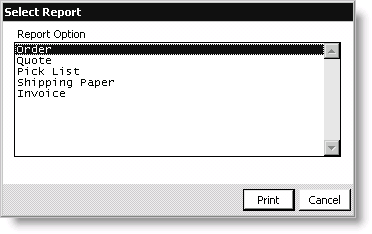
Report Option
Lists the reports or processing options that you can select for the current order depending on its processing stage. For example, you cannot print a shipping paper until you process an order through the shipping paper stage.
- Order - Select this option to print an Order Detail report.
- Quote - Select this option to print an order's Quotation. Optional: Convert the order to QUOTEREADY status.
- Convert Quote - Select this option to convert a quote to an order.
- Pick List - Select this option to print an order's Pick List. Optional: Convert the order to SHIPPAPER status.
- Shipping Paper - Select this option to print an order's Packing Slip. Optional: Convert the order to SHIPMENT status.
- Ship Order - Select this option to convert an order to INVOICE status.
- Invoice - Select this option to print an order's Invoice and convert order status to COMPLETED.
Print button
Click to print the selected report.
To print an order-specific report
- Select File > Report Destination, and select the destination for the report.
- From Orders, select Enter and edit orders to open the Enter and edit orders window. The Overview tab displays by default.
- Open the order (see Finding orders) for which you want to print a report.
- Click Print to open the Select Report window.
- Select the report you want to print from the Report Option list.
- Click Print to print the report.