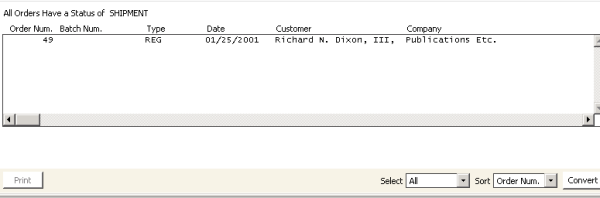
Ship orders window
Order Number
(read only) Displays the number assigned to an order.
Order Date
(read only) Displays the date of an order.
PO
(read only) Displays the purchase order number of an order, if any.
Ship To
(read only) Displays the name and address of the customer to whom an order is shipping.
Ship Date
(Defaults to the system date and time) Enter an order's shipping date and time.
Ship Method
Enter an order's shipping method. Select the Find icon to look up a shipping method.
Shipping methods are defined on the SHIP_METHOD lookup/validation tables (from Customers, select Set up tables > lookup/validation).
Freight
Add a freight charge or override the automatic freight charges generated for an order. You can override a Freight amount by entering a value and pressing Tab; the Auto Calc Freight option will disable.
Auto Calc Freight
This option enables automatically if the Automatic Calculation of Freight Charge option is enabled on the Add-on Charges window (from Orders, select Set up module, and click Add-on Charges).
Handling
Add a handling charge or override the automatic handling charges generated for an order. You can override a Handling amount by entering a value and pressing Tab; the Auto Calc Handling option will disable.
Auto Calc Handling
This option enables automatically if the Automatic Calculation of Handling Charge option is enabled on the Add-on Charges window (from Orders, select Set up module, and click Add-on Charges).
Line
(read only) Displays the line number of an order.
Product
(read only) Displays the product codes of the items ordered.
Description
(read only) Displays the product descriptions of the items ordered.
Order
(read only) Displays the quantity of the items ordered.
Ship
Enter the quantity of items shipped.
Back
Enter the quantity of items on back order.
To ship an order
- From Ship orders window, select the order(s) you want to ship.
- Click Convert. A message displays prompting you to confirm marking the selected order(s) as shipped.
- Click Yes. The Shipment Express window opens.
- If you want to cancel shipping the order, use the following steps:
- Click Cancel. A message displays stating that express shipping was canceled.
- Click OK to cancel shipping the order and return to the Ship orders window.
- (optional) Edit the Ship Date and/or Ship Method, if necessary.
- Click OK. A message displays prompting you to remove any previously specified shipping methods.
- Click No to ship the order, or click Yes to remove any previously specified shipping methods and ship the order.
To edit an order's shipping information
You can view and edit an order's shipping information using the Ship Order window.
- From Ship orders window, double-click an order to open the Ship Order window. Detailed information about the selected order displays on the window.
- Edit the shipping information, if necessary. For example, edit the Ship Date, select a new Ship Method, or override the freight and handling information.
- Click OK to mark the order as shipped. The order will ship just as if you had selected it and clicked Convert on the Ship orders window.