Set up tax codes window
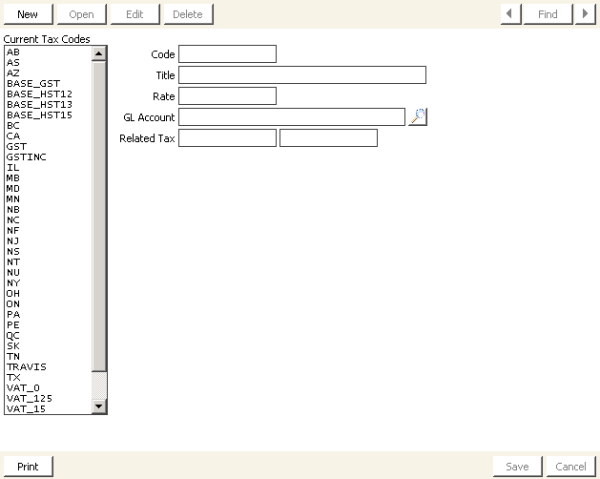
Current Tax Codes
Lists defined tax codes.
Code
Enter a code for the tax.
When defining state or province tax codes, use the standard two-character postal abbreviation for the state or province. This allows the Tax Auth field on the Enter and edit orders window to default to the customer's state tax code.
Title
Enter a title for the tax code.
Rate
Enter the percentage rate assigned to the tax code. Make sure to enter the rate as a percentage and not as a decimal. For example, enter 6.0 and not .06 for a tax rate of 6%.
G/L Account
Enter the general ledger account number assigned to the tax code, or use the lookup icon to select a value.
If you leave the G/L Account field blank, iMIS records the value entered in the Sales Tax field on the AR/Cash Default Accounts window (from AR/Cash, select Set up module, and click Default Accounts).
Related Tax
These two fields allow you to enter multiple tax codes. Enter the codes for any other taxes you want to relate to the tax defined in the Code field.
To define tax codes
- From Set up tax codes window, click New.
- Enter a Code for the tax.
- Enter a Title for the tax code.
- Enter the percentage Rate you are assigning to the tax code.
- (optional) Enter the G/L Account number.
- (optional) Enter any applicable Related Tax.
- Click Save.