Web Options window for product categories
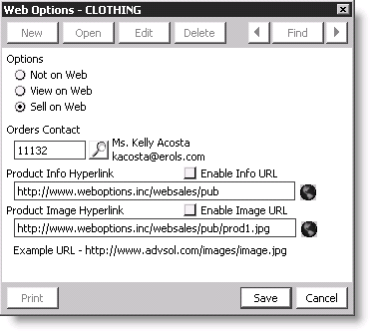
Options
The viewing option selected at the product category level overrides the viewing option selected at the product level for web products (Orders > Manage inventory > Manage products, select a product and click Web).
- Not on Web - Prevents the category from being viewed or sold on the Web.
- View on Web - Allows the category to be viewed, but not sold, on the Web.
- Sell on Web - Allows the category to be viewed and sold on the Web.
Orders Contact
Specifies the contact to notify when purchases from this category are made.
Note: You can specify a contact to notify about web purchases in the E-mail address to notify when a product is sold field on the Organization Configuration window (System Setup > Module setup > Organization Configuration).
Product Info Hyperlink
Enter a URL to information about the product category. Click the web icon to view the product category's information on the web.
Enable Info URL
Enable to enable the hyperlink to the product category's information.
Product Image Hyperlink
Enter a URL to an image representing the product category. Click the web icon to view the product category image on the web.
Enable Image URL
Enable to enable the hyperlink to the product category's image.
To enable a product category for the Web
- From Orders, select Set up tables > Product categories to open the Set up product categories window.
- Select a product category from the list of Current Categories.
- Click Edit.
- Click Web Options to open the Web Options window.
- Enable the product for the Web:
- Enable the View on Web option if you want the product category to be viewed, but not sold, on the Web.
- Enable the Sell on Web option if you want the product category to be viewed and sold on the Web.
- Enter the Product Info Hyperlink.
- Enable the Enable Info URL option.
- Enter the Product Image Hyperlink.
- Enable the Enable Image URL option.
- Click Save.