Adding Custom Scripts to System Reports/Queries
System administrators can execute custom SQL scripts by first setting up report specifications. The benefit of executing a SQL script in this method is that the script can be automated from the iMIS front-end and report driven.
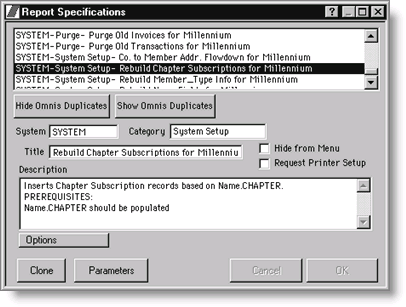
- Select Utilities > Report Specs.
- Select a report from the SYSTEM-System Setup group to clone.
- Click the Clone button.
- Enter a System, Category, Title and Description.
- Click the Parameters button.
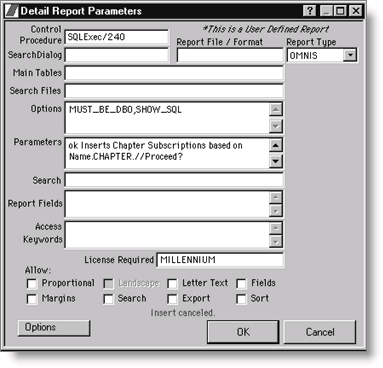
- Enter SQLExec/240 in the Control Procedure box.
- Enter MUST_BE_DBO,SHOW_SQL in the Options box.
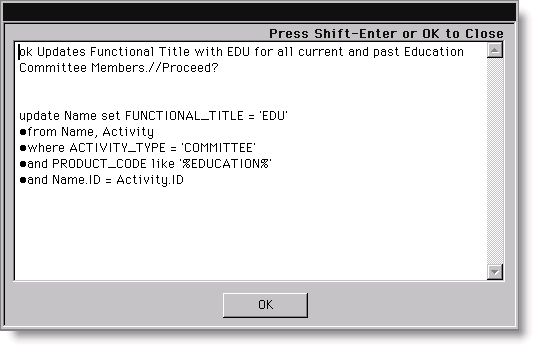
- Substitute the script in the Parameters box on the Detail Report Parameters window
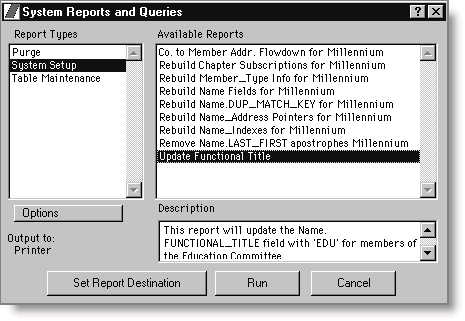
- Click OK to accept the changes. You can now execute the script from the Utilities > Reports & Queries window from within iMIS.
- Click Run to execute the command. iMIS prompts you to confirm the action Updates Functional Title.
- Click Yes to execute the script.
Note: Place your cursor in the Parameters box and press CTRL+Z or click the Zoom button to open the parameters window.