Chapter Selection window
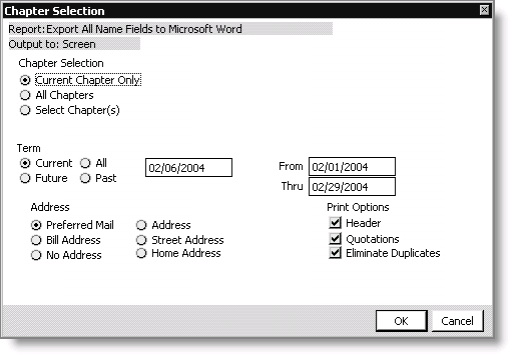
When you select a report and click Run, the Chapter Selection window opens. Use this window to customize your report by specifying the records to include by chapter and/or the term of the enrollments. The options in the Chapter Selection window include the following:
Chapter Selection
- Current Chapter Only - Select to include information for the current chapter only.
- All Chapters - Select to include information for all chapters.
- Select Chapter(s) - Select to specify the chapter to include in the report. When you enable this option, a text box opens allowing you to enter the name of the chapter. You can also use the lookup icon to select a chapter.
Term
- Current - Select to include only those members whose term includes the Effective Date.
- All - Select to include all chapter enrollments.
- Future - Select to include only future chapter enrollments.
- Past - Select to include only enrollments that have expired.
Effective Date
Enter a date from which to report. Reports will generate only for dates on and after that entered in the Effective Date field. Defaults to the current date. You can override this value.
From
Enter a beginning date.
Thru
Enter an ending date.
Address
- Preferred Mail - Select to select all customer records in the database.
- Address - Select to select all customer records with a customer type of Member.
- Bill Address - Select to select all customer records with a customer type other than Member.
- Street Address - Select to select all customer records for one or more customer types regardless of the Paid Thru date.
- No Address - Select to access other search formats to further define your record selections.
- Home Address
Print Options
The selections in the third column allow you to further define the records selected in the second column by restricting the records by their Paid Thru date:
- Header - Select to select all customer records regardless of their Paid Thru date.
- Quotations - Select to select only those customers who have a Paid Thru date that is equal to or after the date displayed in the Effective Date field.
- Eliminate Duplicates - Select to select only those customers who have a Paid Thru date that is before the date displayed in the Effective Date field.