Executive reports window
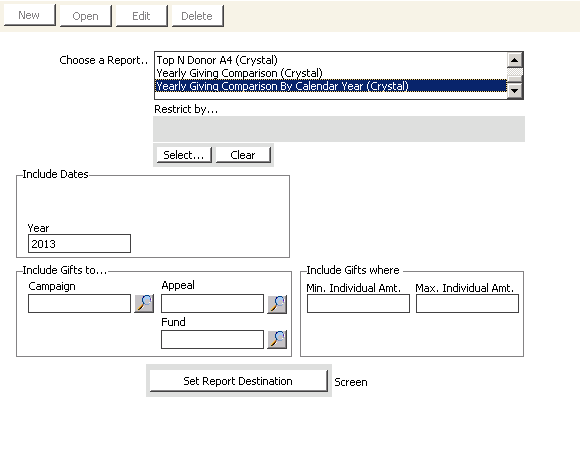
Choose a Report
This area contains a scrolling list of all reports available from the Generate executive reports window. For each available report displayed in this area, you can select either a detail or summary report by enabling either the Detail or Summary option.
- Pledge - Select this report to generate either a detail or summary report of all pledges entered. Subtotal the report by sorting on any of the options in the Sort & Summarize by area of the window except Donor Club and Meeting. The report lists the amounts pledged and paid as well as balances remaining. Search on Member ID, All Members, Member Type, Solicitor ID, Fund, Campaign, Appeal, and Transaction Date.
- Giving - Select this report to generate either a detail or summary report of all gifts and pledge/installment payments. Subtotal the report by sorting on any of the options in the Sort & Summarize by area of the window except Donor Club and Meeting. Search on Member ID, All Members, Member Type, Solicitor ID, Fund, Campaign, Appeal, and Transaction Date.
- Prev/Curr Period - Select this report to generate a detail or summary list of gifts given per user-selected sort, comparing these amounts between two defined time periods. These reports show the difference in amounts and the percentage of change, with single gifts and pledges broken down by fund. To run the Prev/Curr Period report, you must enter values in the Comparison to Previous Period From and Thru date fields.
- Donor Club - The Donor Club Detail (lndscape) report allows you to generate a list of all individuals who have attained a donor club, subtotaled by individual donor clubs with a total of all donor clubs achieved. The report displays the date the donor club was achieved and the Solicitor, Donor, List As, Fund, Campaign, and Appeal associated with each donor club. Subtotal the report by sorting on any of the options in the Sort and Summarize by area except Meeting and Donor Club. Search on Member ID, All Members, Member Type, Solicitor ID, Fund, Campaign, Appeal, and Transaction Date. The solicitor is determined by the solicitor specified in the Solicitor field on the Donor Data tab on the Manage customers window (from Customers, select Manage customers, open a customer record, and select the Donor Data tab) rather than the solicitor specified in the Solicitor field on the Enter and edit gifts window (from Fundraising, select Enter and edit gifts).
- The Donor Club Summary report lists only the fund, campaign, and appeal codes for each specified donor club. The solicitor is determined by the solicitor specified in the Solicitor field on the Donor Data tab on the Manage customers window rather than the solicitor specified in the Solicitor field on the Enter and edit gifts window. Selecting the Summary option allows you to generate a list of all donor clubs achieved. Subtotal the report by sorting on any of the options in the Sort & Summarize by area of the window except Meeting and Donor Club. Search on Member ID, All Members, Member Type, Solicitor ID, Fund, Campaign, Appeal, and Transaction Date.
Sort & Summarize by
Select from the following options to sort and summarize your report:
- Date - Subtotal your report by sorting by date or date range. The date cannot be selected for Prev/Curr Period reports.
- Fund - Subtotal your report by sorting on Fund. This sorting option is available for all applicable reports.
- Campaign - Subtotal your report by sorting on Campaign. This sorting option is available for all applicable reports.
- Appeal - Subtotal your report by sorting on Appeal. This sorting option is available for all applicable reports.
- Member Number - Subtotal your report by sorting on the donor's customer ID. This sorting option is available for all applicable reports.
- Solicitor - Subtotal your report by sorting on solicitor. This sorting option is available for all applicable reports. In all reports except for the Donor Club reports, the solicitor entered in the Solicitor field on the Enter and edit gifts window restricts each report. The Donor Club reports search on the solicitor entered in the Solicitor field on the Donor Data tab on the Manage customers window.
- Donor Club - Subtotal your report by sorting on donor club. This sorting option works only for Donor Club Detail and Donor Club Summary reports.
- Meeting - Subtotals report by sorting on events. This sorting option is available only for Donor Club reports.
Restrict by
There are several options in this area of the window for restricting report output.
Member - Enter the customer ID for the report, or click the lookup icon to select an ID.
Select - (optional) Lets you open the Member/Contact Selections window to select customer type options for setting your report parameters. All is the default. You can select from one of the following options:
- All (all customer types)
- Members
- Non Members
- Specific Types
- All (all company and individual customers)
- Company Only
- Individual Only
Note: If you select the Specific Types field, a blank field displays where you can enter one or more customer types (to enter multiple customer types, enter a comma (but no space) between customer types).
Clear - Lets you clear the values entered on the Member/Contact Selections window.
Solicitor
(optional) Enter the customer ID of the solicitor associated with the report, or click the lookup icon to select an ID.
Gifts To
Enter an Appeal, Campaign, and Fund for your report in these fields. You can click the lookup icon to select an appeal, campaign, or fund code. For all reports except Donor Club reports, the Appeal, Campaign, and Fund are determined by the information that was entered in the Appeal, Campaign, and Fund fields on the Enter and edit gifts window (from Fundraising, select Enter and edit gifts).
Date
Enter the beginning date for the reporting period. The system searches on the actual transaction date for all reports except for Prev/Curr Period reports.
Thru
Enter the report ending date.
Comparison to Previous Period
The following fields and options are used in conjunction with the Prev/Curr Period reports:
- From - Enter the beginning date of the previous comparison period.
- Thru - Enter the ending date of the previous comparison period.
- All - Enable to print all records for the specified time period. This is the default value.
- Lapsed - Enable to print a record with subtotals that have previous amounts and zero current period amounts.
- Decreased by - Enable to print records with a specified subtotal where the percentage change is equal to (=) or less than (<) the percentage specified in the Percent field.
- New - Enable to print only records with subtotals in the current period and zero amounts in previous time periods.
- Increased by - Enable to print only records with a specified subtotal where the percentage change is equal to (=) or greater than (>) the percentage specified in the Percent field.
- Percent - Enter the percentage for a Decreased by or Increased by comparison.
Detail
Enable to specify a detail report.
Summary
Enable to specify a summary report.
Set Report Destination
Opens the Set report destination window to set the report output destination. The initial default output device is Printer. You can change the default output device and save this setting (select File > Report Destination, select the desired default output device, and click Save) so that the desired default output device is selected each time you start iMIS.
Note: Set the report destination to Screen to avoid the unnecessary printing of reports.
Note: To print the report, from the Report Destination window select the Printer option rather than printing the report from the screen. The printed reports will not align exactly as they appear on the screen if you print them from the screen; printing from the Printer option will prevent this problem.
To generate reports in the Generate executive reports window
- From Executive reports, click New.
- From Choose a Report, select a report.
- Select the search options for the report. The options available vary based on the report selected.
- Click Run.
To upgrade a cloned Fundraising Profile Crystal report
If you cloned a Fundraising Profile Crystal report for use in a previous iMIS release, make sure you add the date range parameters to the cloned report description, or the report will not print - from the Fundraising History window or any location in iMIS. (The standard Fundraising Profile Crystal report specification file is updated automatically when you upgrade to iMIS 10.5. You need to manually update this type of report specification file only if you created a clone and saved it with a customized name or location.)
To add date range parameters manually to a cloned Fundraising Profile Crystal report specification file, use the following steps.
- Select Utilities > Report Specs.
- In the Report Specifications window, select the cloned Fundraising Profile Crystal report from the list, then click Parameters.
- In the Detail Report Parameters window, click Edit, then click Crystal Params.
- In the Crystal Parameters window, add the new parameters:
- BeginDate - Select Insert. In Parameter Name, enter BeginDate. In Variable Name (or String), enter RV.BeginDate.
- EndDate - Select Insert. In Parameter Name, enter EndDate. In Variable Name (or String), enter RV.EndDate.
- Click OK in the Crystal Parameters window.
- Click Save in the Detail Report Parameters window.
- Close the Detail Report Parameters and the Report Specifications windows.