Making a purchase
For yourself or on behalf of another contact, you can browse and search for specific Products and view your Cart, or the Cart of another contact.
Note: If you have opened a contact record, you can click the name of the product and proceed through the purchasing process to checkout.
 Searching for a product
From the Staff site, select Find products.
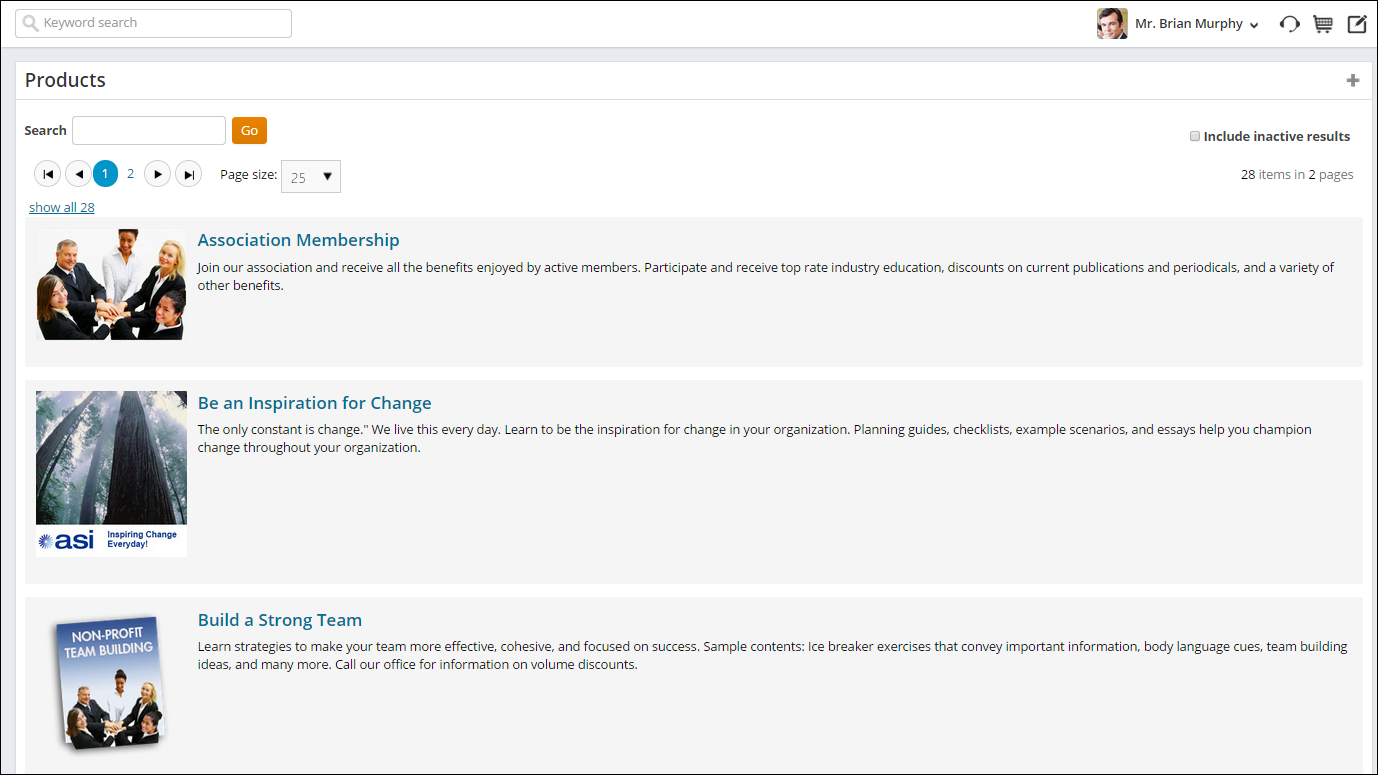
Tips:
- Capitalization does not affect search results.
- Products are searched by name, the first 300 characters of the description, and attributes, such as color or size.
No search results?
- Search terms must be three or more characters long.
- In some cases, searched terms may exist outside of your 300-character product description. To improve search results, simply enter additional terms.
Using the cart
From the Staff site, Find products allows you to view, add, and remove products.
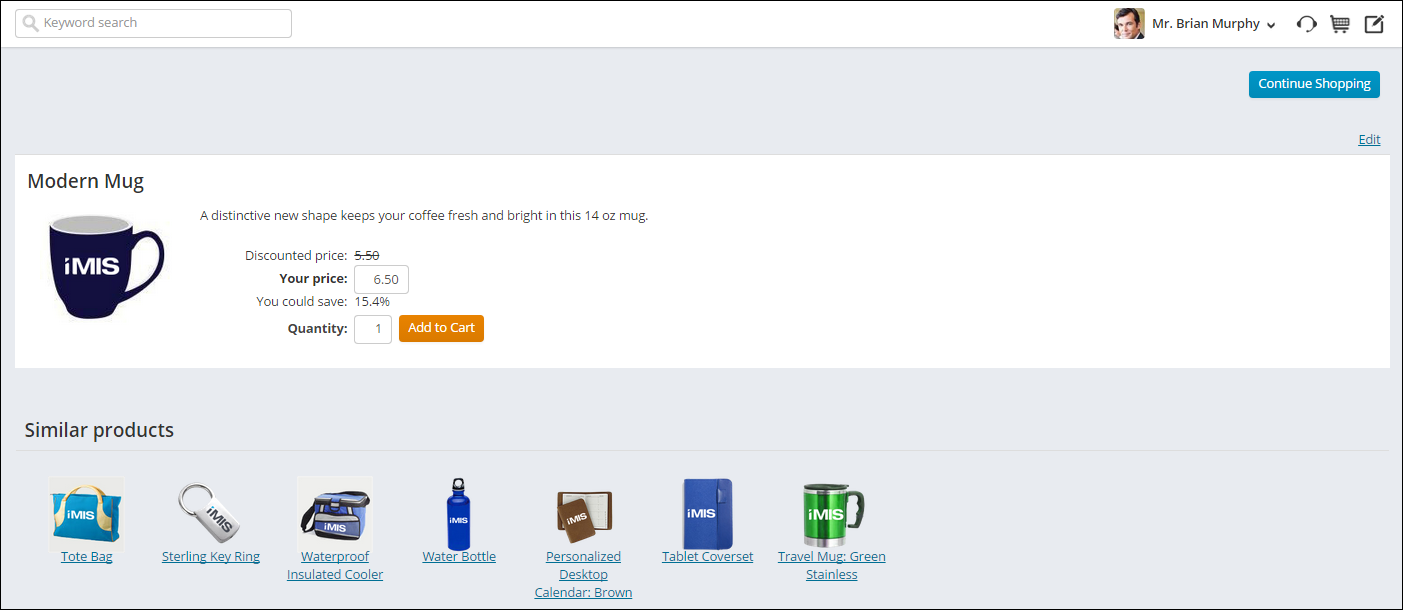
- Search or Browse for the product.
- Select the product in the product listing.
- From the product details page, select Add to Cart.
- When you are finished selecting products you can checkout. iMIS will guide you through the rest of the purchasing process.
- From the Cart page, you can adjust the quantity of or remove products from the cart.
- From the Ship To section, you can select a Shipping To and Shipping Method. You may choose another address if desired.
- From the Payment Details section, enter your payment details. You may select a billing address that is different from your shipping address.
Note: The Shipping Details section does not display if you are purchasing an event registration or billing product or submitting a donation. An item is only considered shippable if its Item Class, which is selected on the Summary tab when adding or editing a product on the Staff site, begins with “SALES-”.
- Submit Order.
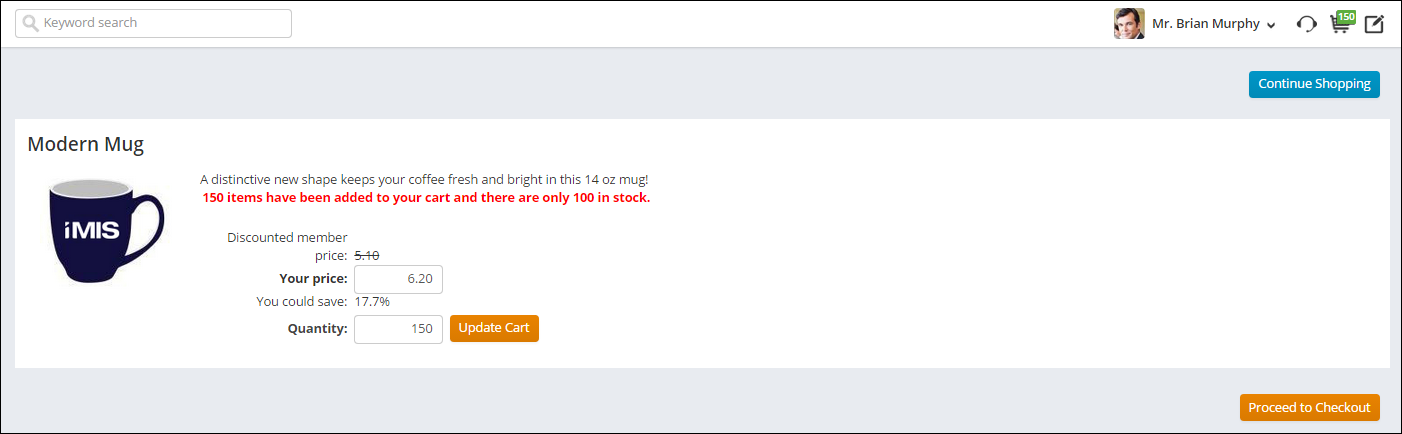
Note: If an item is out of stock, as a staff user logged on as yourself or On Behalf Of someone else, you can disregard the “This item is out of stock” error and continue to enter your desired Quantity. At checkout, you will see the message “Your cart contains errors. Click submit to proceed.” Simply Proceed & Submit, or Continue Shopping.