Manage batches window
This window displays a table of the batches that are available to you and the commands for editing and managing them. The authorizations(see Authorization level privileges (Desktop)) and credentials of each user record (see Creating iMIS user records) control what aspects of this feature can be seen and used.
Note: The batches that are available to you depend upon the authorization level assigned to your login, and the batch control options that the administrator has selected for your site.
Note: The Manage batches and Open Batches windows are equivalent. The Manage batches window appears only in AR/Cash. The Open Batches window appears when (a) you are in an iMIS module other than AR/Cash and (b) no open batch is selected when you attempt to enter or edit a transaction.
Note: System-generated batches are designed to be posted unmodified. When you edit a system-generated batch, or add transactions to a system-generated batch, you must designate a cash account for the batch before your changes can be saved, and before the batch is posted.
Note: Window items that are self-explanatory for the typical users of this window are not described.
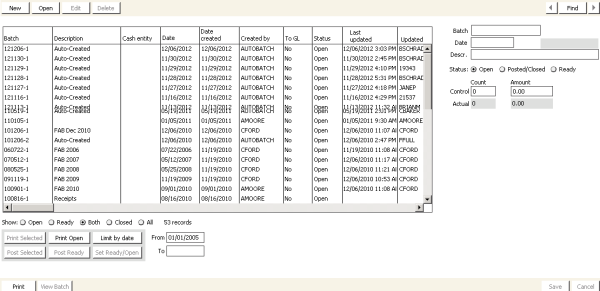
Batch table
This table displays the batches that are available to you. You can sort the batch table by clicking on the column headings. The batch table includes these columns:
- Date - Specifies the transaction date of the batch.
- Date created - Specifies the date that the batch was created.
- To GL - Specifies whether at least one transaction in the batch has been exported to the General Ledger.
- Last updated - Specifies the last date that a change was made to the batch status or transactions in the batch.
- Meeting - (if enabled) Specifies whether the batch is closed when the corresponding meeting is closed.
If the table contains too many batches to view easily, filter the table with the display controls.
Batch table display controls
- Both - Displays both open and ready batches
- Closed - (if enabled) Displays only closed/posted batches
- All - (if enabled) Displays all of the batches that are available to you
- Limit by date - Displays only batches with creation dates that fall between the dates in the From and To fields
Batch controls
- Print Open - Prints a transaction report for all open batches
- Post Selected - Posts the selected batch
- Post Ready - Posts all ready batches
- Set Ready/Open - Changes the status of the selected batch from open to ready, or from ready to open
- View Batch - Displays the Batch window, which remains open in the area below the task list when you switch to different iMIS modules.
Note: To post a batch, the sum of all transaction debits in the batch must equal all transaction credits. In addition, your login must have an authorization level of 4 or higher.
Batch creation/editing
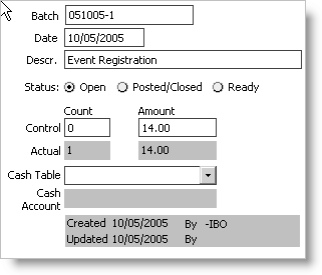
- Batch - (read-only, unless batch auto-numbering is not enabled) The unique identifier of this batch. (if no auto-numbering) For new batches, you must specify this identifier (maximum: 15 characters).
- Date - The accounting date of all transactions in this batch. For new batches, the default is the current system date.
- Descr - The description of this batch (maximum: 60 characters).
- Status - (read-only, except authorization level 8) The status of this batch.
- Open - Entry/editing/balancing of data is in progress. Authorized users are allowed to add or modify transactions in this batch, and to change the status to Ready.
- Posted/closed - All entry/editing/balancing of data is finalized. No users are allowed to modify transactions in this batch but authorized users can change its status to Open or Ready.
- Ready - Temporary transition between Open and Posted/closed. A batch should only be marked Ready if it is balanced and ready for posting individually or in a group. No users are allowed to modify transactions in this batch but authorized users can change its status to Open or Posted/closed.
- Control Count - The maximum number of transactions this batch can contain.
- Actual Count - (read-only) The current number of transactions in this batch.
- Control Amount - The total value of cash receipts or deposits that can apply to this batch. This enables you to validate the batch balance after data entry.
- Actual Amount - (read-only) The current total value of all transactions in this batch. As you enter transactions, the system keeps an internal count of accumulated transactions.
- Cash Table - (read-only) The cash account code to which all cash receipts in this batch are assigned.
- Cash Account - (read-only) The GL account associated with the selected Cash Table value.
Note: This field is required for all user-created batches, even if you only have one cash account, and even if you do not process any cash receipt transactions in this batch.
To create a new batch
- From Manage batches, click New.
- Enter the batch information.
- You must designate a cash account type in the Cash Table field before you can save a new batch.
- Click Save.