Last updated on: June 23, 2026
During the Mapping step, after completing mappings and selecting your options, select Schedule as Task.
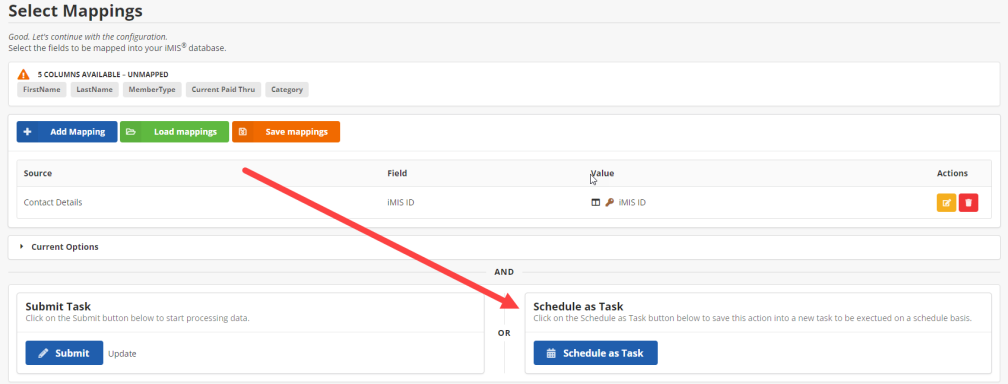
Creating or editing a Task Page
After clicking Schedule as Task or the Edit button on an existing task, you are taken to the Edit Task page. Do the following:
- (Required) Add a name for the scheduled task.
- (Optional) Add a description for the task.
- Determine the number of times a job can fail before being automatically disabled.
- The Crontab Schedule (UTC) enables you to schedule a task either as a one-time event or on a recurring basis.
- Disable or Enable your scheduled task:
- Click the Schedule Builder button on the right. This opens a dialog box like the one below.
- Click Recurring to schedule a task to run repeatedly on a set schedule.
- Click One-Time to schedule a task to run a single time.
- Once the schedule isset, click Save.
Note: By default, times are in UTC time.
The task appears in the Manage Tasks list. From here, view the listing.
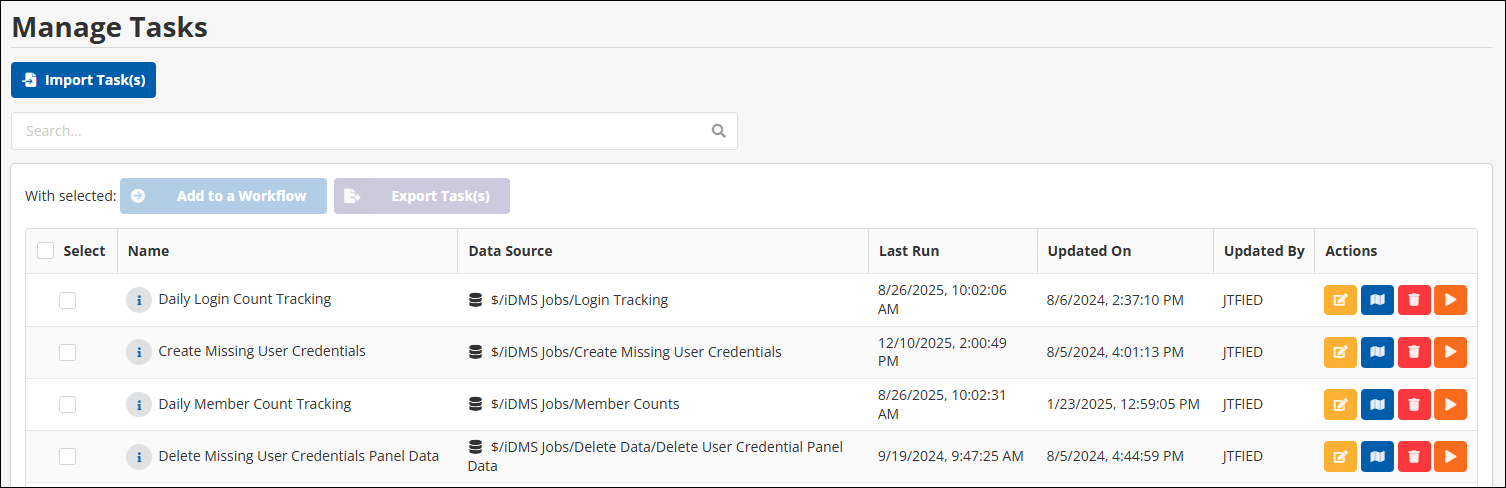
Note: You also have the ability to sort on the column headers. Sort by Name, Last Run, Updated By, and more.
The following actions are available:

- Edit Task Properties
- Edit Mappings
- Delete Task
- Run Task Now