Last updated on: June 19, 2026
QuickStart Template
Jobs board
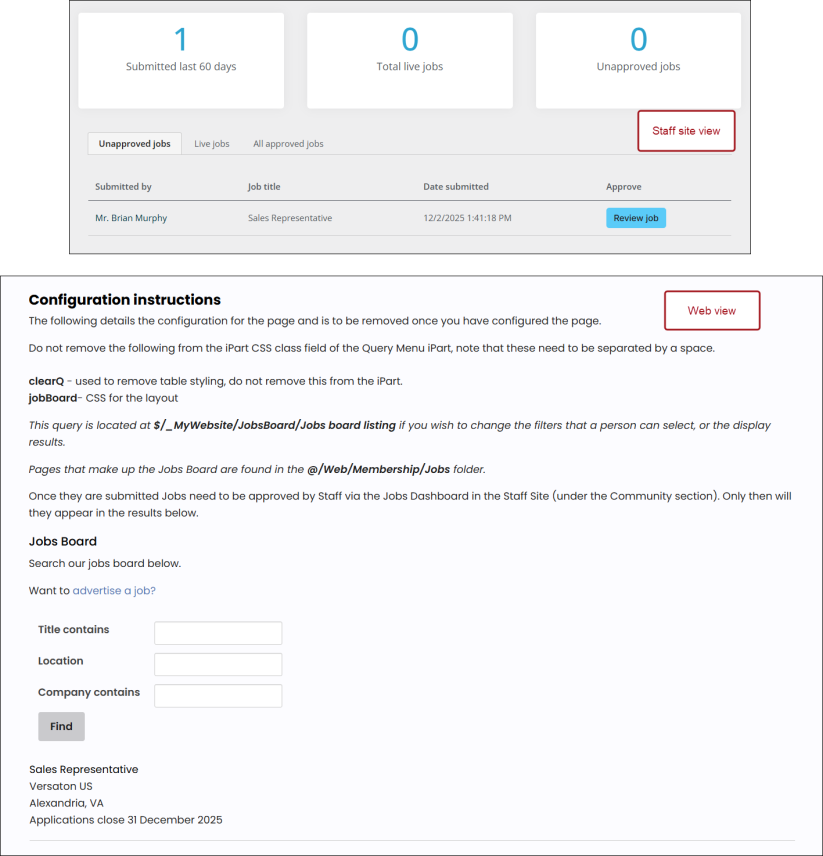
The Jobs Board feature allows your members or the public to submit job listings for inclusion on your website. The Staff site dashboard is where staff can manage and approve any submissions.
In This Article
- Creating a job listing
Approving job listings
Content Records
Site Navigation Items
Forms
Panels
Queries
Dynamic Group
Configuration
Creating a job listing
To create a job listing do the following:
- From the public Web site, go to QuickStart > Jobs Board.
- Scroll down and select the Want to advertise a job? link.
- Fill in the following fields:
- Company name
- Job Title
- Location of Job
- Description
- Close date
- Contact name
- (optional) Contact Email
- (optional) Website
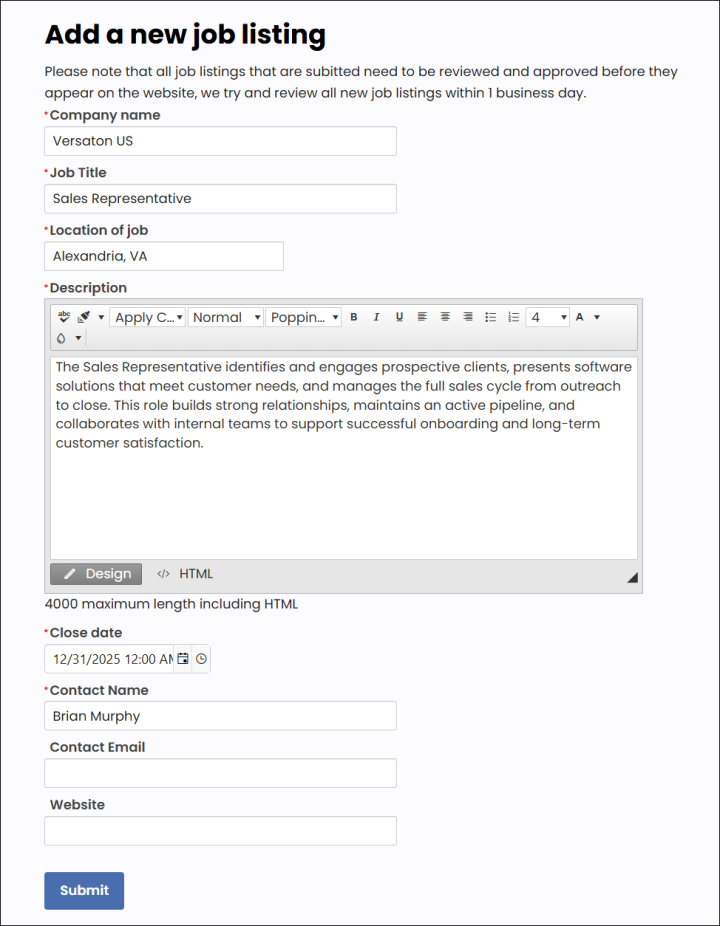
- Click Submit.
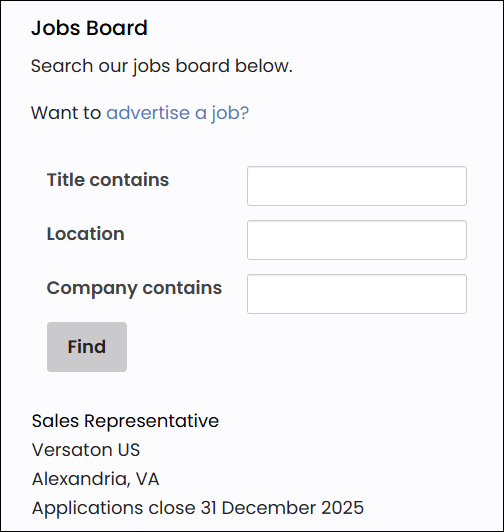
Once the job listing have been approved by a staff member, the live job can be seen on the Jobs Board.
Approving job listings
Staff must approve any submitted job listings before they can be publicly viewed. Do the following:
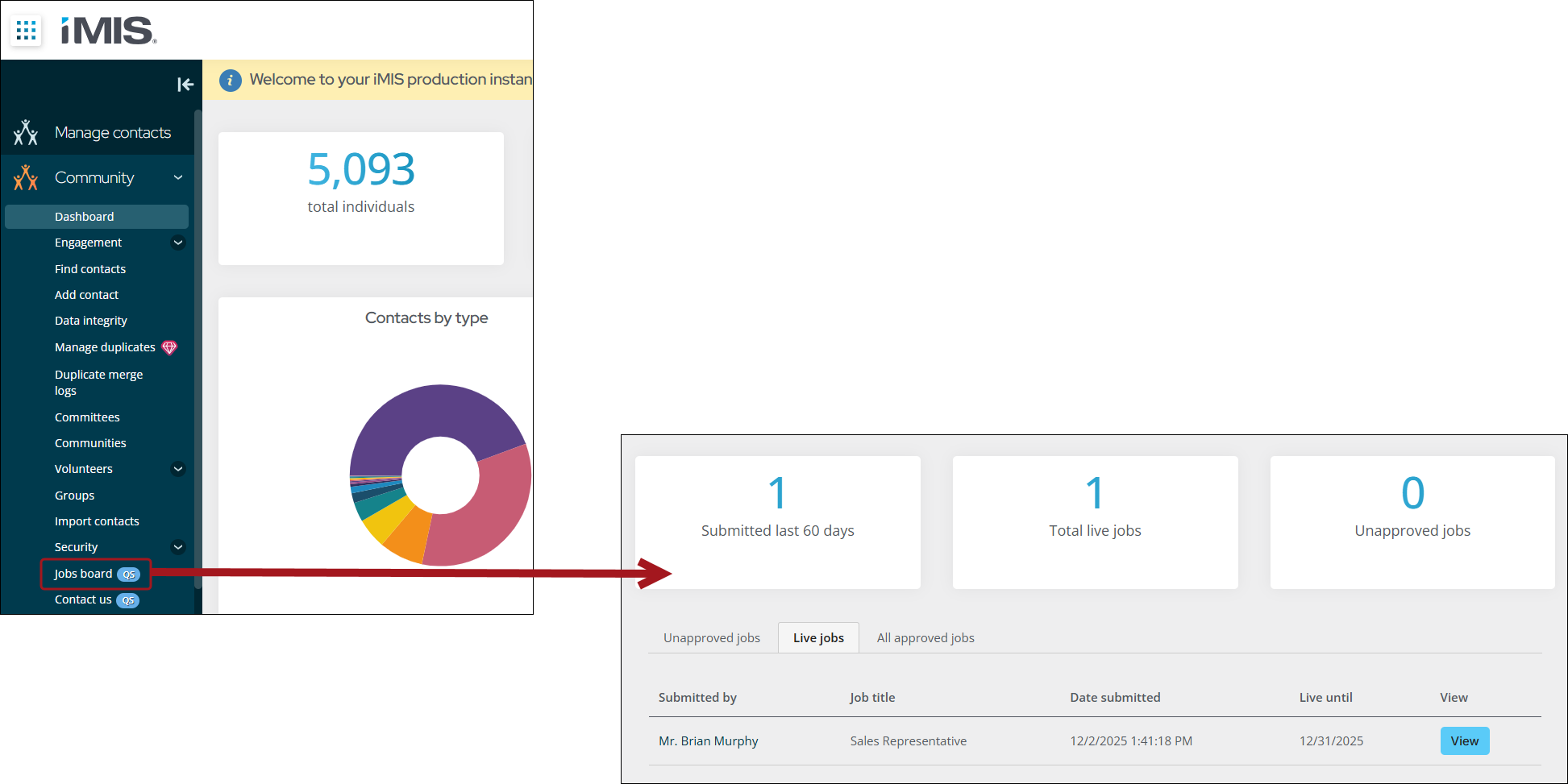
- From the Staff site, go to Community > Jobs board.
- From the Unapproved jobs tab, click Review job in the Approve column of the submitted listing.
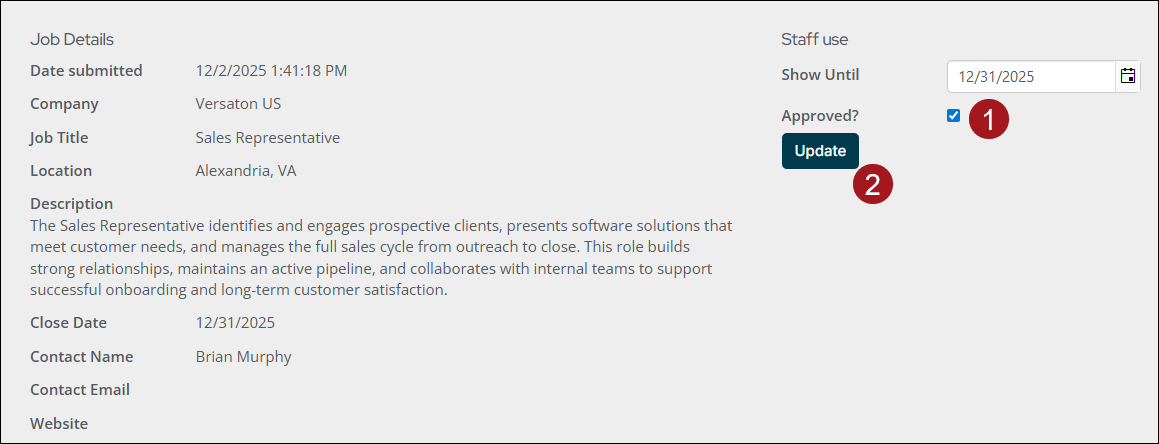
- Review the details of the listing.
- (optional) Enter a Show Until date.
- Enable the Approved? option, then click Update.
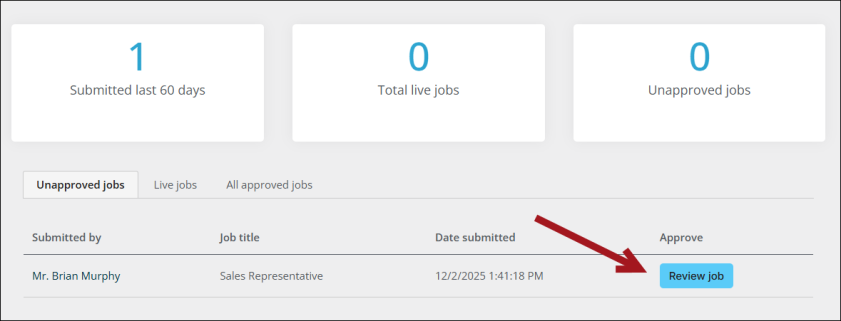
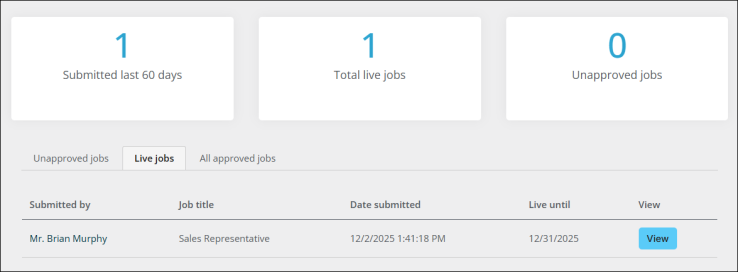
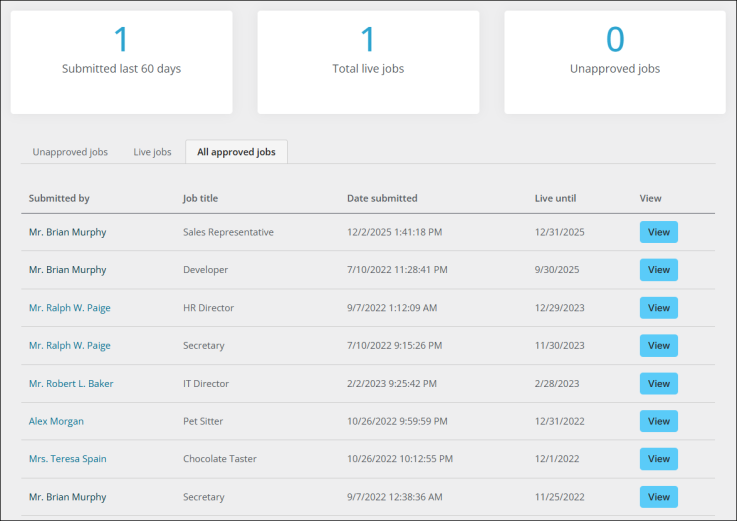
Once approved, the listing can be viewed and edited from either the Live jobs or All approved jobs tab.
Content Records
The following content records are available to manage the Jobs Board:
| Name | Location | Use |
|---|---|---|
| Public pages | ||
| Jobs Board | @/Web/Membership/Jobs | Includes a link to the Web - Add new job form to submit a job listing. Lists all current approved jobs, including their title, organization, location, and when applications close. The title links to the job details page for that listing. |
| Job Details | Displays the details of a job. | |
| Submit a Job | Displays the form to submit a job listing. | |
| Thanks for submitting | Displays after the user submits the job listing to thank them for their submission. | |
| My Jobs | @/Web/ContactManagement/Individuals/Tabs | Out-of-the-box, this content record does not include any information. Configure as required. |
| Staff site pages | ||
| Approve a job | @/MyStaff/Dashboards/JobsBoard | Displays the Staff - Job approval form when clicking update or view from any tab in the content collection organizer. |
| Approved Jobs | Lists all jobs that have been approved. | |
| Currently live jobs | Lists all jobs currently live on the public website. | |
| Job board dashboard | Used to track and manage job listings. Includes progress trackers to see at a glance how many jobs have been submitted, are live, and need approval. | |
| Unapproved Jobs | Lists all job listings that have been submitted but not approved. | |
| Submitted Jobs | @/MyStaff/ContactManagement/Individuals/Tabs | Uses a panel to display jobs submitted by the contact and allows staff to update and approve jobs directly from the contact's account page. |
Site Navigation Items
The location of the Jobs Board depends on whether it is viewed from the Staff site, or the public facing Web site:
Web
- Site navigation: QuickStart > Jobs-Board
- Content record: @/Web/Membership/Jobs/Jobs-Board

Staff
- Site navigation: Community > Jobs-Board
- Content record: @/MyStaff/Dashboards/JobsBoard/Jobs_board_dashboard
Forms
The Jobs Board uses two forms located at RiSE > Form Builder > Form library > QuickStart tab:
- Web - Add new job – Used to submit a job listing for approval. When submitted, users are taken to the Thanks for submitting page.
- Staff - Job approval – Used by staff to approve a job listing and set the date it will display until.
Panels
The _MyStaff_JobsBoard panel (RiSE > Panel Designer > Panel definitions) is used on the Submitted Jobs tab of the Account_Page_Staff to display job listings a contact has submitted. Staff can easily edit and approve the job from the contact’s account page. This panel is comprised of properties found in the My_JobsBoard panel source.
Queries
The following queries are used to display job listings on the public Web site, and the Staff site:
| Name | Location | Use |
|---|---|---|
| Jobs Board - Public Web site | ||
| Job details contact | $/_MyWebsite/JobsBoard | Displays who to contact regarding the job. Displayed using a query template. |
| Job details description | Displays the job description using a query menu content item. | |
| Job details title | Displays the job title, company, location, and closing date using a query template. | |
| Jobs board listing | Lists job postings with optional filters. Displayed using a query menu content item. | |
| Jobs Board Dashboard - Staff site | ||
| List - All approved job board submissions | $/_MySystem/StaffSite/Dashboards/JobsBoard | Lists all approved jobs. |
| List - Currently live jobs | Lists approved jobs with a show-until date greater than or equal to today. | |
| List - Unapproved job board submissions | Lists jobs submitted but not approved with a show-until date greater than or equal to today. | |
| Progress Tracker - Currently live jobs | Counts the number of current live jobs. | |
| Progress Tracker - Submitted jobs last 60 days | Counts the number of jobs submitted in the last 60 days. | |
| Progress Tracker - Unapproved jobs | Counts the number of unapproved jobs with a valid show-until date. | |
Dynamic Group
A Dynamic Group called Job Board Security Group (located at RiSE > Document System > $/_MySystem/Groups/Job Board Security Group) includes all contacts who have submitted a job. It is used to limit access to the My Jobs tab on a public profile to users who have submitted a job.

Configuration
The following configuration options are available to tailor the Jobs Board to your organization's needs:
- Thanks for submitting page – Update the text to suit your organization.
- Jobs Board Dashboard – Update the List - All approved job board submissions query to restrict jobs returned, such as filtering for jobs submitted in the last 3 months.
- My Jobs page – Configure to include details contacts should see about their submitted jobs using a panel definition or IQA displayed via a query menu content item or template.
- Jobs Board page – If using a Query Menu content item to display job listings, you can use the following CSS classes:
- clearQ – Removes table styling.
- jobBoard – Applies layout styling for the Jobs Board.