Last updated on: June 23, 2026
Central deployment for multiple users
Important! This guide applies only to Office 365 and Exchange administrators. If you are not an Office365 or Exchange administrator, see the end-user installation guide instead.
For information on Shared Mailboxes, see iMIS Outlook Integration User Installation.
Follow the instructions on this page to set up organization-wide (optional or mandatory) deployment of iMIS Outlook Integration.
Only complete this step once you have received your Cloud ID and set up your Cloud Dashboard.
Configuring the Add-in in Microsoft 365 Admin Center
To configure the iMIS Outlook Integration add-in in the Microsoft 365 Admin Center, do the following:
- Go to the Microsoft 365 Admin Center.
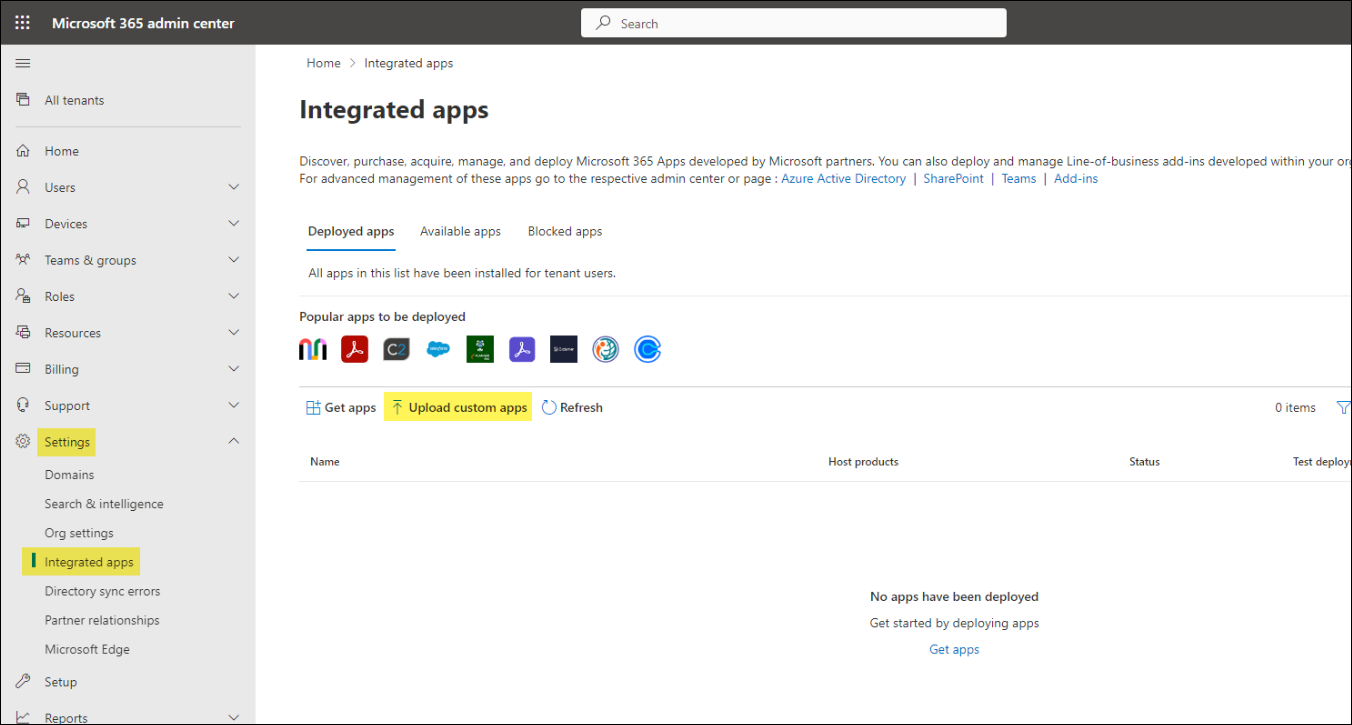
- Go to Settings > Integrated Apps.
- Click Upload custom apps.
- Change App type to Office Add-in.
- Select Provide a link to manifest file and paste
https://cdn.cloud.csiinc.com/officeapps/iemail.xmlinto the field. - Click Validate and ensure the response says Manifest file validated.
- Click Next.
- Decide how to deploy iMIS Outlook Integration to your organization by specifying Entire Organization or specifying certain Users or groups.
- On the Accept permissions requests screen, click Next.
- On the Review and finish deployment screen, verify the details are correct, and click Finish deployment.
The add-in is now installed for your organization.
Post-Deployment
Depending on the Deployment Method used, users will need to Add iMIS Outlook Integration to their Outlook after the deployment.
Do the following:
- Click on Add Apps.
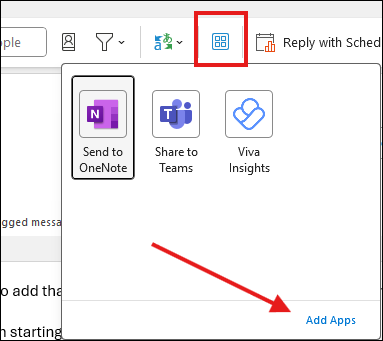
- Search for iEmail Cloud.
- Select Add to add it to Outlook.