Last updated on: June 23, 2026
Configuring attachments for the iMIS Outlook Integration
Attachment support in the iMIS Outlook Integration requires additional configuration using a Microsoft Entra (Azure AD) app registration.
Unlike standard email data (subject, body, recipients), attachments are not accessible through the same APIs. Microsoft requires a separate authorization model to securely access mailbox content such as attachments. As a result, administrators must configure an Entra app to grant the integration permission to retrieve and store attachments.
Without this configuration:
- Emails can still be saved to iMIS
- Attachments will not be included
Understanding how the attachment integration works
The Outlook Integration uses a cloud-based service to send email data from Outlook to iMIS. When attachments are included, an additional step is required:
- The Outlook add-in captures the email and attachment metadata.
- The integration service requests attachment content from Microsoft 365.
- Microsoft Graph API validates the request through the Entra app.
- If authorized, the attachment is retrieved and saved to iMIS.
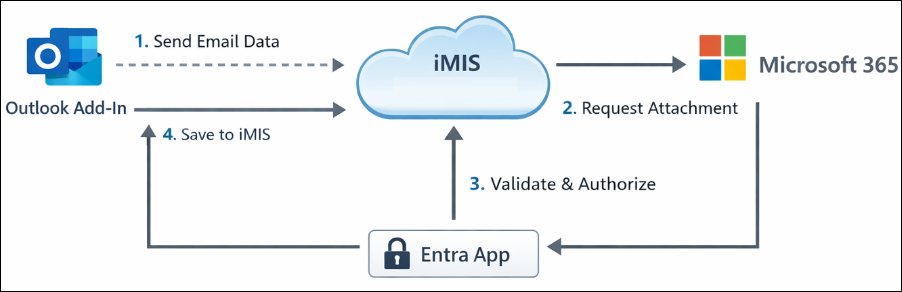
Because attachments involve direct access to mailbox content, Microsoft requires explicit API permissions through an Entra app registration. Microsoft has deprecated legacy APIs previously used for attachment access. The modern approach requires using Microsoft Graph with secure, tenant-controlled permissions.
The Entra app registration provides the following:
- Secure authentication between iMIS and Microsoft 365
- Explicit permission control over mailbox data access
- Admin consent enforcement to protect organizational data
This ensures the following:
- Only approved applications can access email attachments
- Access is limited to the permissions granted by your organization
Required permissions and security configurations
During setup, the Entra app must be configured with Microsoft Graph permissions.
Common required permissions
- Mail.Read – Allows the integration to read email content and attachments
- Mail.ReadWrite (optional) – Allows additional interaction with mailbox data
- Mail.Read.Shared (optional) – Required for shared mailboxes
Security considerations
- Permissions are delegated, meaning access is granted on behalf of the signed-in user
- Admin consent is required to approve these permissions across the organization
- The integration only accesses data necessary to:
- Retrieve attachments
- Associate them with iMIS records
Important! Only grant the minimum permissions required for your organization’s use case.
Updating the configuration
Important! This guide is intended for an IT administrator or MSP to complete. You must be a Microsoft Entra administrator or global administrator to complete these steps.
Select one of the guides that is most appropriate for you, depending on your familiarity with Microsoft Entra app registrations / enterprise applications and/or PowerShell.
- Easy difficulty: Microsoft Entra Console with Screenshots instructions
- Expert difficulty: PowerShell Script instructions
Finishing the iMIS Outlook Integration configuration
Once the Entra app registration is complete, the configuration must be finalized in the Cloud Dashboard.
To finish configuring iMIS Outlook Integration for attachments, do the following:
- Open the iMIS for Outlook in either Read or Compose mode.
- In the Menu drop-down, select Setup.
- Paste the Application ID into the Application (client) ID field.
- (optional) Paste the Authority URL into the Authority URL field.
- Click Save.

Note: The configuration’s default URL is https://login.microsoftonline.com/common/. See Microsoft documentation for the Authority URL for more information.
You may need to close and reopen iMIS Outlook Integration for the changes to take effect.
Validating the configuration
After completing setup, verify that attachments are working correctly.
Test the configuration
Do the following to test the configuration:
- Open an email in Outlook that includes an attachment.
- Use the Outlook Integration to save the email to iMIS.
- Open the saved activity or interaction in iMIS.
Confirm expected results
Do the following to confirm the expected results:
- The email is saved successfully.
- The attachment appears and can be downloaded.
- No attachment-related errors are displayed.