Last updated on: June 23, 2026
App Registration - Entra Console
Microsoft recently discontinued the legacy API that iMIS Outlook Integration used to access attachments. The replacement API requires that a domain administrator create and link an Entra App Registration for iMIS Outlook Integration. Follow this guide to set up app registration to a Microsoft Entra tenant using the Microsoft Entra console.
Important! You must be a Microsoft Entra administrator or global administrator to complete these steps.
1. Creating the app registration
To create the app registration, do the following:
- Go to the Microsoft Entra console.
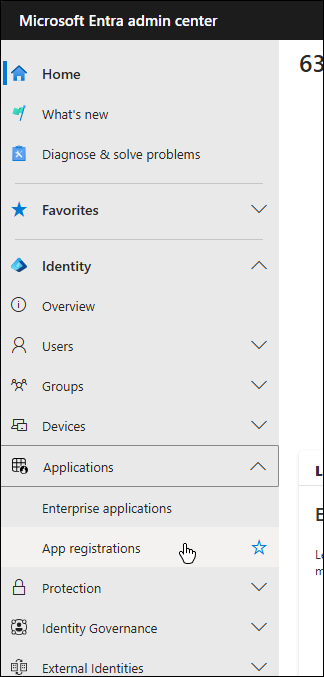
- In the left navigation, under Identity, select Applications > App registrations.
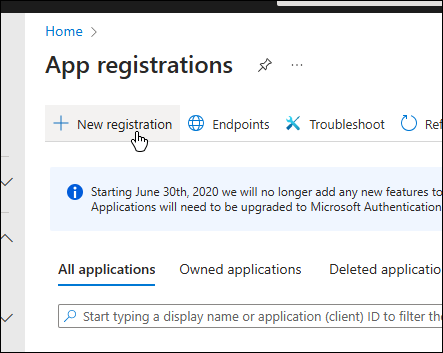
- Select + New registration.
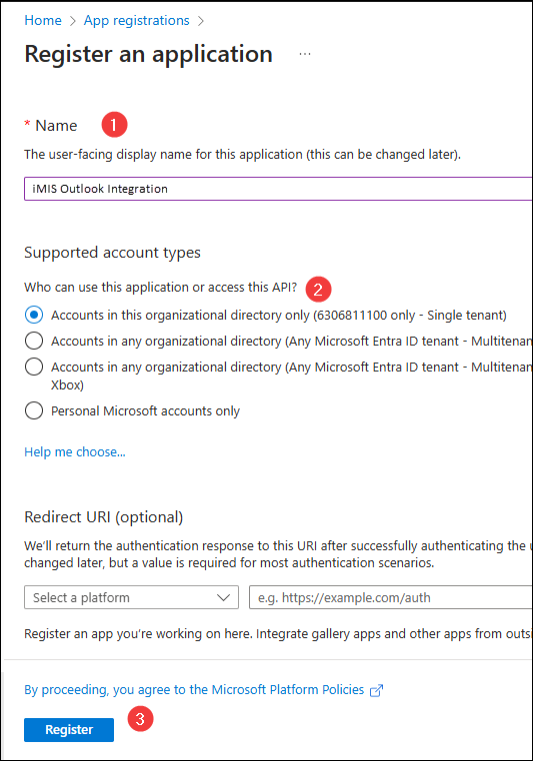
- Complete the application registration:
- Fill in a Name for the application.
- Select Accounts in this organizational directory only.
- Click Register.
2. Configuring platforms and redirect URIs
To configure platforms and redirect URIs, do the following:
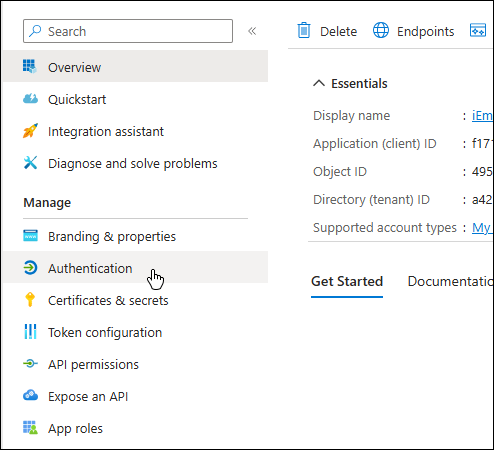
- In the new application, under Manage, select Authentication.
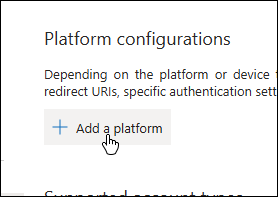
- Under Platform configurations, select + Add a platform.
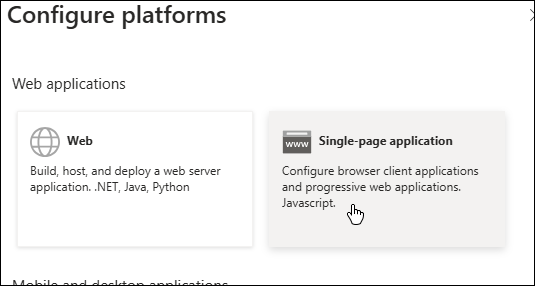
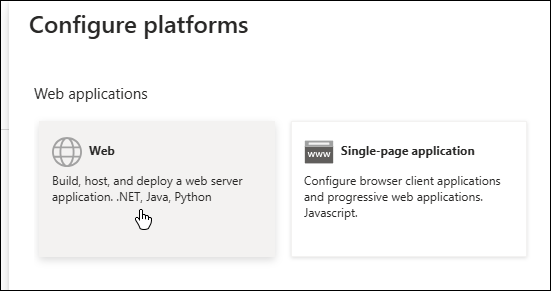
- In the menu that appears, select Single-page application.
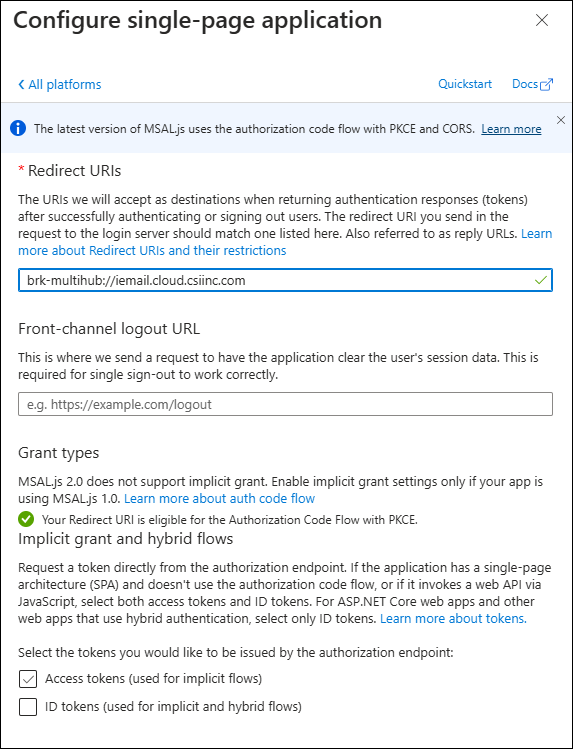
- Enter the following URL into the Redirect URIs field:
brk-multihub://iemail.cloud.csiinc.com. Leave the rest of the settings as they are. - Select the Configure button.
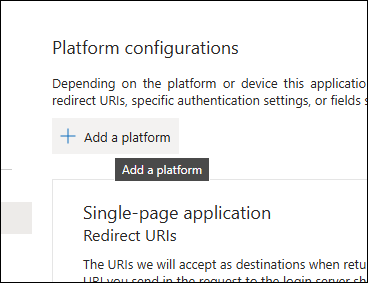
- Select the + Add a platform button.
- In the pop-up, select Web.
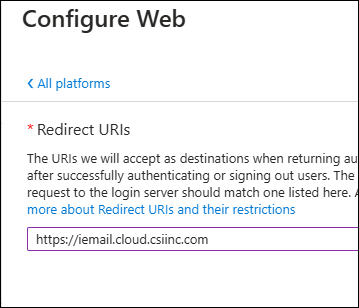
- Enter the following value into the Redirect URIs field:
https://iemail.cloud.csiinc.com - Select Configure.
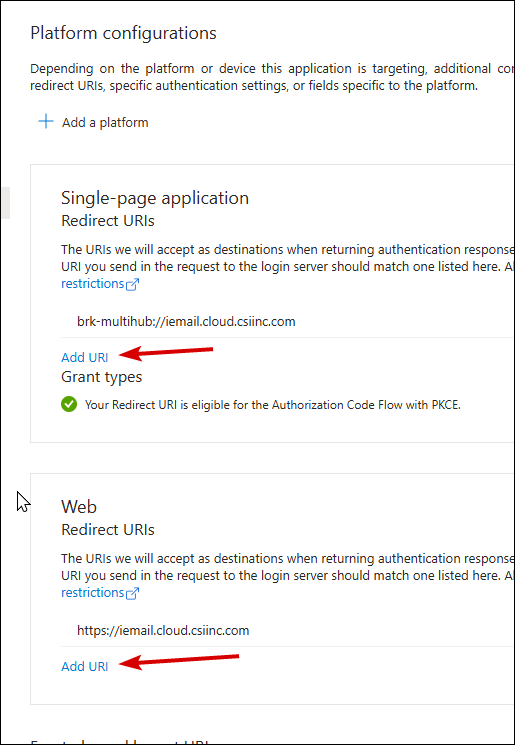
- Click Add URI for Single-page applications and add the following URIs:
brk-multihub://iemail-us.cloud.csiinc.combrk-multihub://iemail-ca.cloud.csiinc.combrk-multihub://iemail-ap.cloud.csiinc.com
- Click Add URI for Web and add the following URIs:
https://iemail-us.cloud.csiinc.comhttps://iemail-ca.cloud.csiinc.comhttps://iemail-ap.cloud.csiinc.com
- When finished, click Save.
Important! It is important to configure all of the URI endpoints. Even if you only operate iMIS Outlook Integration out of a specific region, it may still connect through another endpoint for users who are traveling. Adding these URIs does not mean that iMIS Outlook Integration establishes a connection through these regions, it only means that it is possible to. If your users never leave your preferred region (geographically speaking), then only that endpoint will be used.
3. Configuring API permissions
To configure API permissions, do the following:
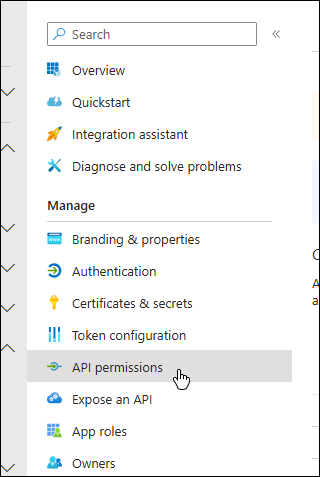
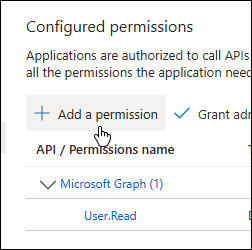
- In the left navigation, under Manage, select API permissions.
- Click + Add a permission
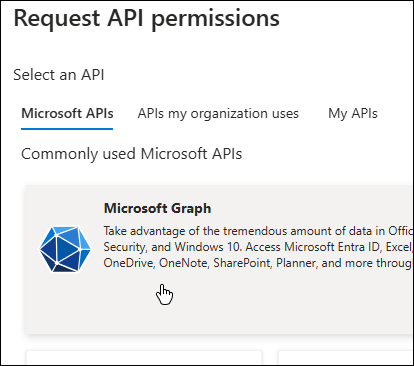
- Select Microsoft Graph.
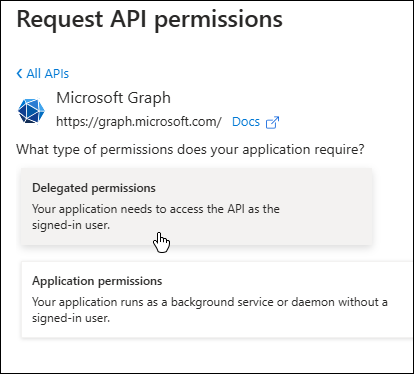
- Select Delegated permissions.
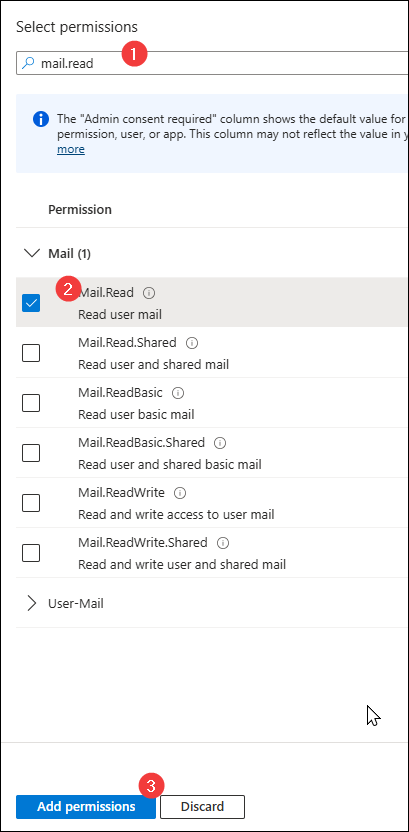
- In the search box, enter
mail.read. - Find the Mail.Read permission, select the checkbox next to it, then select the Add permissions button.
- (Optional) If the organization uses Shared Mailboxes, search for the Mail.Read.Shared permission, and fill in the Mail.Read.Shared checkbox, before clicking Add permissions.
- On the permissions screen, ensure that the screen contains User.Read and Mail.Read.
- Select the Grant admin consent for <My Organization Name> button.
- In the pop-up that appears, continue through the prompts to grant consent for your organization.
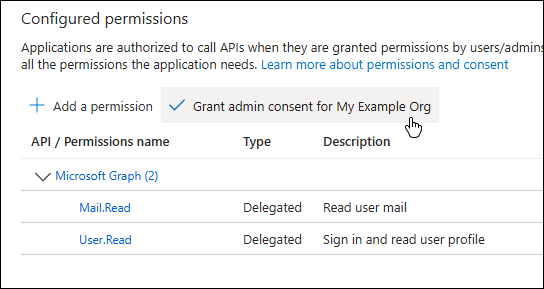
Important! This step is important – if not completed, every user of iMIS Outlook Integration will receive a pop-up asking if they want to proceed. This can lead to user confusion and frustration. Completing the Admin Consent flow on this page prevents the pop-up from occurring for end users.
4. Obtaining the Application (client) ID
To obtain the application ID, do the following:
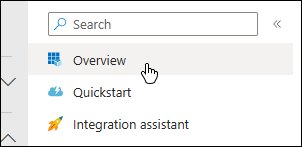
- Select the Overview option in the left navigation.
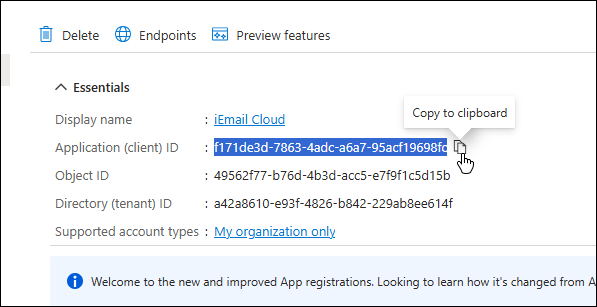
- Copy the Application (client) ID value.
5. Configuring iMIS Outlook Integration
Return to the iMIS Outlook Integration Attachment Configuration page to finish the setup