Last updated on: June 19, 2026
QuickStart Template
Committee listing
The QuickStart Template comes with a Board Committee Roster sample committee listing that shows all board members. This feature can be copied and modified to show any committee.

Editing the Board Committee Roster sample
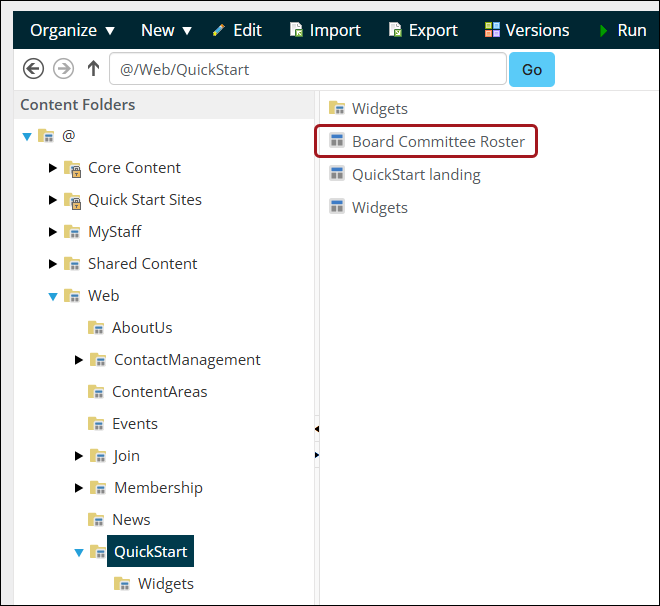
The sample committee listing page is located at @/Web/QuickStart/Board Committee Roster.
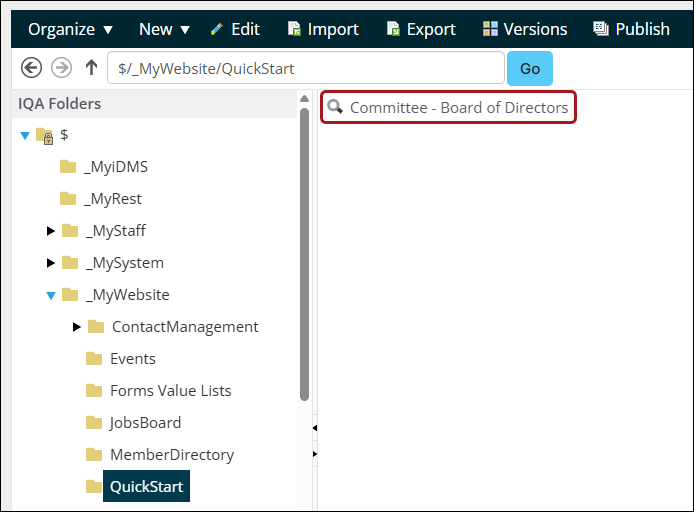
The Board Committee Roster content record uses the Board Query Template Dynamic Content Item to display the members of the Committee. The data and the template are defined in the Committee - Board of Directors IQA query, located at $/_MyWebsite/QuickStart/Committee - Board of Directors.
As a best practice, profile images uploaded against the contact record should be 200px x 200px for optimal display in the directory.
Creating an additional committee listing
To create an additional committee listing, do the following:
- Go to RiSE > Page Builder > Manage content.
- Copy the Board Committee Roster content record:
- Navigate through the following folder path: @/Web/QuickStart/Board Committee Roster
- Select the Board Committee Roster content record.
- Copy the Board Committee Roster (Organize > Copy).
- Navigate to a non-system folder, then paste the content record (Organize > Paste).
- Copy the Committee - Board of Directors IQA query:
- Go to RiSE > Intelligent Query Architect.
- Navigate through the following folder path: $/_MyWebsite/Quickstart.
- Open the Committee - Board of Directors IQA query.
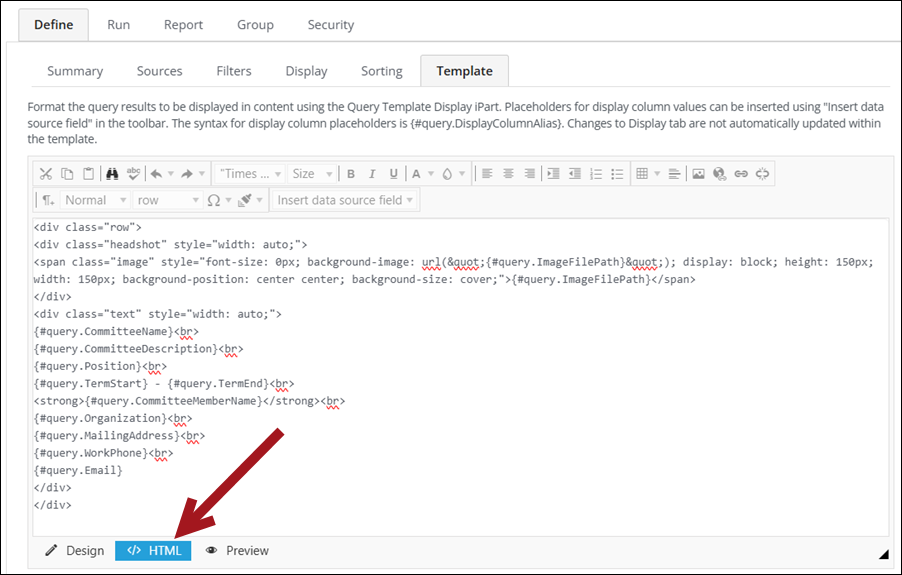
- (Template tab) On the content field, select HTML .
- Copy the text and keep it in Notepad or a similar program.
- Copy the Committee - Board of Directors query (Organize > Copy).
- Go to the desired destination folder.
- Paste the query (Organize > Paste).
- Open the copied record.
- (Template tab) On the content field, select HTML.
- Paste the previously-copied HTML text into the content field.
- Save the content record.
- Close the content record.
- Update the copied content record to use the copied query:
- Go to RiSE > Page Builder > Manage content.
- Find and open the copied content record.
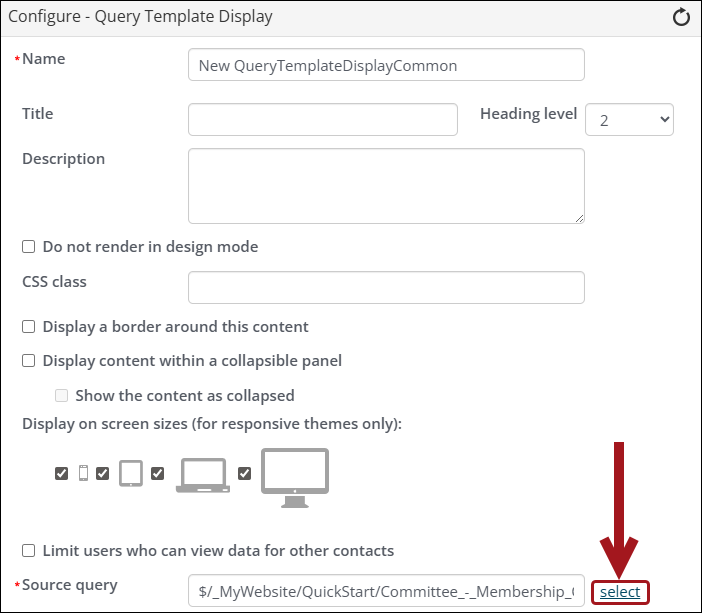
- From the Query Template Display content item, select Configure.
- From the Source query field, select the copied query.
- Click OK.
- Click Save & Publish.

- Add the new committee roster to the public site:
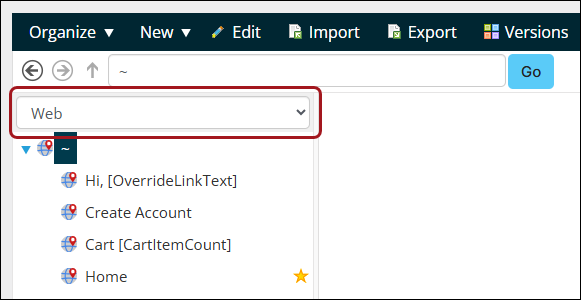
- Go to RiSE > Site Builder > Manage sitemaps.
- Be sure that the public site is selected from the site drop-down.
- From the folder navigation, go to QuickStart/Directories.
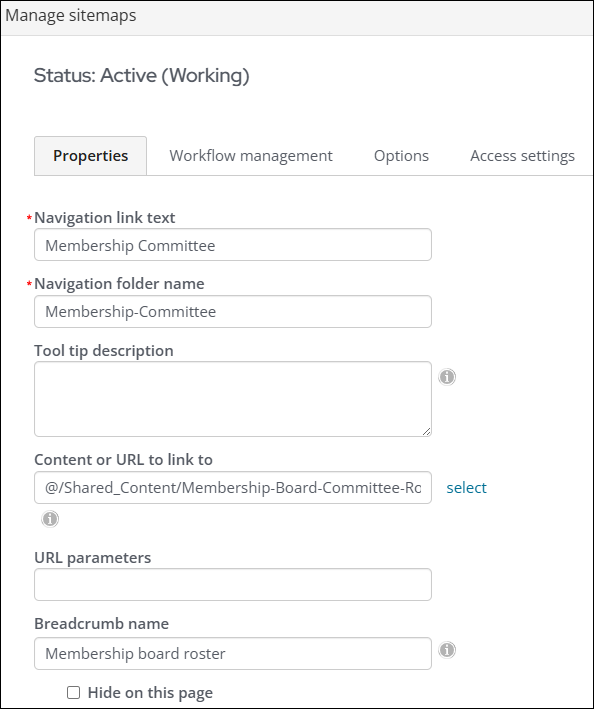
- Create a new website navigation item (New > Website Navigation Item).
- Fill in the following details:
- Navigation link text - The name of the navigation link.
- Navigation folder name - The name of the navigation folder, delineated by hyphens.
- Content or URL to link to - Select the copied content record.
- (optional) Breadcrumb name - The name that appears in the breadcrumb menu on the public site.
- Click Save.
- Click Publish.
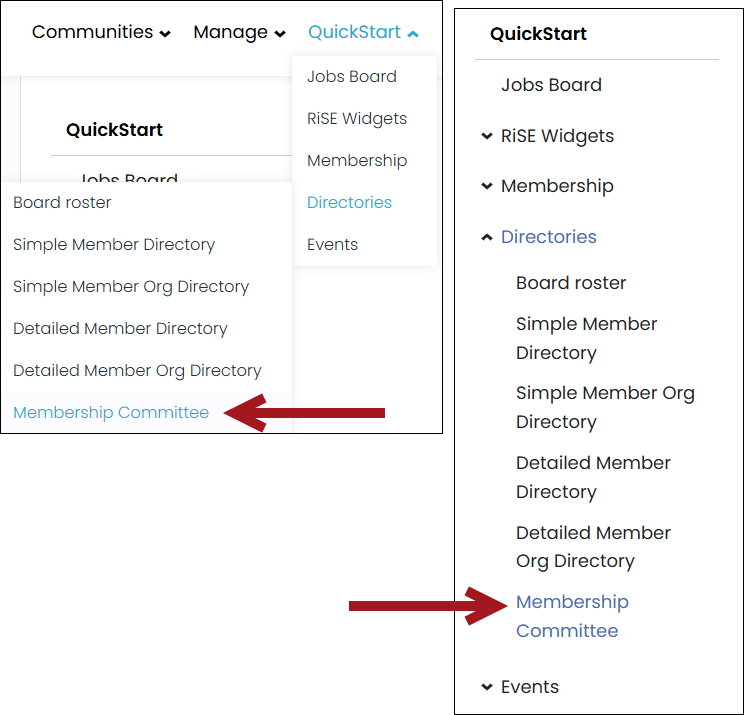
The new committee roster appears in the public site drop-down navigation and in the breadcrumb navigation.
Changing the displayed committee
To change the committee that the Board Committee Roster displays, do the following:
- Go to RiSE > Intelligent Query Architect.
- Navigate through the following folder path: $/_MyWebsite/QuickStart.
- Open the Committee - Board of Directors content record.
- Update the filter on the query to show the new committee:
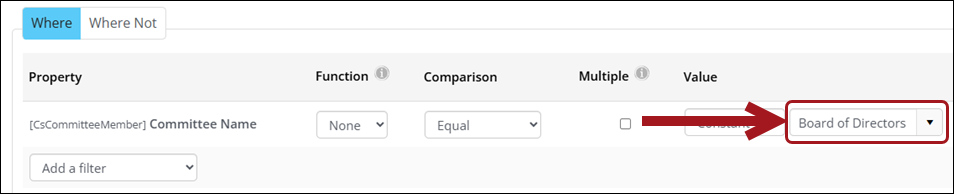
- (Filters tab) From the Value drop-down for [CsCommitteeMember] Committee Name, select the new committee.
- Click Save.
The new committee appears on the public site's Committee Roster page.