Last updated on: June 18, 2026
The iWorkflow Dashboard allows staff users to browse all workflows in iWorkflow.
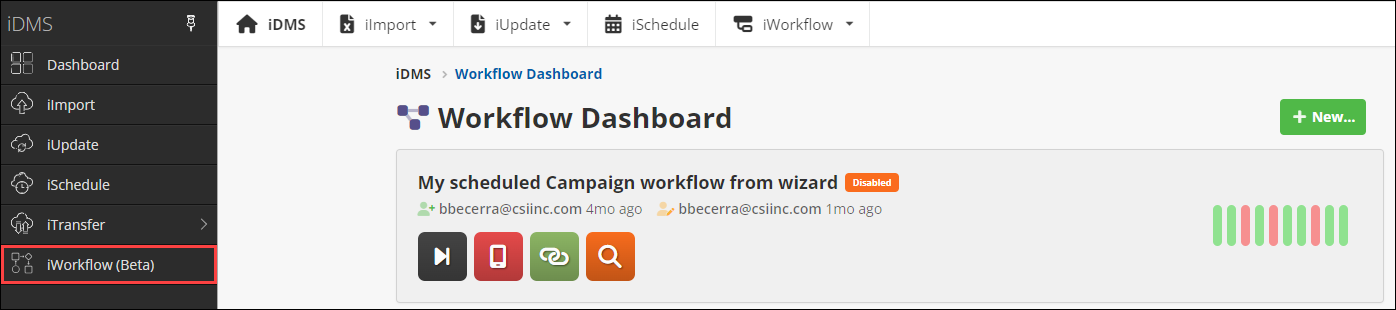
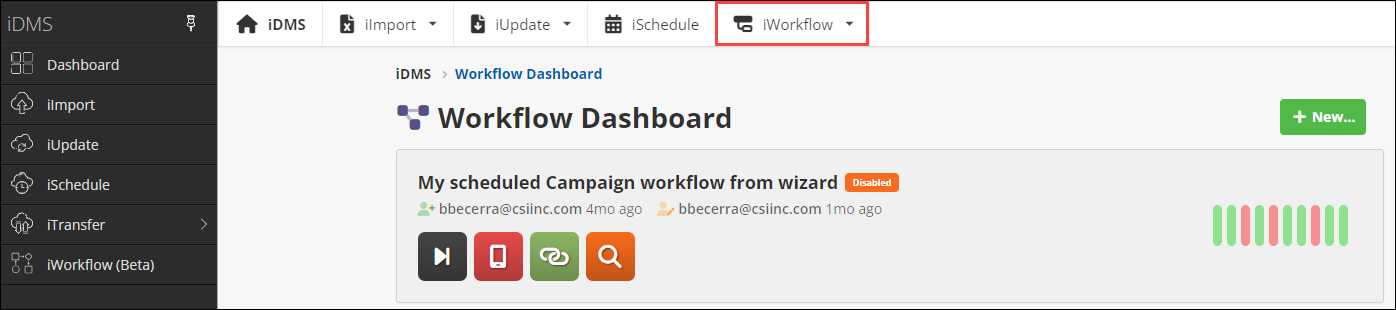
To access the iWorkflow Dashboard, do one of the following:
- Go to iDMS > iWorkflow.
- From the top navigation, go to iWorkflow > Dashboard.
Understanding the Workflow List
The Workflow Dashboard shows a list of workflow definitions. If filters are enabled, workflows that fit the filters' criteria may appear in the list. Each entry has:
- The workflow name
- Created by and created on information
- Last modified by and last modified on dates
- A visual summary of the trigger and action(s) inside the workflow
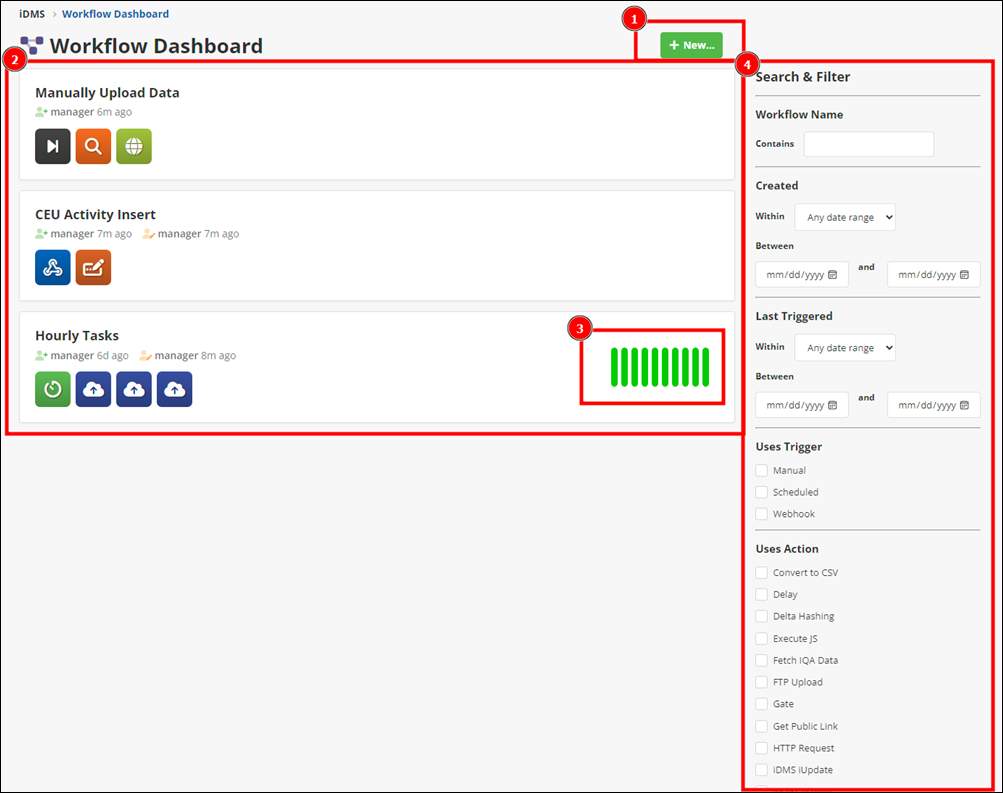
The vertical bars in the workflow entry are visual indicators for the most recent runs of that workflow, showing up to 10 runs.
- Green bars indicate success.
- Red bars indicate failure.
- Gray bars indicate cancelled workflows.
- Blue outlined bars indicate currently running workflows.
The bars fade and become smaller over time. Workflow runs that are more than 30, 60, and 90 days old fade out more than the previous group.
Click New to create a new workflow from one of the following options:
- From Wizard – Opens the workflow wizard which will guide you through common automation scenarios
- Blank Workflow – Opens a blank workflow editor.
- Import from File – Import a previously exported workflow by uploading the file from your computer.
Searching and filtering
The following search and filter fields are available on the iWorkflow Dashboard. All filters take effect immediately when they are selected.
Note: Filter categories are combined with an AND operator. For example, if you select Uses Trigger - Scheduled and Uses Action - Gate, then only workflows that have both a schedule trigger and a Gate action are displayed.
Workflow Name
Enter any partial workflow name to filter the list by the name.
Created
Enter a date range to find workflows created between two dates, or use the Within drop-down to select a relative date range (such as “within 1 day” or “within 3 months”).
Last Triggered
Enter a date range to find workflows that were most recently triggered between two dates, or use the Within drop-down to select a relative date range (such as “within 1 day” or “within 3 months”).
Uses Trigger
Select one or more trigger types to filter the list by.
Note: If multiple triggers are selected, they are combined with an OR operator. For example, selecting Scheduled and Webhook will show workflows with either Scheduled or Webhook triggers, but not necessarily both triggers.
Uses Action
Select one or more action types to filter the list by.
Note: If multiple actions are selected, they are combined with an OR operator. For example, selecting Gate and iDMS iUpdate will show workflows with either Gate or iDMS iUpdate, but not necessarily both actions.
Status
Select Active to view only active workflows.
Select Archive to view a condensed list of workflows that have been archived and are no longer active.
Note: It is not currently possible to view both active and archived workflows at the same time.