Last updated on: June 23, 2026
This page will detail how to edit a workflow, including what parts of the workflow you are able to edit.
Editing a workflow
Do the following to edit a workflow:
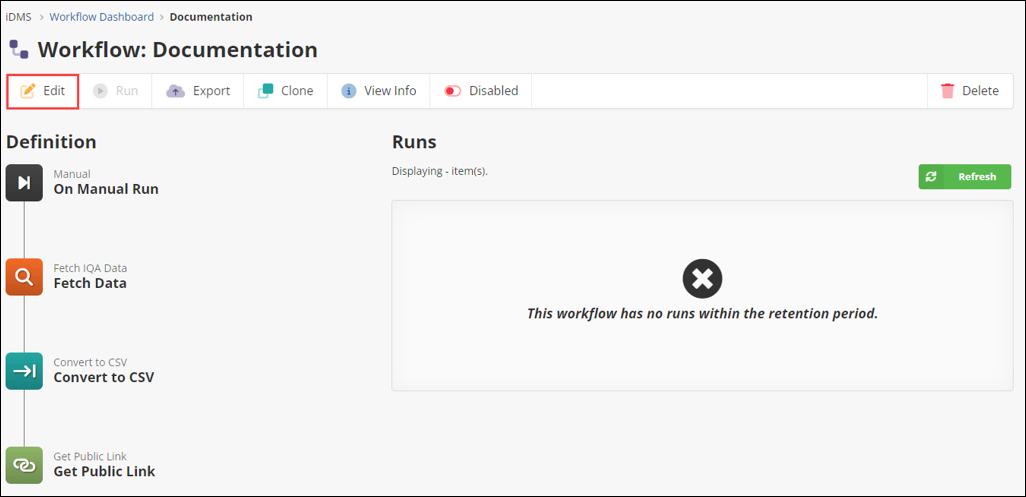
- Go to the desired workflow from the dashboard. You will then be viewing the workflow.
- Click Edit.
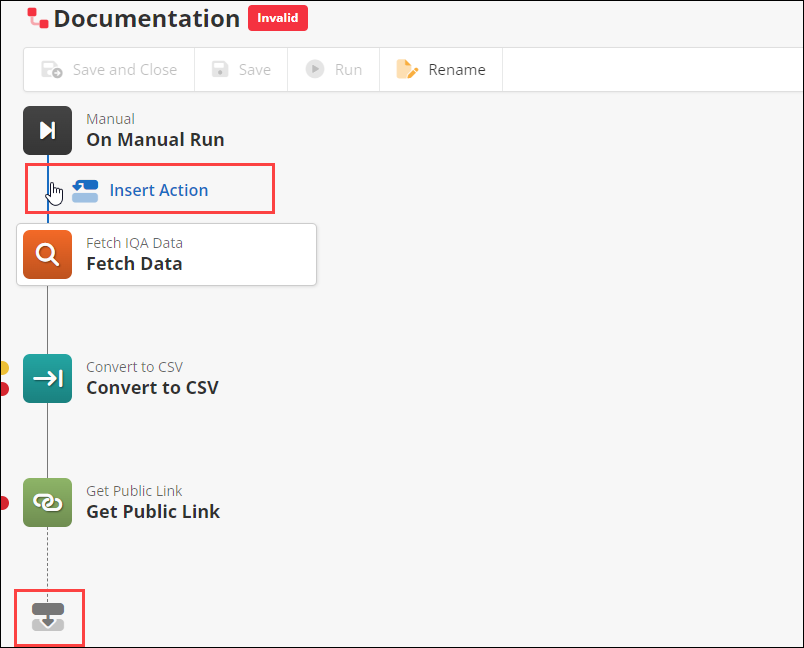
- From the edit page, select a trigger or an action to edit it.
- Click on a line that connects to an action to add another action to the workflow. You may also add another workflow by clicking the grey icon at the bottom of the actions.
- You may also run, rename, and disable or enable the workflow.
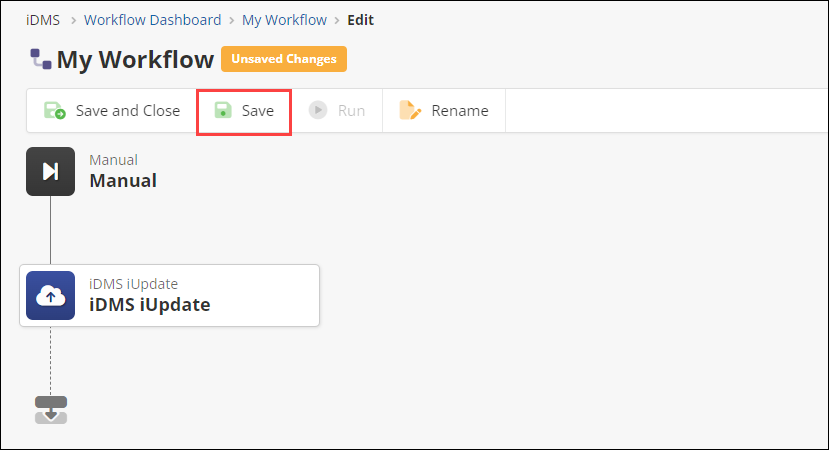
- After making the desired changes, click Save.