Last updated on: June 23, 2026
The iDMS Dashboard provides a high-level overview of your data management activities. From the dashboard, you can monitor job history, track key metrics, and quickly navigate to the iDMS modules you use most.
To access the dashboard, click Dashboard from the side navigation menu.
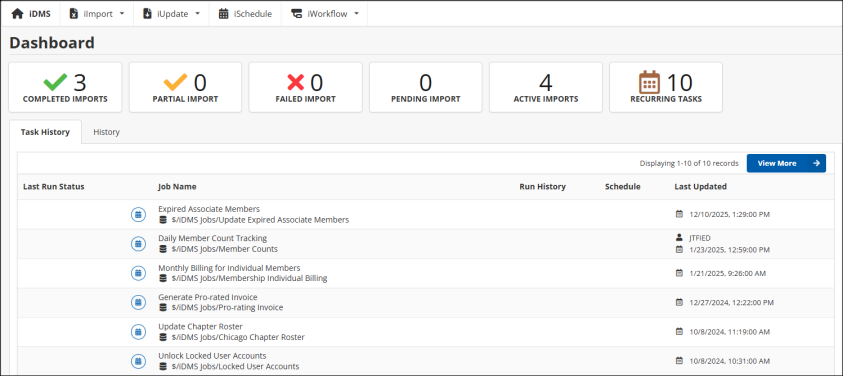
Note: You can return to the dashboard at any time by clicking iDMS while working within any module.
Navigating the iDMS Modules
The dashboard gives you centralized access to all iDMS modules and tools:
- Quick access to iImport, iUpdate, iSchedule, and iWorkflow.
-
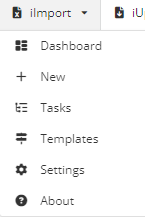
Clicking on iImport or iUpdate reveals additional options:
- Dashboard – View recently completed import and update jobs.
- New – Open a blank job ready for configuration.
- Tasks – View scheduled tasks and recurring jobs.
- Templates – Manage or import job templates.
- Settings – Configure global job options and clear the iDMS cache.
Note: Updating default settings affects only future jobs; existing templates are not updated.
- About – Displays Cloud ID, user, and product information.
Dashboard cards
Dashboard cards provide a visual summary of import and update activities.

- Completed Imports – Jobs that ran successfully without issues.
- Partial Imports – Jobs that completed but had errors with one or more records.
- Failed Imports – Jobs that encountered errors and did not complete successfully.
- Pending Imports – Jobs scheduled to run in the near future.
- Active Imports – Jobs that have started but are not yet submitted; may be in progress, paused, or saved for later.
- Recurring Tasks – Jobs configured to run automatically on a set schedule.
Job history
The Task History and History tabs provide an overview of jobs run in the past 30 days. Use View More to filter and search for specific jobs.

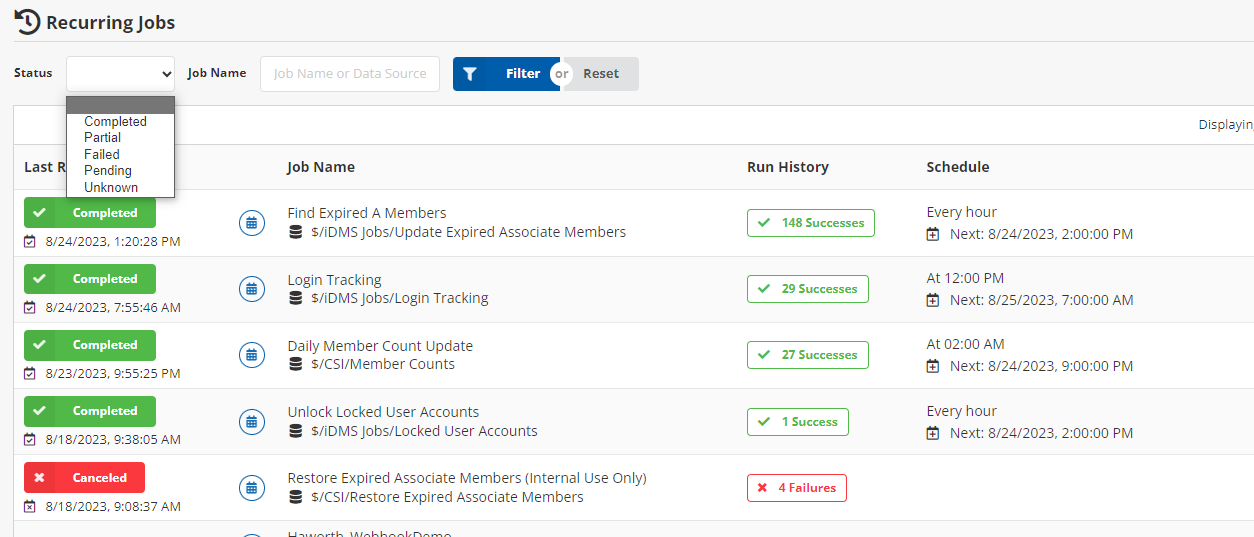
Task History
The Task History tab displays recurring job history for quick review. You can filter results by:
- Status – Completed, Partial, Failed, Pending, or Active.
- Job Name – The name of the task.
- Source Type – Where the task was triggered from.
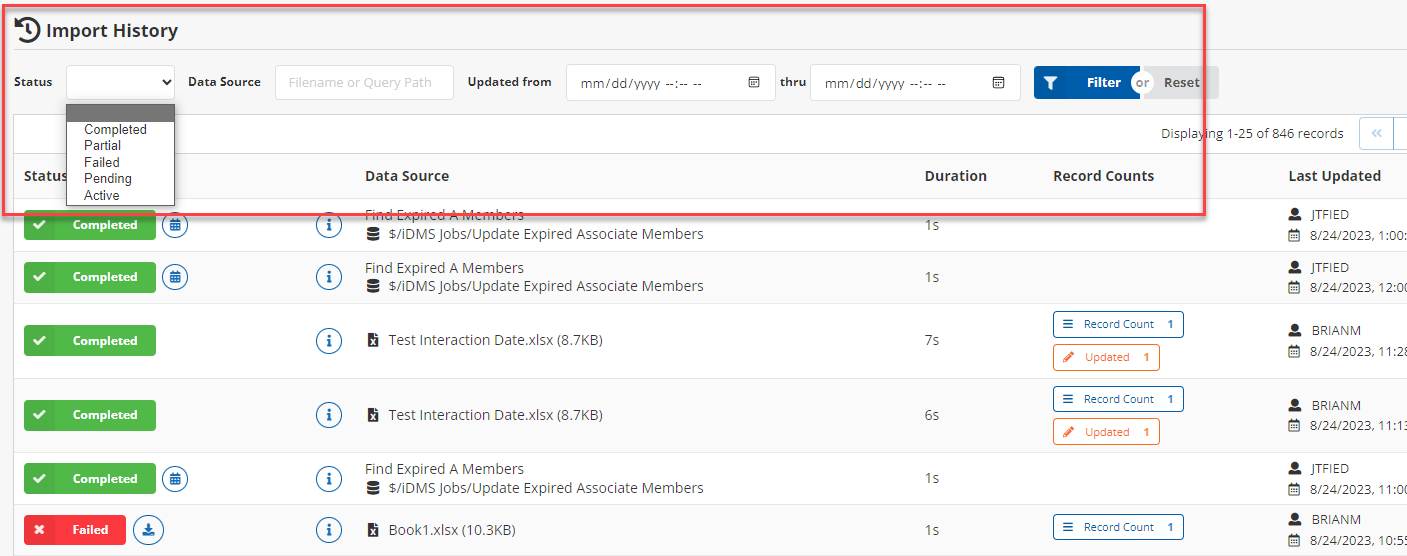
History
The History tab shows all job activity. You can filter by:
- Status
- Data Source
- Updated From / Thru
- Source Type
Source Type Options
- Manual – Tasks triggered manually by a user.
- iSchedule – Tasks triggered by a scheduled iSchedule run.
- iWorkflow – Tasks triggered by an iWorkflow run. Includes Name and Definition ID as metadata.
- Webhook – Tasks triggered by a webhook. Metadata includes IP address and User Agent.
- Webhook Polling – Tasks triggered by polling via a webhook endpoint.
- Unknown – Jobs created before trigger tracking or with no trigger source defined.