Last updated on: June 23, 2026
Exports
The iMIS GL Processor Cloud allows users to transfer financial transactions from iMIS to an external accounting system. Using customizable templates, you can export data in various file formats, set summarization levels, and choose whether to include Due To/Due From transactions. The GL Processor Cloud also maintains its own export tracking, ensuring flexibility between iMIS processing and an organization’s accounting needs. When you specify a date range and organization, the system verifies that all runs for that period have been completed in iMIS before determining which runs to include in the export.
In This Article
Creating an export
First step is to create an export. You must designate a Preferred Organization before you can create the export.
Do the following to create an export:
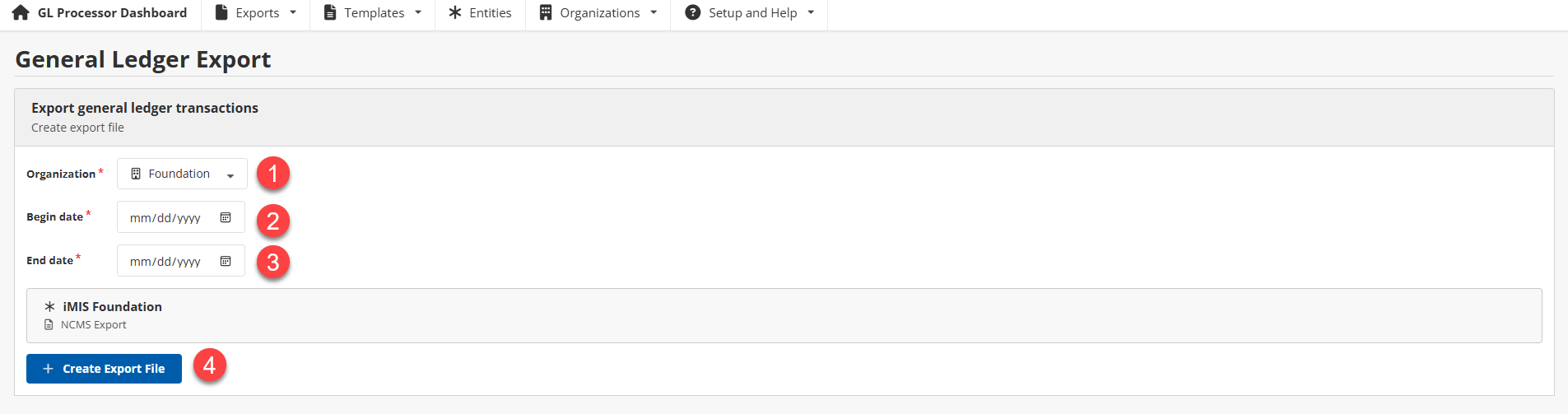
- Go to the GL Processor Dashboard and select Exports > New.
- Choose the intended Organization from the drop-down list.
- Enter date range - Begin date.
- Enter date range - End date.
- Click Create Export File.
The export process produces a detailed log while the file is being generated.
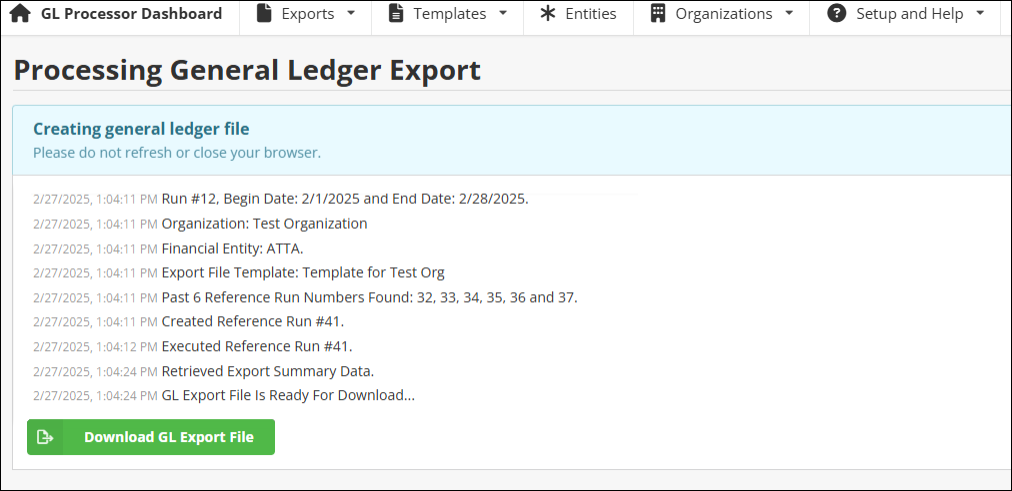
Once the export process has completed, the generated file can be downloaded by clicking Download GL Export File.
Exporting logs
After the export finishes, you can view the record of the exports.
To view exported logs, select the Exports > Logs menu option from the top navigation bar.
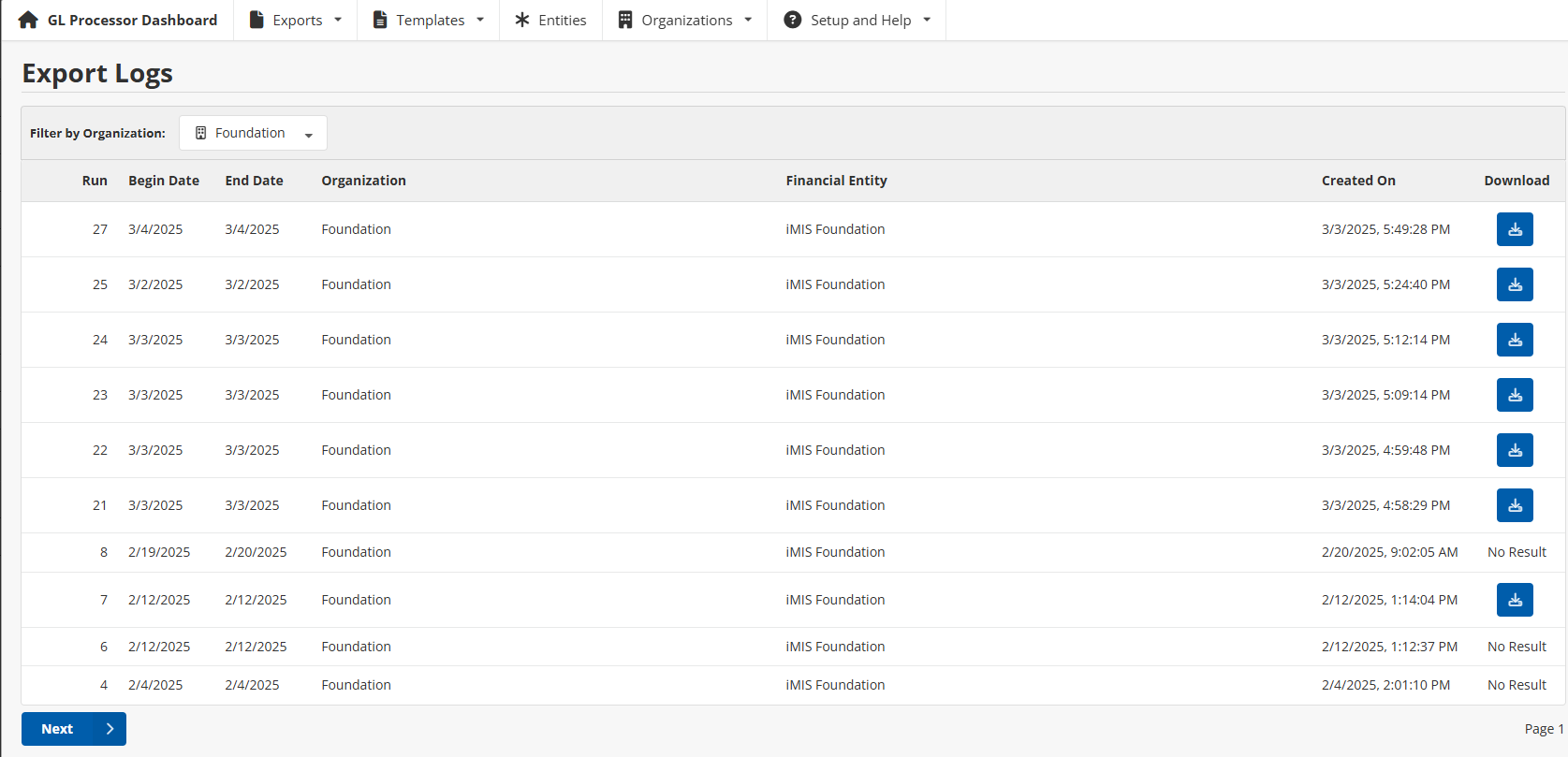
The export logs can be filtered by Organization using the drop-down at the top of the table. The export log table consists of the following columns:
- Run - iMIS GL Processor run number (different than the iMIS run number).
- Begin Date - Begin date of the export.
- End Date - End date of the export.
- Organization - Organization of the export.
- Financial Entity - Financial Entities associated with the organization.
- Created On - The date the export was created on.
- Download - Provides a button to download the export file.
Note: The download button will produce a new export file, incorporating the latest changes to the template. The resulting data remains the same, but the format will be based on the most recent version of the template. If the organization’s template is configured to separate files by financial entity, the files will be downloaded in a .zip file.
Logs can be in different statuses, indicated by the color of the log and button.
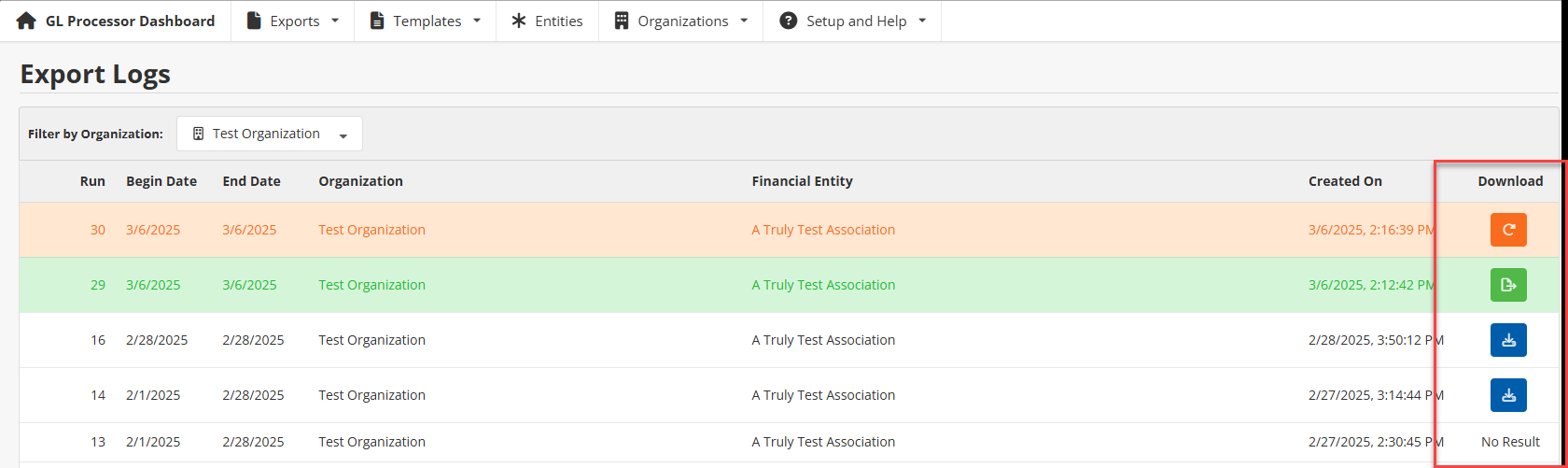
- Green - Process is complete and ready to be exported. The button will generate and download the export file.
- White - Export has been generated and can be downloaded. The button will generate and download the export file.
- No Result - The export process resulted in no results.
- Orange - An issue occurred while generating the export. The button will retry processing the export.
Errors
If an error occurs while processing an export, additional exports will be halted until the bad export is addressed. For example, if the last export was not successful, attempting to create a new export will result in the following warnings:
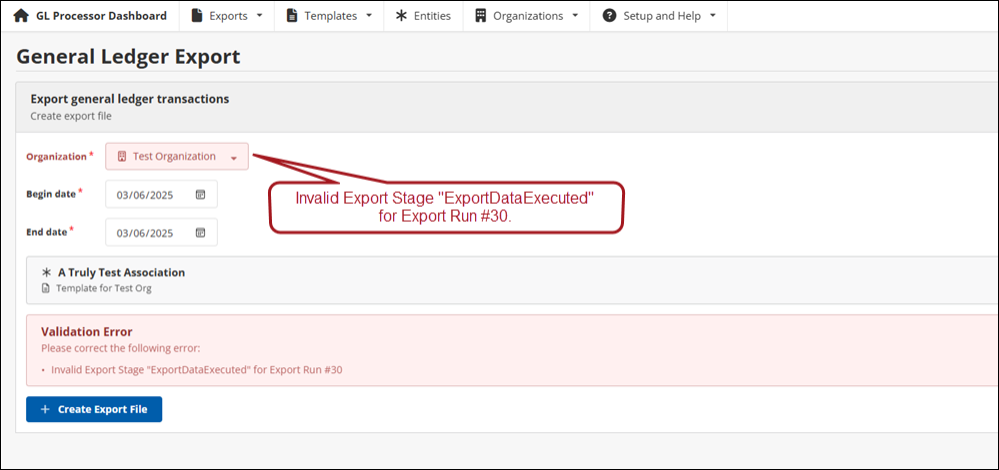
Exporting for multiple organizations
When exporting data for multiple organizations, it is important to understand how GL Processor Cloud aligns export data with the original iMIS export runs.
Understanding how GL Processor Cloud processes date ranges
When you request an export for a specific date range, GL Processor Cloud does not independently query transactions by that date range alone. Instead, it looks for the original iMIS export run that included those dates.
An iMIS export run can include the following:
- Multiple organizations
- Multiple financial entities
- A range of dates
If the requested date falls within an iMIS export run, GL Processor Cloud must use that entire run to maintain data integrity, which includes due-to/due-from relationships, balancing logic, and inter-entity accounting relationships.
These relationships are calculated based on the full export run. Filtering the run to only a single date or subset of transactions could break balancing logic and result in incorrect financial data. Because of this, GL Processor Cloud cannot isolate a single date if that date was originally exported as part of a larger date range.
Example: Organization A is exported from January 1 - 15. The same iMIS export run also included Organization B. Later, Organization B is exported for January 7 only. GL Processor Cloud will return all Organization B data from the January 1–15 run, not just January 7. This behavior is expected and ensures financial accuracy.
Avoiding discrepancies when exporting multiple organizations
Problems can happen when one organization exports broad date ranges (like monthly), while another exports narrower date ranges (like daily).
When exporting multiple organizations, the first organization to export should never use a broader date range than any subsequent organization. This means the earliest export must be equal to or more granular than later exports.
Tip: To prevent discrepancies and unexpected results, it is recommend that you export daily for all organizations.
| Organization A | Organization B | Causes issues? |
|---|---|---|
| Exports daily |
Later exports monthly |
No |
| Exports daily | Later exports daily | No |
| Exports monthly |
Later exports daily |
Yes - In this case, the daily export falls inside the broader monthly run, and GL Processor Cloud must return the full original run to preserve balancing. |