Last updated on: June 23, 2026
iMIS SSO - Premium: Onboarding Guide
To start the iMIS SSO - Premium connection set up, do the following:
- Complete the requirements in the Getting Started Guide: iMIS Power Suite.
- Create a SSO subdomain with correctly configured DNS entry (like login.example.org or sso.example.org).
-
Configuration of the Domain Setup page to provision and activate your custom SSO domain.
- Configure the SSO System Settings page to connect it to iMIS.
- Configure the SAML Client App or OIDC Client App to create an SSO connection to a third-party system.
Note: This includes obtaining a Cloud ID and configuring the Background Account.
Create a public DNS entry
The iMIS SSO app is cloud-based, however, for security and consistent user experience, we require a public DNS CNAME Record. This is so that users see URLs consistent with your organization, like sso.example.org instead of sso.cloud.csiinc.com.
You will need to create a CNAME record for the iMIS SSO app. This entry should be the same as your organization's domain but it is not required to be. For example, if you access iMIS at https://membership.example.org, consider creating an SSO DNS entry like sso.example.org or auth.example.org. The domain does not have to match, for instance, "example.org" and "examplemembers.org" as separate base domains, you can choose either one to add the SSO subdomain onto even if it does not match iMIS.
Note: The domain name must be unique per Cloud ID. Two or more Cloud IDs cannot share the same domain name. This includes test instances, which should use separate domain names like testauth.example.org or devsso.example.org. Contact support if you need to deactivate a domain name on a Cloud ID in order to use it on a different Cloud ID. This process will permanently break any SSO connections/setup on the original Cloud ID account.
See the table below for the record that needs to be created:
| DNS Type | Name/Prefix | Alias |
|---|---|---|
|
CNAME |
|
csicloudsso.trafficmanager.net |
If you have one or more CAA records on the domain root, you must add a CAA entry for letsencrypt.org onto the domain root. See Let's Encrypt CAA for more information.
For example, if the SSO domain is auth.example.org, add the following record to example.org (not auth.example.org):
| DNS Type | Host/Name | Flags | Tag | Value |
|---|---|---|---|---|
|
CAA |
Blank or @ (Add to the domain/zone root, where the other CAA records are located.) |
0 |
issue | letsencrypt.org |
Note: If you are working in a staging/test environment and your iMIS instance ends in *.imiscloud.com, you can still create a DNS entry, such as "login.example.org". Do not reach out to ASI to create a DNS entry. The DNS entries are typically managed by your IT department, MSP, or web hosting company.
Important! If your organization uses a corporate network with a private DNS (for example, a Domain Controller, a Windows Server running the DNS role, or a router/network appliance acting as a DNS server), you must also add the same CNAME entry to that internal DNS server.
If you do not, users on the corporate LAN—or those connecting through a VPN—will not be able to use SSO. If you are unsure whether this applies to your environment, consult your IT department or MSP.
CNAME records usually propagate within 1–15 minutes.
To confirm the record is active, you can use an online lookup tool such as nslookup.io. Enter the SSO domain and select Find DNS records. Under the CNAME section, you should see the value csicloudsso.trafficmanager.net.
If the DNS entry is live, proceed to the next step.
Provision the SSO Domain
Note: The provisioning process is now fully automated and integrated into the Cloud Dashboard.
Do the following:
- Log in to the Cloud Dashboard.
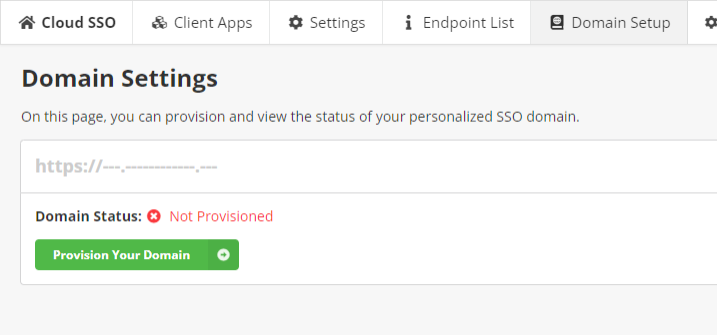
- Go to Cloud SSO > Domain Setup. The Domain Status should be Not Provisioned.
- Click Provision Your Domain.
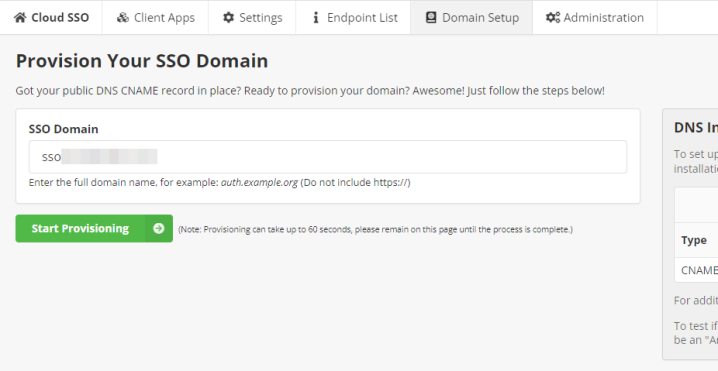
- Enter the domain (do not include https://) into the SSO Domain field.
- Click Start Provisioning.
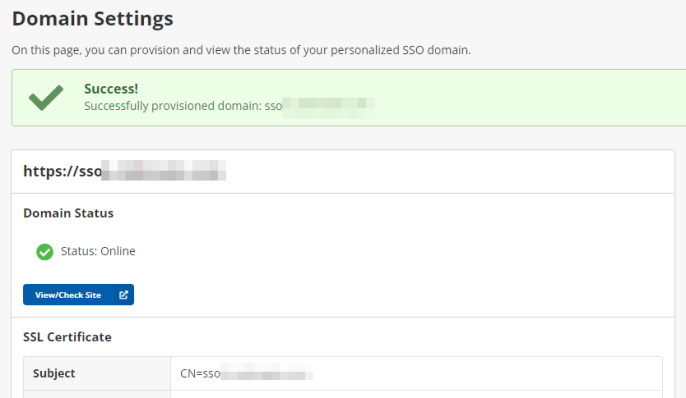
- If the DNS record is set up correctly, you will see a success message. The Domain Status will be Online.
Important! Do not close the browser or navigate away from the page while provisioning is processing.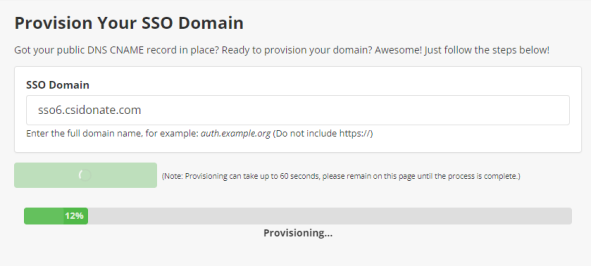
Important! If the domain shows as Offline—even though it has a valid SSL certificate and provisioning completed without errors—and you are on a corporate or organizational network that uses internal DNS (such as Windows DNS), you may need to add an internal CNAME that matches the public one. Your IT department or MSP can assist with this.
Typically, this involves adding a CNAME entry to the Windows Server Domain Controller’s DNS, or in some cases, to a firewall or network appliance that manages DNS internally.
Once the internal entry is added, the domain should display as Online. To confirm that internal DNS is the cause, staff can test the Cloud Dashboard from outside the corporate network—such as on an LTE hotspot or a personal/home internet connection.
Warning! If you are configuring iMIS EMS (i.e. connecting one or more external IdPs/directories and configuring iMIS to use external identities), do not continue past this point.
Configure iMIS SSO system settings
Refer to the System Settings article for information on the settings fields. One of the iMIS Identity mode settings is required to be configured. The branding and other settings are optional.
1. Create the RiSE Client Application
Create a registered Client Application in RiSE:
- Go to Settings > Contacts > Client Applications.
- Select Add Client Application.
- Fill out the form:
| Field | Value |
|---|---|
| Client ID | Enter a unique but recognizable value. We recommend CSI-Cloud-SSO. |
| Client Secret | Enter a secret passphrase. This passphrase will be visible in plaintext, so do not use a password used elsewhere for this value. Remember this value for later. If you need to generate a random string, click here to generate a random string from Random.org. |
| Refresh Token Lifetime | Enter "1". (Refresh tokens are only used once within a few seconds of being created.) |
| Login Redirect URL |
OpenID Connect: Enter: https://<Your-SSO-Domain>/imis/callback SAML: Enter: https://<Your-SSO-Domain>/saml/imis/callback |
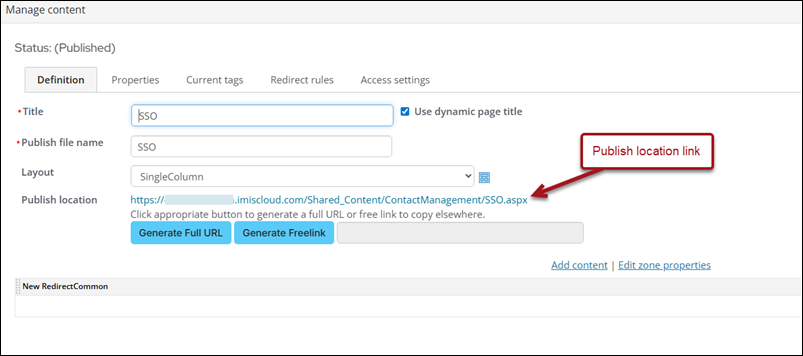
2. Create the Public RiSE SSO Page
Next, you need to create a RiSE page with the Single Sign On content item on it. See Adding the client-application redirect to a page.
Make a note of the Publish location link (including https://).
3. Add/Update SSO System Settings
Do the following:
- Go to the Cloud Dashboard.
- Go to Cloud SSO > Settings.
- Select the iMIS Client Application name that you just created.
- Enter in the iMIS Client Secret that you configured above.
- Enter the Publish location full URL that you copied above.
- Click Save.
Important! The iMIS Client ID and iMIS Client Secret are not the same as the OpenID Connect Client ID and Client Secret. The values above are only used to connect the iMIS SSO app to iMIS. Use the OpenID Client ID and Client Secret found in the OIDC Client Apps page when setting up integrations with third parties.
Note: If you are only using SAML or OpenID Connect (not both), then you only need to follow these instructions once. If you plan to use both SAML and OpenID Connect at the same time, then please repeat these instructions above a second time. Running SAML and OIDC together requires two RiSE Client Applications and two public RiSE pages. There are separate fields in the iMIS SSO System Settings page for both OpenID and SAML configuration values.
4. Set Up Your Connected Apps
The last step is to set up at least one connected app registration. This step depends highly upon the third party website that you are integrating with the SSO.
For certain off-the-shelf solutions (like WordPress or Drupal integrations, for instance), these can be configured easily using a web interface. These integrations typically expect you to provide the Client ID, Client Secret, (sometimes) JWT Signing Key, and user profile mapping information.
For custom third-party services, such as event or LMS vendors, integrating the iMIS SSO app with these vendors typically requires a conversation with that company to determine if they support this form of SSO. You can provide the third party vendor the link to this page, so that they can learn more about our solution and determine if they can integrate with the iMIS SSO product: SSO Information for Third Party Vendors