Last updated on: June 19, 2026
QuickStart Template
Dashboards
The QuickStart site includes custom versions of the event dashboards:
- Event Dashboard (Events > Dashboard)
- Event-specific dashboard (Individual event > Dashboard tab)
Event Dashboard
The Event Dashboard includes information from all events, with a customizable copy available in QuickStart. The Staff site’s StaffEventsLanding shortcut and the Events > Dashboard navigation item both direct users to this copied dashboard.
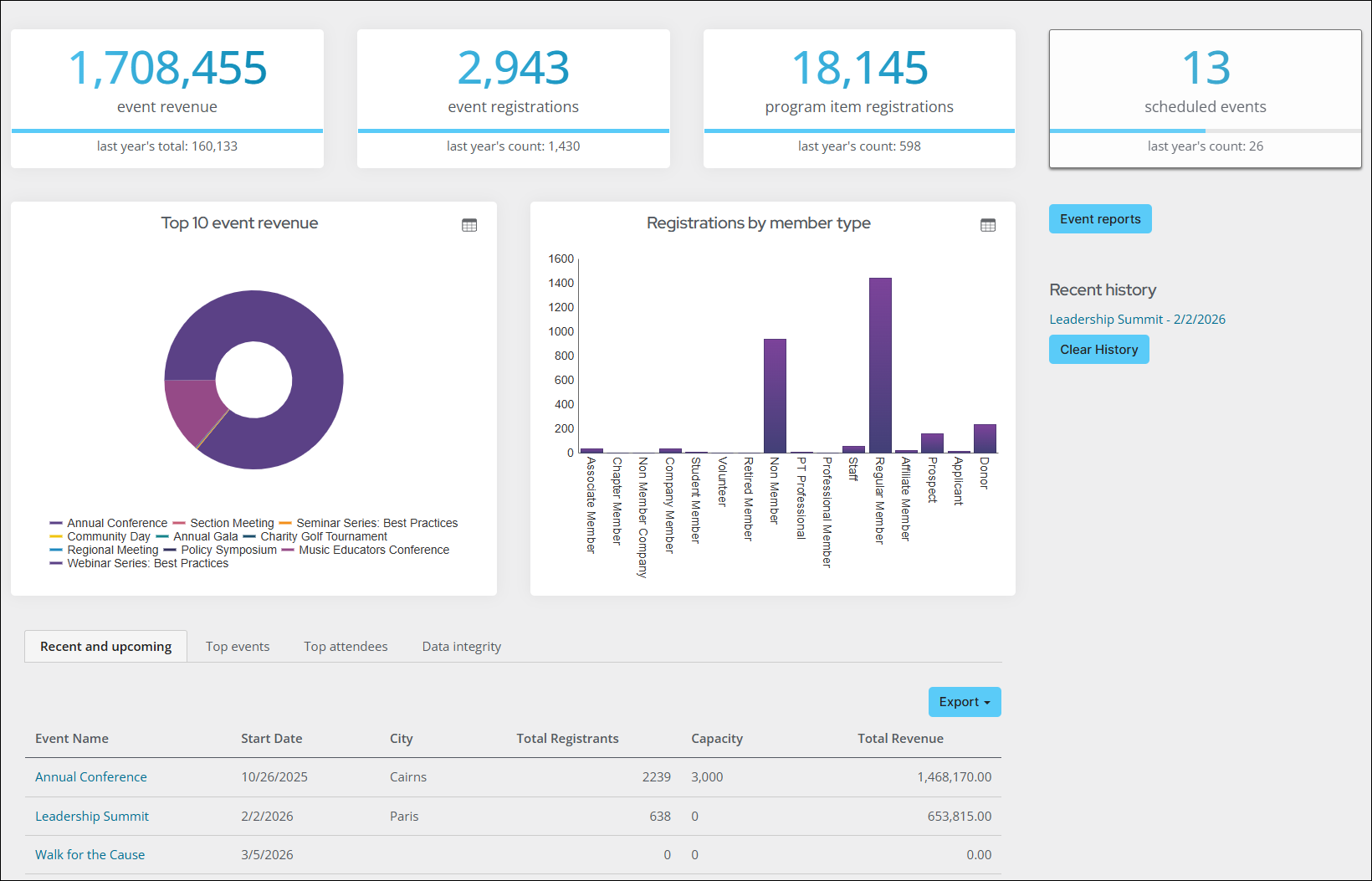
Updating the QuickStart event dashboard
Do the following to update the QuickStart Event dashboard:
- Go to Events > Dashboard.
- Enable Easy Edit.
- Hover over the content item you need to edit, then click Configure.
- To edit the entire content record or add new content, select Open in Content Designer.
- Make the desired changes, then click Save & Publish.
Note: Alternatively, edit the QuickStart Event dashboard from RiSE > Page Builder > Manage content. Navigate through the following folder path: @/MyStaff/Dashboards/Events
Event-specific dashboard
The event-specific dashboard is shown for every event, with a customizable copy available in QuickStart that includes features such as Event Feedback. The EventDashboard shortcut directs to this page, and events use this shortcut on the Display tab to specify which dashboard to show.
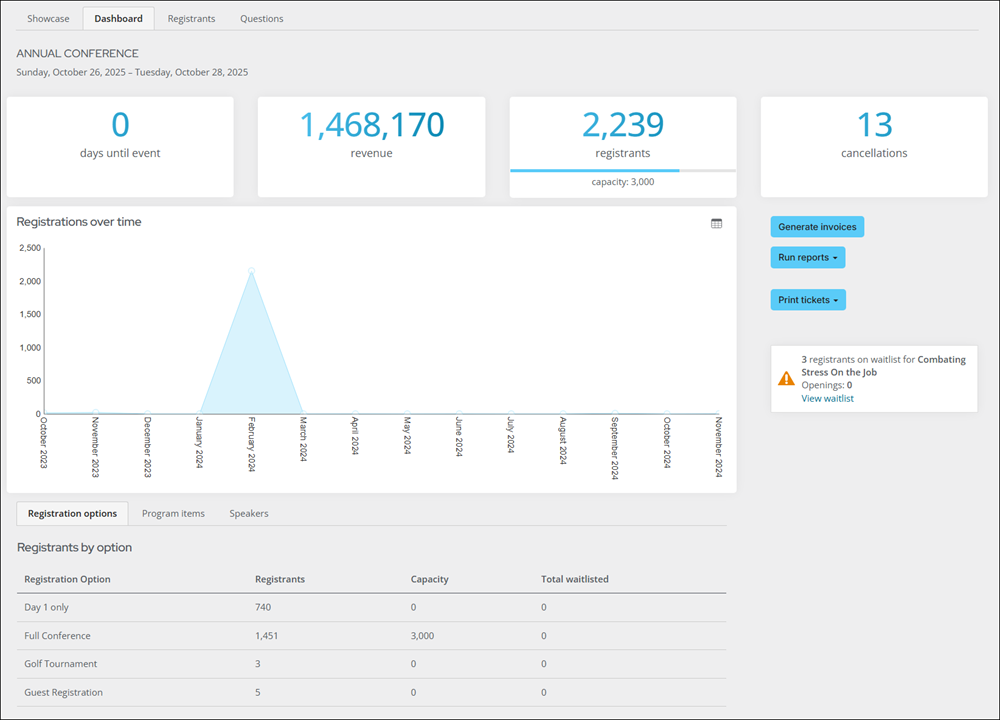
Updating the QuickStart Individual event dashboard
Do the following to update the QuickStart individual event dashboard:
- Go to Events > Find events.
- Search for and open the event.
- Click the Dashboard tab.
- Enable Easy Edit.
- Hover over the content item you need to edit, then click Configure.
- To edit the entire content record or add new content, select Open in Content Designer.
- Make the desired changes, then click Save & Publish.