Last updated on: June 23, 2026
iMIS Power Suite
Cloud ID account linking allows iMIS instances to be linked together in the Cloud Dashboard.
Example: For an iDMS iUpdate, you can run a query from one iMIS instance and pull that data into another iMIS instance.
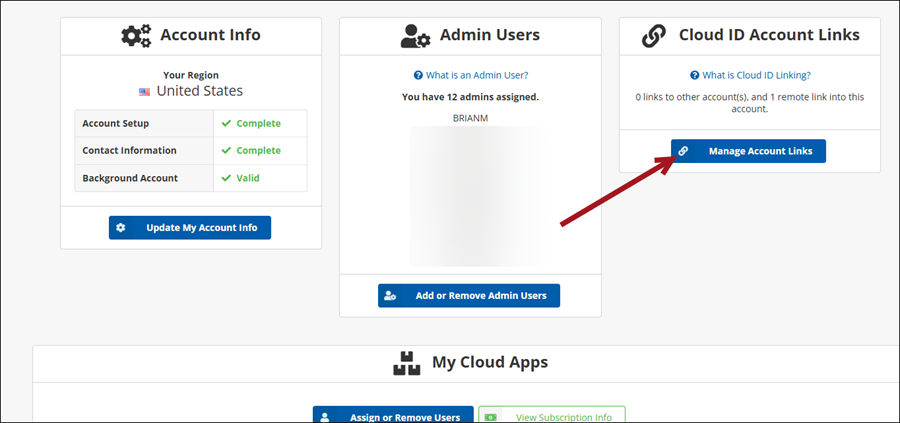
Do the following to link iMIS instances in the Cloud Dashboard:
- From the Cloud Dashboard, click My Account.
- Click Manage Account Links.
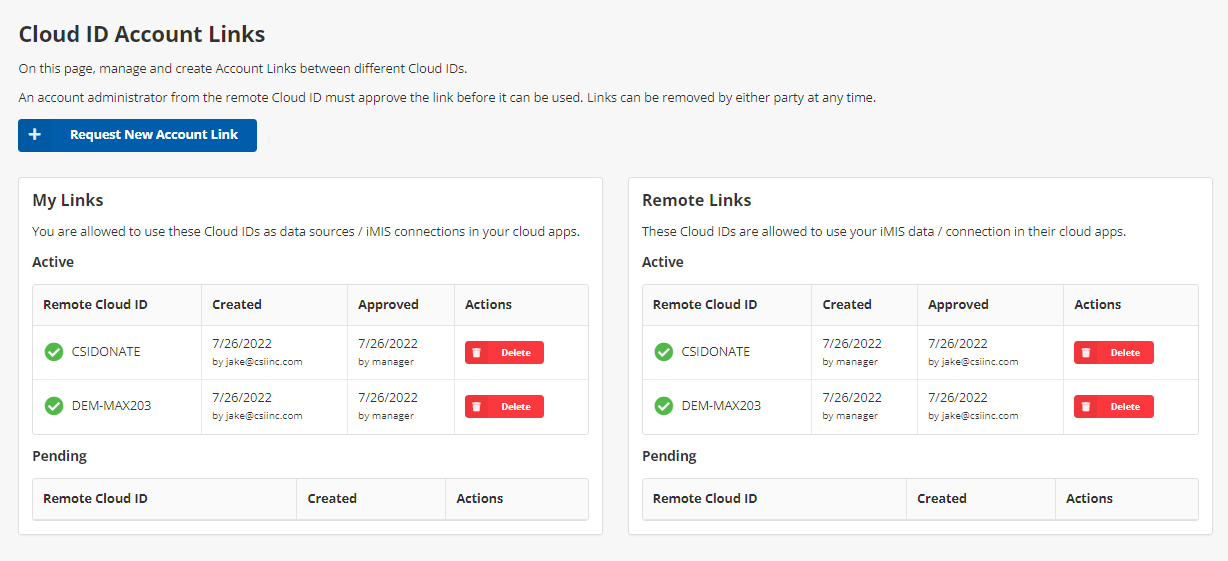
- Click Request New Account Link.
- Enter the Remote Cloud ID, then click Request Link.
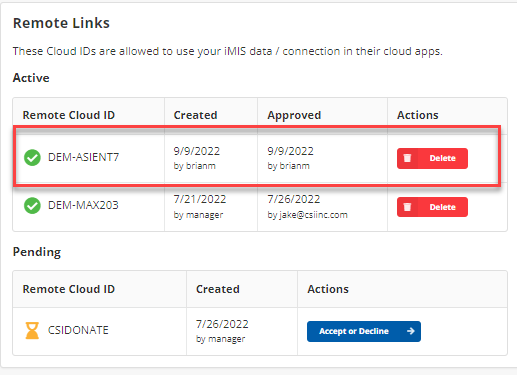
- There is now a pending request for the remote ID you just entered. On the remote cloud ID instance under My Account > Cloud ID Account Links, you will see:
- Under Remote Links, there is a pending invitation from the other Cloud ID instance. It now asks for you to Accept or Decline.

|
|

|


Once you accept the link, the connection is made. Either instance can end the relationship by deleting the Active link in My Links or the active link in Remote Links.