Last updated on: June 23, 2026
Using the Cloud Dashboard
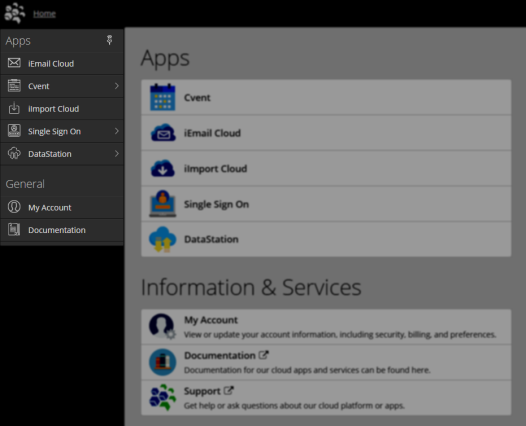
Once logged in to the Cloud Dashboard, you will notice a menu to your left (if it is hidden, click on the icon in the upper left corner). This menu can be pinned or unpinned for your preference.
Using the main menu
The main menu contains the following:
- The menu is broken down into two sections:
- Apps – This section of the menu will list out the cloud apps that the client is licensed for. If a client administrator does not give a specific user access to a specific cloud app, that app will not display for that user.
- General – Allows the client admin to carry out administrative functions:
- Account - This section allows the client administrator to maintain and configure the settings for the apps. They will be allowed to add and subtract users from having access to the applications.
- Documentation - Links to documentation for quick reference.
- The Home link in the upper-left corner is used to get back to the welcome page.
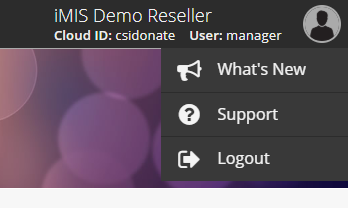
- The person icon in upper-right corner of the dashboard is used for the following:
- What's New - Release notes.
- Support - Link to the support portal.
- Logout - Securely signs you out of the cloud dashboard, returning you to the login page.
Managing access to the Cloud Dashboard
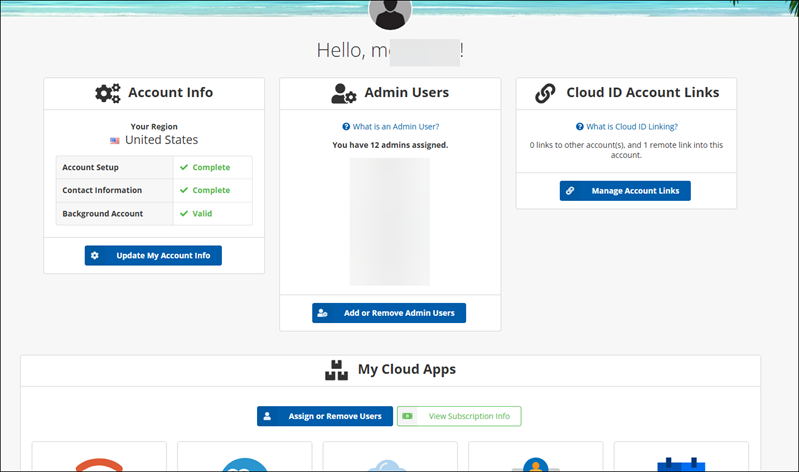
To manage access to the Cloud Dashboard, click My Account from the left navigation.
Account info
From the Account Info area, click Update My Account Info.
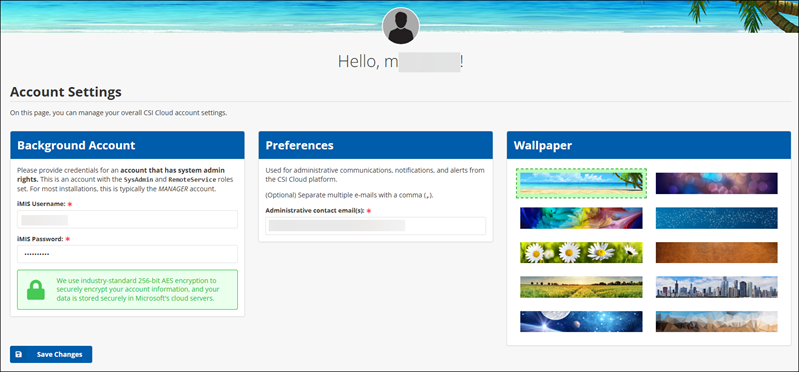
This allows the client admin to do the following:
- Update the Background Account information. See Getting Started Guide: iMIS Power Suite for information about the Background Account.
- Update the administrative contact email addresses. These are used by ASI to send alerts and notifications regarding the cloud account.
- Update the wallpaper for the Cloud Dashboard.
Admin Users
From the Admin Users area, click Add or Remove Admin Users. The client admin is allowed to assign or remove iMIS users that are account admins. These users would be allowed to administer the information in the Cloud Dashboard, which includes updating account settings, viewing billing info, etc. See Getting Started Guide: iMIS Power Suite for more information.
Cloud ID Account Links
My Cloud Apps
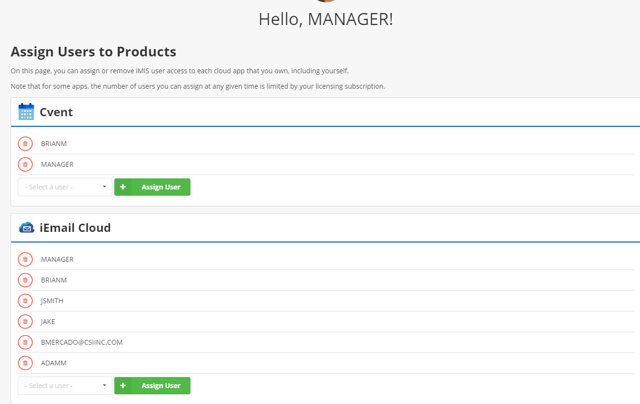
From the My Cloud Apps area, click Assign or Remove Users. From here, the admin has the ability to add or remove iMIS user access to each cloud app that has been purchased and/or licensed for. Some apps may be limited by the number of users assigned at a given time because of the licensing subscription.
Example: In the two applications below, Cvent and iEmail Cloud, user JSmith is listed under iEmail Cloud but not under Cvent. When JSmith logs into the Cloud Dashboard, they would only see iEmail Cloud list under Apps. They would not see or have access to Cvent.
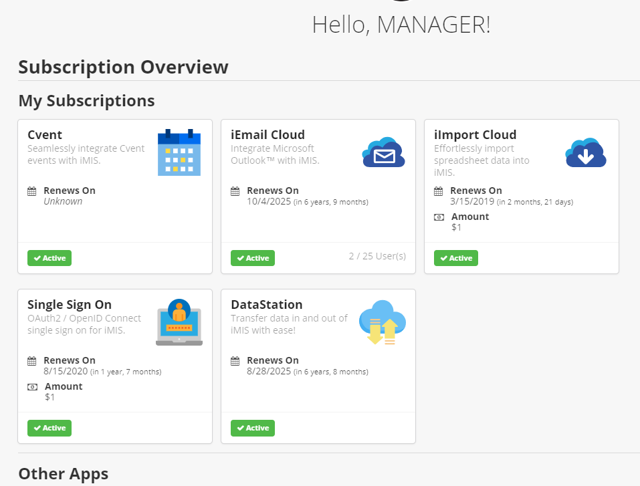
From the My Cloud Apps area, click View Subscription Info. This allows the client admin to review billing information such as next bill date, amount due, and number of licensed users for each of the iMIS Power Suite products currently being utilized.