Last updated on: June 23, 2026
Login troubleshooting
Login and access issues in the iMIS Power Suite can occur for several reasons, including expired sessions, account lockouts, or missing permissions. The information below explains what each message means and how to resolve it.
Login expired
If you see this message at the top of your screen: Login expired, please sign in again. Reconnect
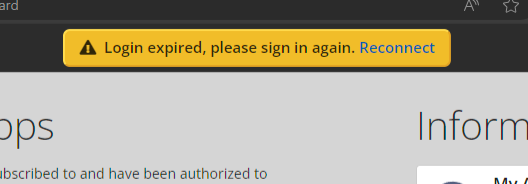
This error indicates that your current session has expired within iMIS and you need to reconnect in order to continue.
When you see this message, you should:
- Save your work, if you have pending changes (e.g. an iUpdate template or changes to an iWorkflow).
- Select the Reconnect link.
- Sign in again.
If you choose to continue working without reconnecting, note that some features in the Cloud Dashboard will not work (for example, browsing for a query, selecting from a list of panels/fields, or any other data that comes from iMIS). When this message appears, your long-running processes are not affected, and will continue to run without issue.
The following items are not affected by this warning message:
- Any running iDMS jobs (imports, updates, workflow runs)
- Cloud SSO login functionality
- QuickPay payments
- Power Automate flows using the iMIS triggers/actions
Cloud Dashboard login errors
Review the following errors and resolution suggestions:
- Error: Check your username, password, and Cloud ID and try again.
- Ensure you can sign in to iMIS using the same credentials.
- Check that you are using the correct Cloud ID. This is typically "ABCIMIS" where "ABC" is your organization's acronym. If you have forgotten your Cloud ID, you can contact support and we will send you your Cloud ID.
- Error: This account is temporarily locked. Please try again in n second(s).
- Your account has been temporarily locked out because of too many failed login attempts. You must wait for the number of seconds listed in the error message before logging in again. Successfully logging in will reset your number of failed attempts.
- If your account is locked out, do not repeatedly attempt to log in as this will only increase the lockout time. Instead, do the following:
- Attempt to log in to iMIS with the same credentials to verify that your username and password work there
- Reach out to your IT provider for assistance if you are unsure about your credentials
- Reach out to Support if you are unsure about what your Cloud ID is
- Error: The login request appears to have been blocked by a firewall or other network appliance. Please contact your hosting provider and provide them this log ID: [Log-ID-Here]
- This error is due to a Web Application Firewall, or other network appliance, blocking the login request.
- If you are hosted by ASI, contact ASI Support, and provide them with the log ID you received in the error message.
- Error: Your user account is missing the required 'RemoteService' role. Changes take up to 24 hours to take effect.
- It is necessary to enable the RemoteService role on each user account that needs to log in to the Cloud Dashboard. See Getting Started Guide: iMIS Power Suite.
Application access issues
If you are having trouble accessing one or more apps, check the following:
- Sign in to the Cloud Dashboard with an administrator account, navigate to Account > Assign users, and verify that the user is listed under the app that they are trying to access. See Adding App Users.
- Verify that the subscription for the app is active by navigating to Account > Billing information. The Subscription status for the app should read Active.