Last updated on: June 23, 2026
Auto Matching enables you to choose how iDMS identifies existing records to prevent duplicates or incorrect updates.
Do the following to auto match data fields to ensure duplicates are not created:
- Upload a spreadsheet in iImport or select an IQA query in iUpdate.
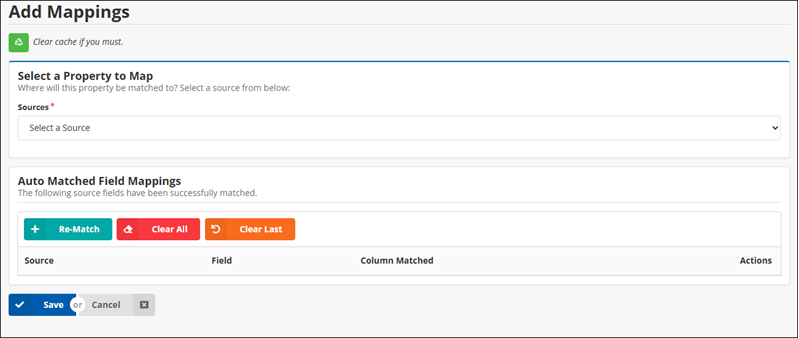
- Click Auto Matches. The system directs you to the Add Mappings page to review and refine the results.
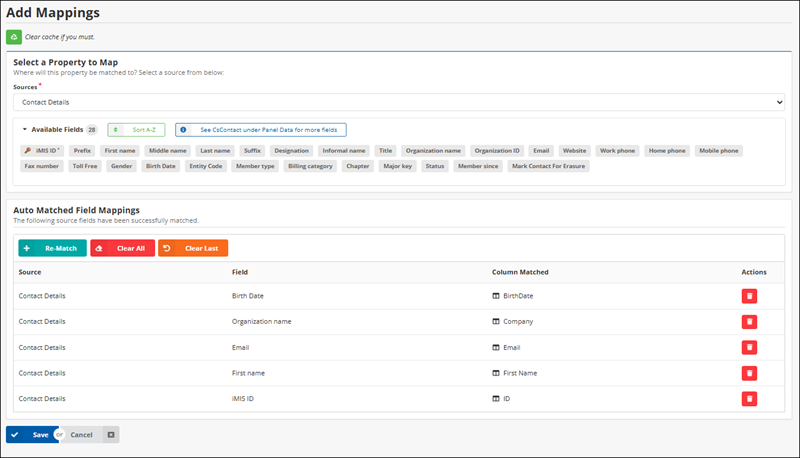
- (required) Choose your Source for mapping. As soon as you select your source, iDMS will automatically attempt to match your columns from your spreadsheet (iImport) or query (iUpdate) and list them in the Auto Matched Field Mappings.
- From the Auto Matched Field Mappings area, do one of the following:
- Save - If you like the auto match and everything looks good, click save and these matches will be brought back to the Setup Mappings step.
- Clear All - This option will remove all auto matched field mappings.
- Clear Last - Will remove last matched field mapping.
- Re-Match - This will attempt to re-match your available fields to the source columns again.