Last updated on: May 26, 2026
Obtaining the API Key
Review the following to obtain the API key from the Cloud Dashboard, in order to create a new connection in Microsoft Power Automate.
Instructions
The API Key for Power Automate can be found in the Cloud Dashboard under the Integrations > Power Platform API Key left navigation menu.
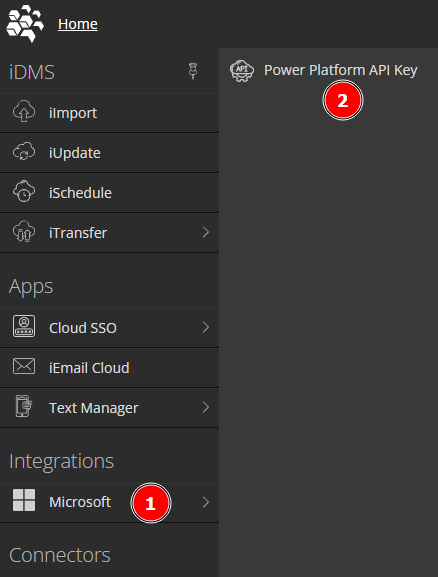
Don't see the menu item?
Check that all of these criteria are met:
- You have purchased a license to use the both the API Key and iMIS Power Automate Connector. Contact Support for information/questions or to purchase a license.
- Special licenses are available for demonstration and reseller purposes. Contact sales for more info.
- You have assigned security to the user(s) who should be able to see the API Key. See Getting Started Guide: iMIS Power Suite for instructions on assigning app permissions to a user in the Cloud Dashboard. The name of the app is API Key.
- Be sure to sign out and back in if you've just assigned security to your own user account.
If this is the first time you're viewing this page, simply click the green Generate button to obtain your API key.
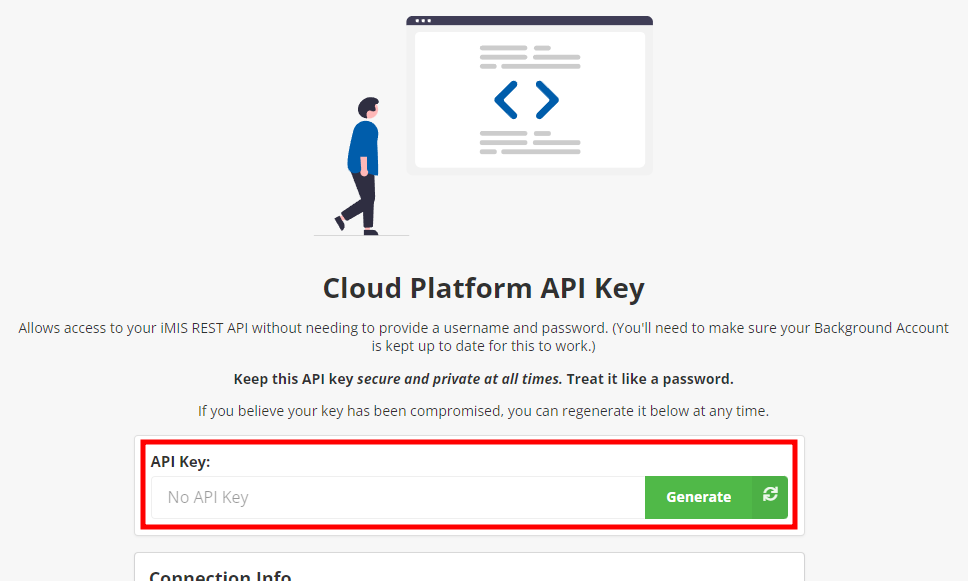
Otherwise, you will see your API key. Click the clipboard button to the left to copy the API key to the clipboard.
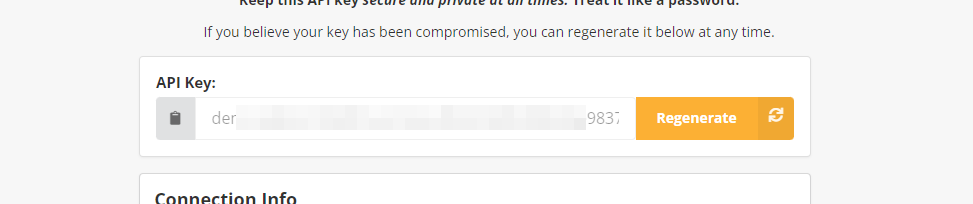
Tip: The API key is in the format: CLOUDID:00000000-0000-0000-0000-000000000000 - the key includes The Cloud ID at the start for easy verification of the target environment. Always include the Cloud ID when using the API key - the GUID will not work by itself.
Regenerating your API Key
If you believe the API Key was compromised in any way, or you would like to reset it for any reason, you can click the Regenerate button.
Warning! If you regenerate the API Key, all of your existing / previous applications using the old API Key will stop working. You must update each application / connection which was using the previous API Key if you intend to continue using those applications / connections. ASI is not able to restore previous API keys.