Last updated on: May 26, 2026
Power Automate connection management
Review the following to learn how to create, update, and delete your connections to iMIS from the iMIS Power Automate Connector.
Prerequisites
If you do not have the API Key, refer to Obtaining your API Key, and have it ready before proceeding.
First-Time setup
The first time you set up the iMIS connector within iMIS Power Automate Connector (or Azure Logic Apps), you will be prompted for a Connection name and a CSI API Key:
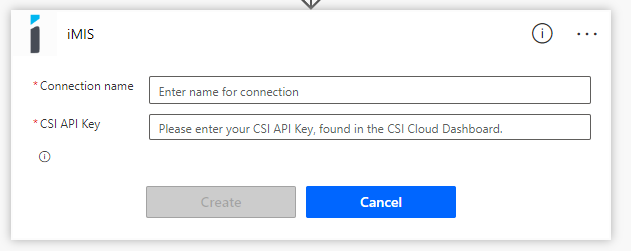
Do the following:
- The Connection name can be anything that uniquely identifies the connection to iMIS. The name can include spaces and certain special characters. For example, if the organization's acronym is XYZ, the connection names could be XYZ iMIS, XYZ (Live), XYZ Inc., etc.
- Paste in the CSI API Key that was obtained above in the Prerequisites section.
- Finally, click Create.
Note: If creating a connection to a test or staging environment, label it appropriately, for example, XYZ Staging or XYZ (Test).
Creating multiple connections
If you have both a test and a live Cloud ID (or Staging, Dev, etc), you can connect both from within Power Automate, and even use both connections interchangeably within a single flow.
To change your connection for a given action, or create a new one, do the following:
- Select the ellipsis
- Scroll down and choose an existing connection, or set up a new one.
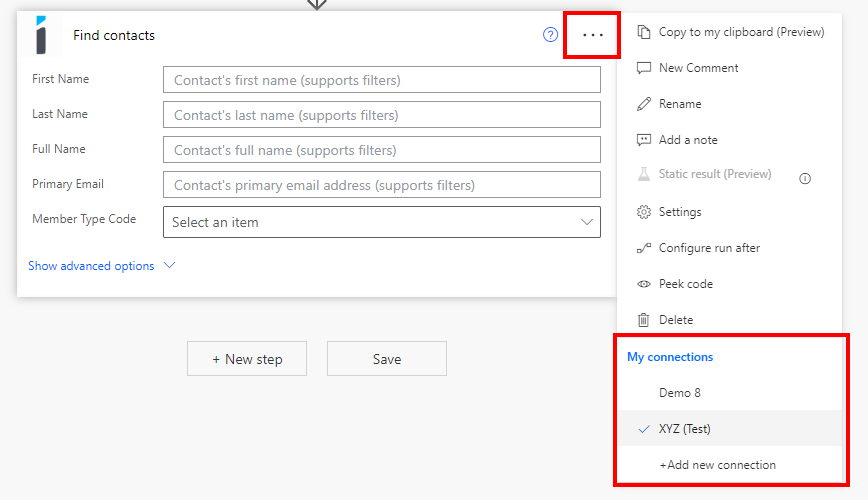
Note: Before saving or running any workflows, verify each and every action's connection is pointed to the correct environment. Otherwise it may overwrite, copy, or delete data in the wrong environment which is irreversible.
Managing connections
Do the following to manage connections:
- Go to Data > Connections in the left navigation menu.
- On this screen, you can also set up a new connection if you wish - but it is typically easier to do from within the workflow editor interface.
Warning! If you delete a connection, it cannot be recovered, and any workflows that were using that connection will no longer work.