Last updated on: June 23, 2026
Panel actions
iMIS panels and panel records can be accessed by creating a flow using the iMIS Power Automate Connector. The following examples show different ways to utilize panel data. In the following examples, a Input fields are created in the Flow within the iMIS Power Automate Connector, and the Outputs are returned.
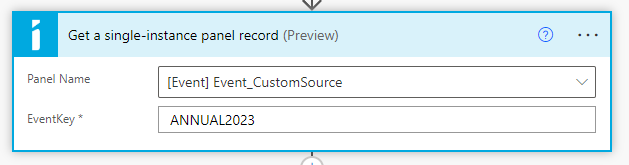
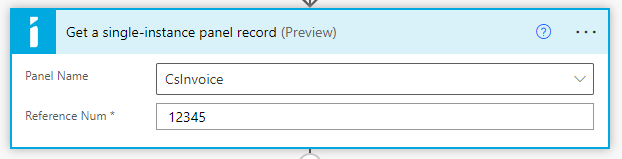
 Get a single-instance panel record
Fetches one single-instance panel record from iMIS by its panel name and iMIS ID.
Note: This action works on any Business Object in iMIS. Select Enter custom value in the Panel Name drop-down and type the name of a business object exactly as it appears in iMIS (for example, CsContact or CsOrderLines).
| Inputs | Outputs |
|---|---|
|
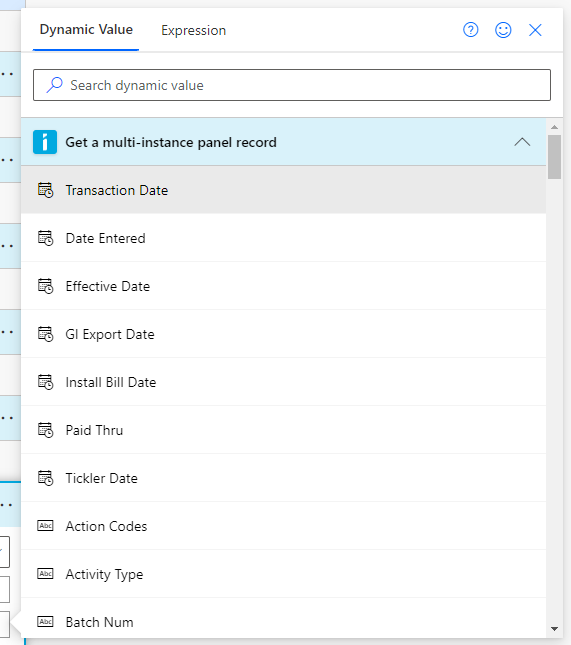
The output is a single record containing the fields from the panel or business object. |
Get a multi-instance panel record
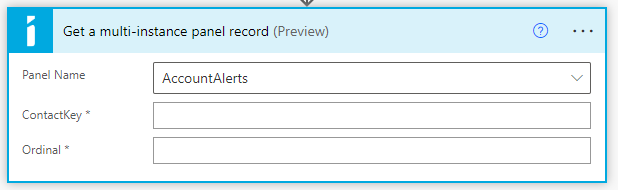
Fetches one multi-instance panel record from iMIS by its panel name and primary key(s).
Note: This action works on any Business Object in iMIS. Select Enter custom value in the Panel Name drop-down and type the name of a business object exactly as it appears in iMIS (e.g. CsContact or CsOrderLines).
| Inputs | Outputs | |
|---|---|---|
|
The output is a single record containing the fields from the panel or business object. | |
| Party |
|
|
| Event |
|
|
| Standalone |
Ordinal: The ordinal (formerly sequence) value that uniquely identifies a single record for this standalone panel |
|
| Business objects |
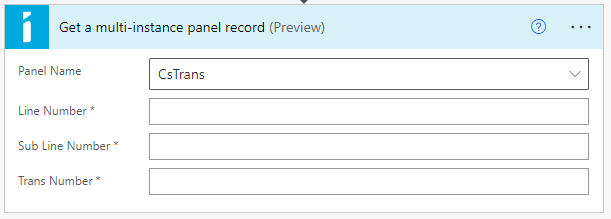
The primary key(s) are presented as prompts. For example, for CsTrans, the following prompts are displayed:
|
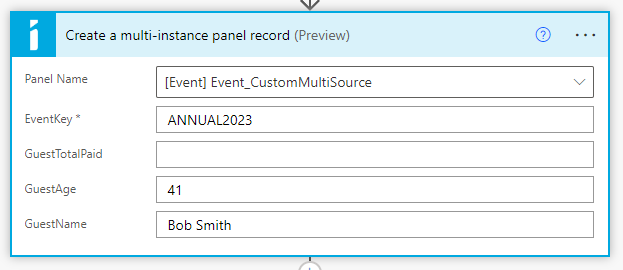
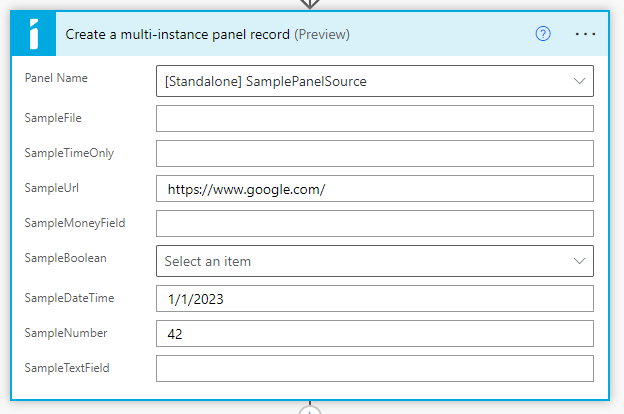
Create a multi-instance panel record
Creates a new record in a multi-instance panel source.
Warning! While Business Objects can be used with the Get a multi-instance panel record action or the Find panel records action, updating business objects is not allowed by iMIS. Attempting to use this action to update a business object will result in an error.
| Inputs | Outputs | |
|---|---|---|
|
(Panel Fields): The resulting panel record (after being created). Warning! A known issue in iMIS causes the Ordinal output field to always be set to "0". |
|
| Party |
Id / ContactKey: The iMIS ID |
|
| Event |
EventKey: The event key / code |
|
| Standalone |
Standalone panels do not have a "parent" primary key. |
Update a single-instance panel record
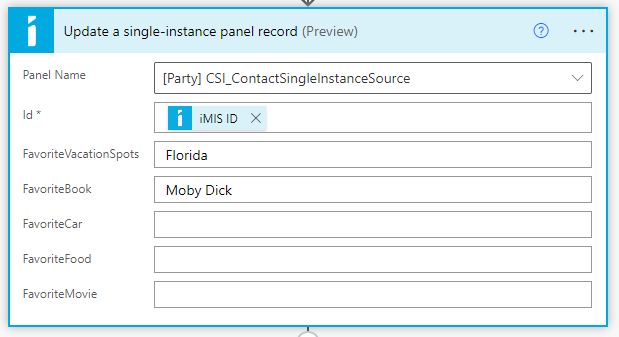
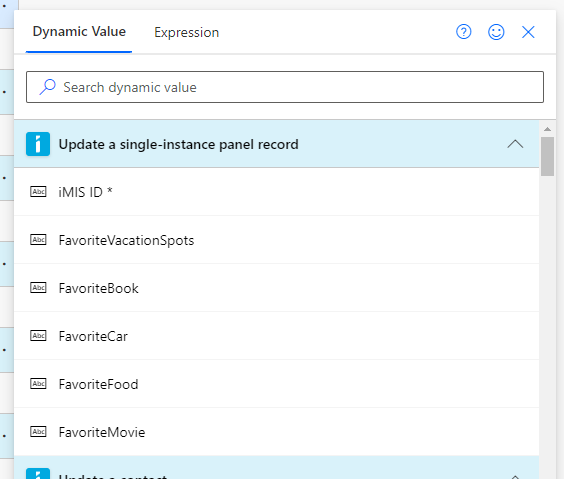
Updates (or creates) fields in a single-instance panel source record.
Any fields left blank will not be altered. To explicitly blank out a field, insert an empty string ('') using an expression. See Known Limitations for more information.
Important! While Business Objects can be used with the Get a multi-instance panel record action or the Find panel records action, updating business objects is not allowed by iMIS. Attempting to use this action to update a business object will result in an error.
| Inputs | Outputs |
|---|---|
|
The output is a single record containing the fields from the panel or business object. |
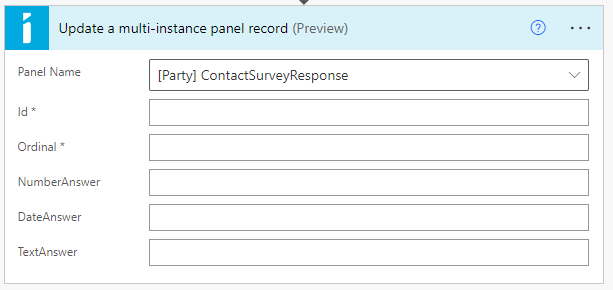
Update a multi-instance panel record
Updates fields in a multi-instance panel source record.
Any fields left blank will not be altered. To explicitly blank out a field, insert an empty string ('') using an expression. See Known Limitations for more information.
Important! While Business Objects can be used with the Get a multi-instance panel record action or the Find panel records action, updating business objects is not allowed by iMIS. Attempting to use this action to update a business object will result in an error.
| Inputs | Outputs |
|---|---|
|
(Panel Fields): The resulting panel record (after being updated). |
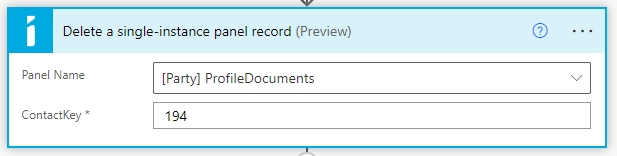
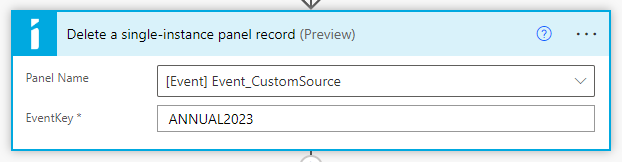
Delete a single-instance panel record
Deletes a single-instance panel source record by its primary key.
Warning! Deletes are permanent in iMIS. Exercise caution when using this action.
Important! While Business Objects can be used with the Get a multi-instance panel record action or the Find panel records action, updating business objects is not allowed by iMIS. Attempting to use this action to update a business object will result in an error.
| Inputs | Outputs |
|---|---|
|
None |
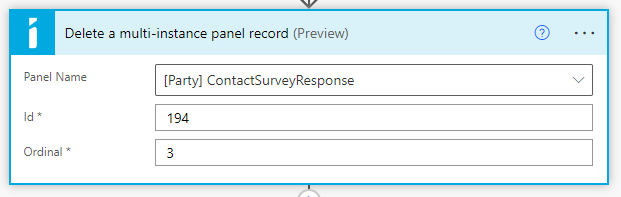
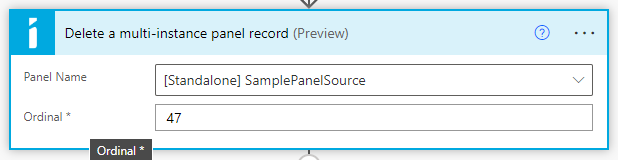
Delete a multi-instance panel record
Deletes a multi-instance panel source record by its primary key(s).
Warning! Deletes are permanent in iMIS. Exercise caution when using this action.
Important! While Business Objects can be used with the Get a multi-instance panel record action or the Find panel records action, updating business objects is not allowed by iMIS. Attempting to use this action to update a business object will result in an error.
| Inputs | Outputs |
|---|---|
|
None |
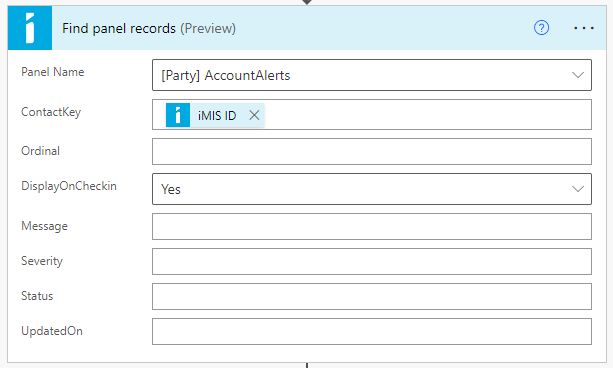
Find panel records
Searches through, and returns records in a panel source.
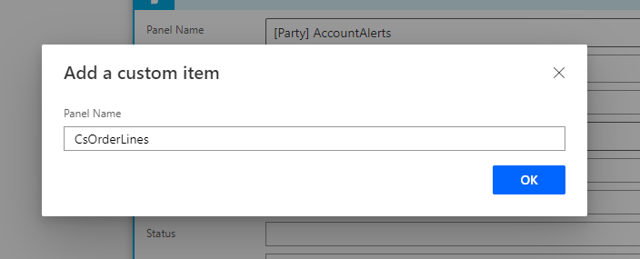
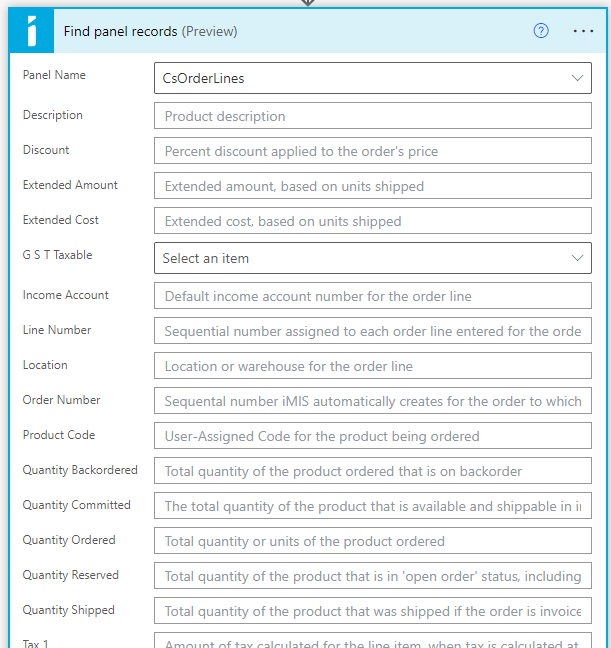
Note: This action works on any Business Object in iMIS. Select "Enter custom value" in the Panel Name dropdown and type the name of a business object exactly as it appears in iMIS (e.g. CsContact or CsOrderLines)
Note: Supports Pagination and Search Filters.
| Inputs | Outputs |
|---|---|
|
|