Last updated on: June 23, 2026
Settings
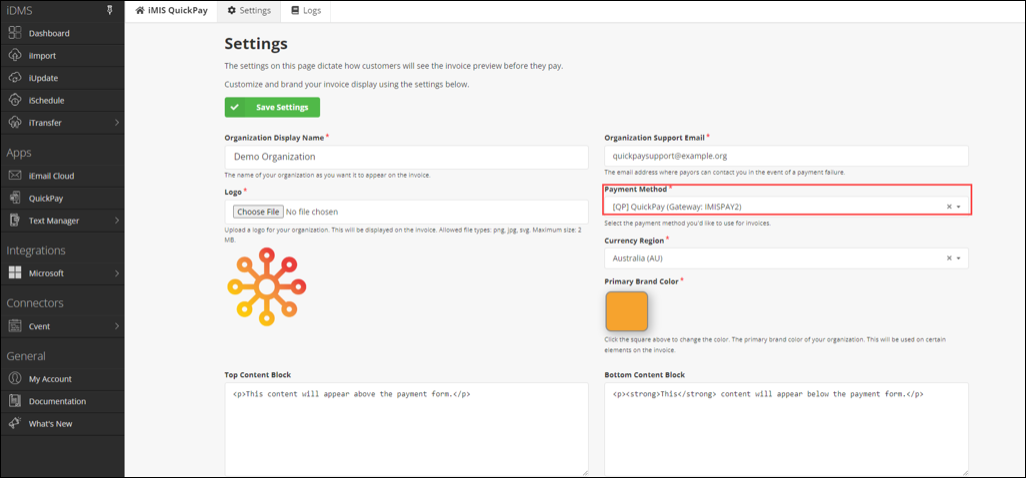
To access the application’s settings area, click on Settings in the top navigation bar.
Organization Display Name
This field can contain any desired text and appears on the invoice screen beneath the uploaded logo. It should display the company or organization name to clearly identify the payment recipient.
Organization Logo
Use this field to upload the organization’s logo. Transparent .png files are preferred. The maximum file size allowed is 2 MB.
Note: The height of the logo is restricted to 150px on the invoice.
Organization Support Email
This email address is used for customers to request support.
Note: It appears only when a payment fails in iMIS; customers who complete their payment successfully will not see this email.
Payment Method
Choose a payment method from iMIS to process invoice payments. The drop-down lists only payment methods in iMIS with a type of Credit Card and a gateway of iMIS Pay. Other payment methods are not supported.
Note:
At this time, only one payment method is supported for all invoices.
At a later date, support for individual payment methods (or payment method overrides on a per-invoice basis) may be added to the product.
This drop-down shows all payment methods registered in iMIS. It is recommended to have a QuickPay specific payment method. The payment method must have the gateway as IMISPAY.

Currency Region
Select the currency region as specified in Settings > Finance > General. These two values must match, otherwise all payment attempts will result in an error.
Important! In rare cases, it is possible to set a currency code on a payment method specifically, rather than at the iMIS system level. If this applies to you, select the currency code that matches the payment method you are using for QuickPay.
Primary Brand Color
Set this value to your organization’s primary brand color. Elements on the invoice payment page will utilize this color where applicable.
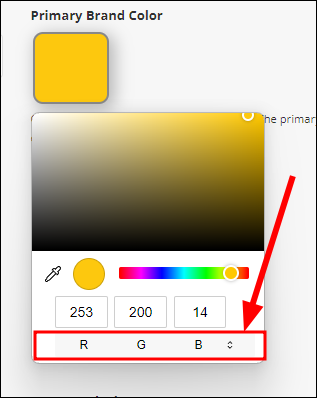
To select a Hexadecimal color code, for example #A1B2C3, do the following:
- Open the color picker.
- Click on the bottom bar to cycle between color modes and select HEX.
- Paste the color code into the box and press Enter.
Content Blocks
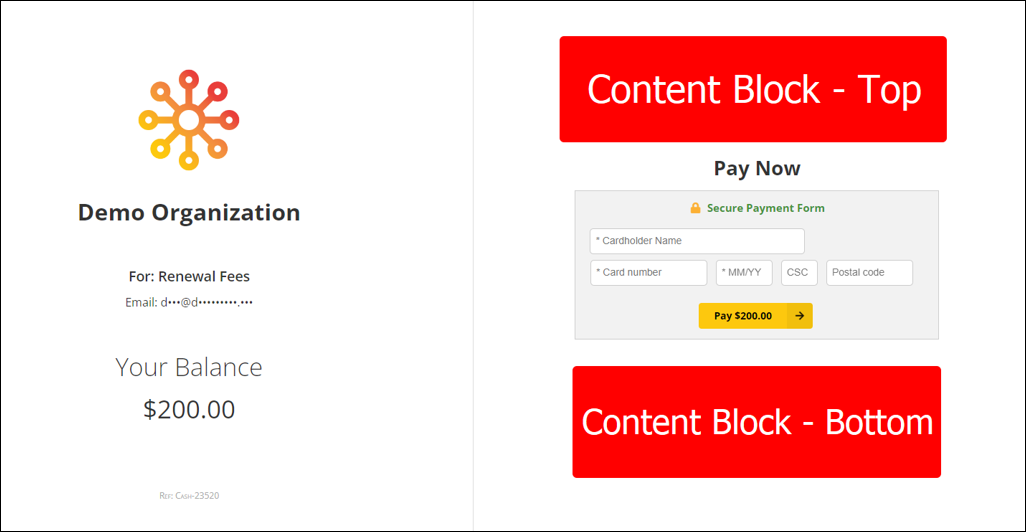
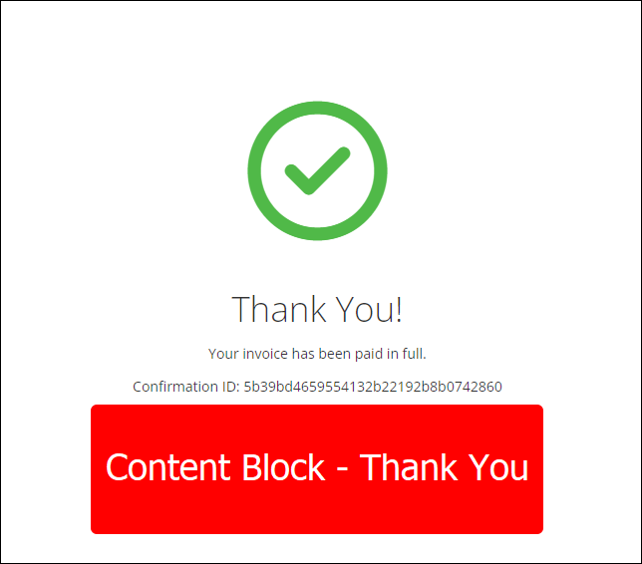
The content blocks allow you to insert HTML content above and below the payment form on the invoice payment screen. Provide legal text, help, or support information to customers using these fields.
Important! JavaScript tags are not supported inside content blocks at this time, as this can cause the credit card payment widget to stop working. Please refrain from entering any <script> tags into the content block fields.