Last updated on: June 19, 2026
QuickStart Template
Individual and Organization Joins
The Individual and Organization join pages are ready-made wizard-style pages to set up accounts, capture key details, apply terms and conditions, and handle fee payments.
Understanding the join pages
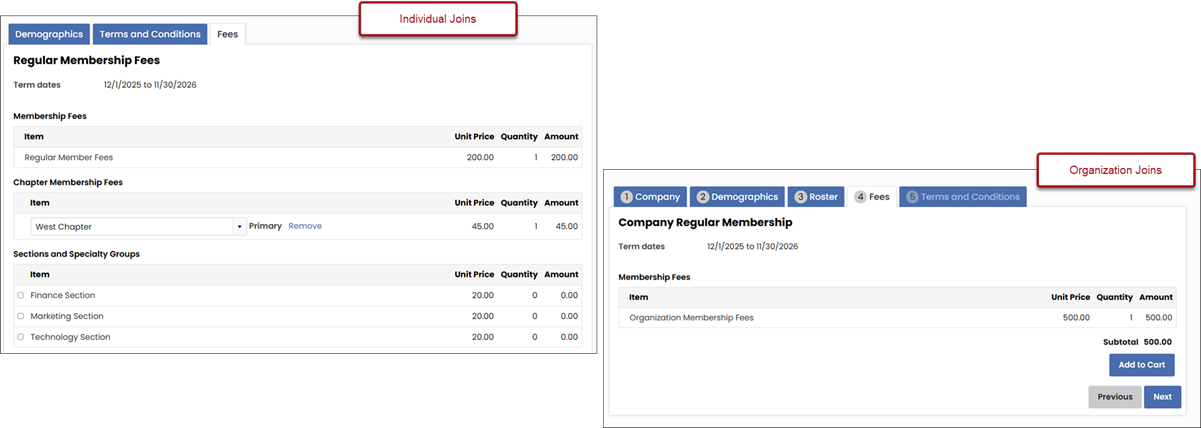
The individual and organization join pages are configured as wizards, which collect demographic information, an organization roster, the acceptance of terms and conditions, and the purchase of the membership product.
Individual
The individual join page contains tabs, which are also content records:
- Create Account - Allows the member to create an account if they do not already have one. If they do have one, they should instead sign in.
- Demographics - Collects demographics by using the _MyWeb_MyDemographics panel. Update this panel to include more data to collect.
- Terms and Conditions - Requests the member accepts the terms and conditions of membership and provides a link to the privacy policy (@/Web/Privacy Policy).
- Fees - Uses the General Product Display content item to display the associated billing cycle.
Organization
The organization join page contains tabs, which are also content records:
- Create Account - Allows the person joining on behalf of the organization to create an account if they do not already have one. If they do have one, they should instead sign in.
- Company - Create the company account record.
- Demographics - Collects demographics by using the _MyWeb_MyDemographics panel. Update this panel to include more data to collect.
- Roster - Add contacts to the roster or add them later. This page contains a Group List Editor content item to capture the roster.
- Terms and Conditions - Requests the member accepts the terms and conditions of membership using the _MyWeb_TermsAndConditions panel, and provides a link to the privacy policy (@/Web/Privacy Policy).
- Fees - Uses the General Product Display content item to display the associated billing cycle.
Updating the join pages
Easily update the individual or organization join pages.
Modifying the tabs
To modify any of the tabs included in the individual join page, do the following:
- Go to RiSE > Page Builder > Manage content.
- To edit the individual pages, navigate through the following folder path: @/Web/Join/Individual
- To edit the organization pages, navigate through the following folder path: @/Web/Join/Organization
- To modify the Create Account page:
- Double click the CreateAccount content record.
- Select Configure on the Contact Account Creator content item.
- Update the configuration options, such as which properties are required and collected.
- Click OK, then click Save & Publish.
- To modify the other tabs, double click the Tabs folder:
- Double click the page you would like to edit.
- Make the changes, then click Save & Publish.
Adding properties to the demographics panel
To add additional demographic properties to be collected, do the following:
- Go to RiSE > Panel definitions.
- For individuals, do the following:
- Select the _MyWeb_MyDemographics panel.
- Expand the My_Demographics source.
- For organizations, do the following:
- Select the _MyWeb_OrgDemographics.
- Expand the My_OrgDemographics source.
- Click Add property.
- Create the new property.
- Continue create properties as needed.
- Click Add & Close.
- Drag the new property to the layout area.
- Click Save & Exit.
The new property is automatically available in the demographics panel. When new members join, they will be prompted to update the new property with a value.
Updating the privacy policy
To update the privacy policy, do the following:
- Go to RiSE > Page Builder > Manage content.
- Open the Web folder, then double-click the Privacy Policy content record.
- Select Configure.
- Update the privacy policy content.
- Click Save & Publish.
Updating the wording of the terms and conditions checkbox
To update the wording of the terms and conditions checkbox, do the following:
- Go to RiSE > Panel sources.
- Search for and open the My_TermsAndConditions source.
- Select the Join property.
- Update the I Agree text to what you would like it to say instead.
- To update the Do you agree to the Terms and Conditions of Membership text, go to RiSE > Panel definitions.
- Search for and open the _MyWeb_TermsAndConditions panel.
- Update the Label for the My_TermsAndConditions.Join property.
- Click Save & Exit.