Last updated on: June 19, 2026
QuickStart Template
Contact us
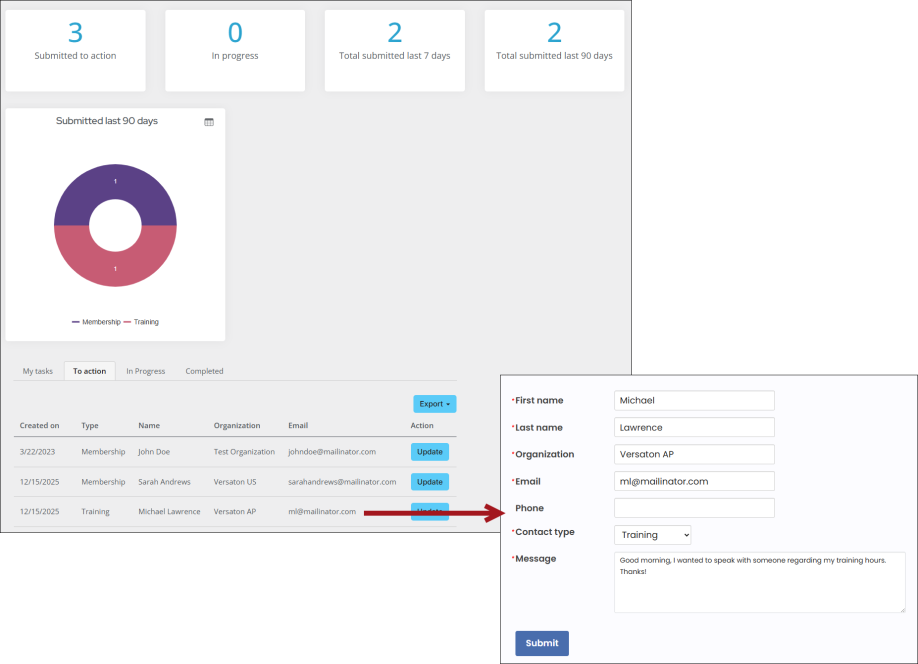
The Contact Us feature allows your members, or the public, to submit inquiries through a form on your website. Inquiries can be assigned for action by team members and their progression tracked by the Contact Us dashboard.
In This Article
- Content records
Forms
Panels
General lookup tables
Queries
Logging form submissions to a contact record
Content records
The Contact Us feature is made up of nine content records; two records pointing to the public Web site, and seven content records used to create the Contact Us Dashboard.
Web content records
To view the public facing content records, go to RiSE > Page Builder > Manage content, and navigate to the @/Web/AboutUs folder.
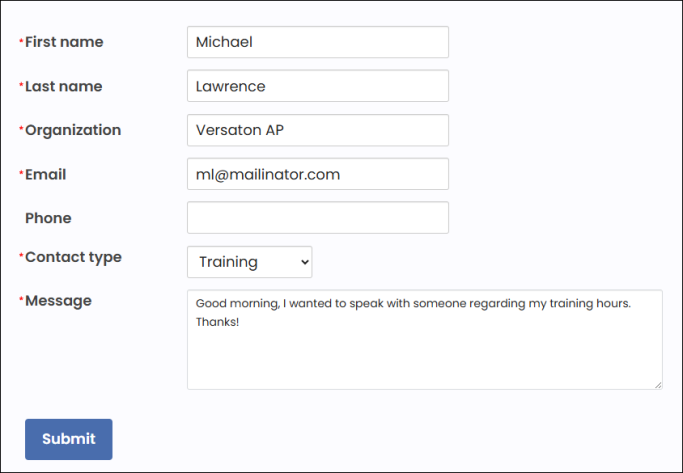
- Contact us - The page used to submit an inquiry. It displays the Web - Contact us form.
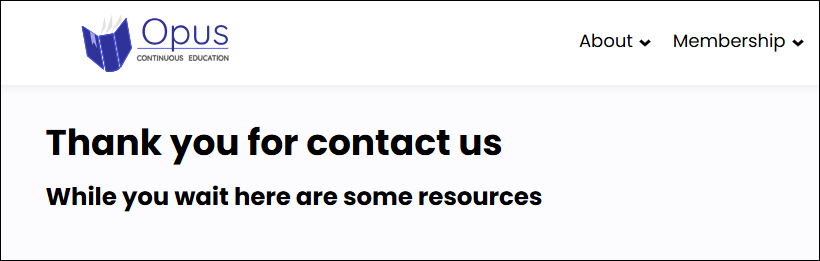
- Contact us thank you - Displays when the Web - Contact us form is submitted.
Dashboard content records
To view the public facing content records, go to RiSE > Page Builder > Manage content, and navigate to the @/MyStaff/Dashboards/ContactUs folder.
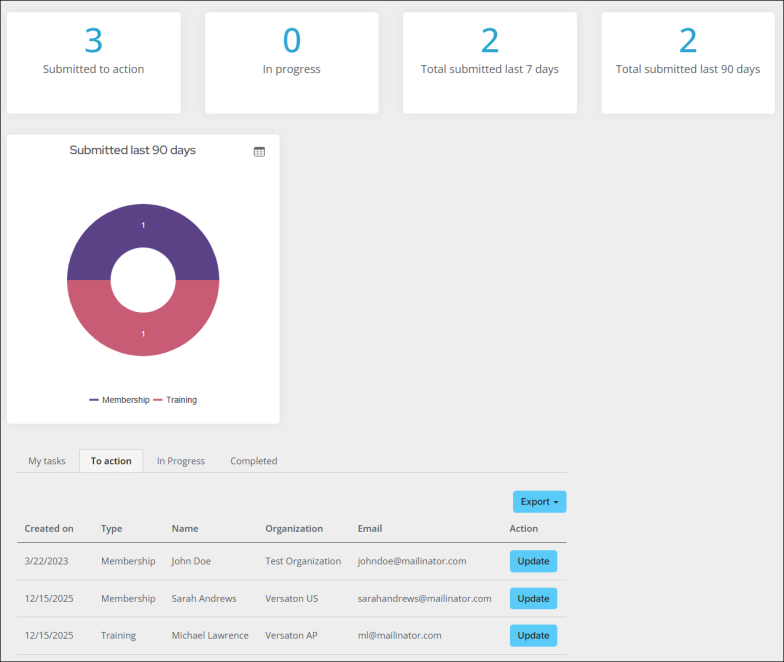
- Contact us dashboard - Used to track, manage and report on inquiries. Includes progress trackers, graphs and a content collection organizer.
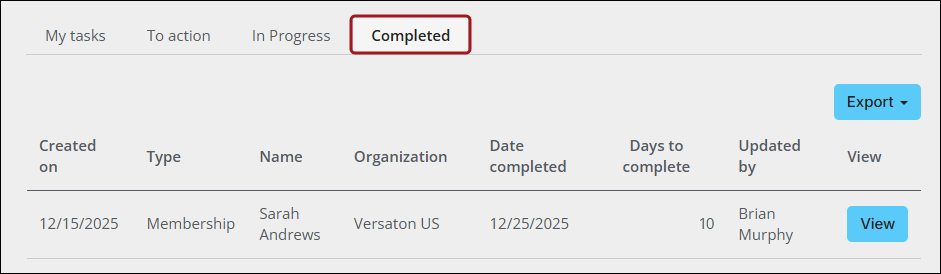
- Completed - Used on the Completed tab, displays all inquiries completed in the last 90 days.
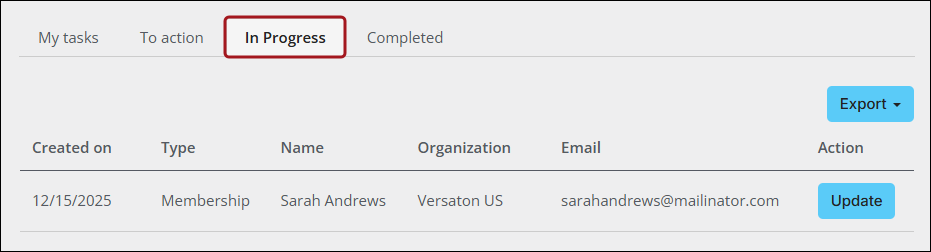
- In Progress - Used on the In Progress tab, displays all inquiries with a status of In Progress.
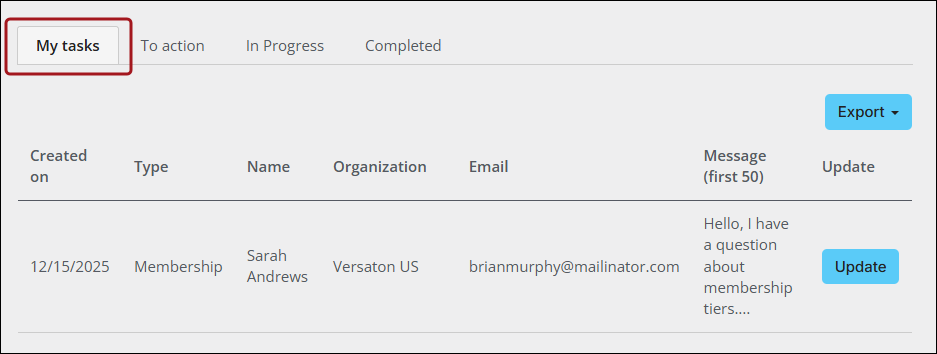
- My Tasks - Used on the My tasks tab, displays any inquiries assigned to the person viewing the dashboard.
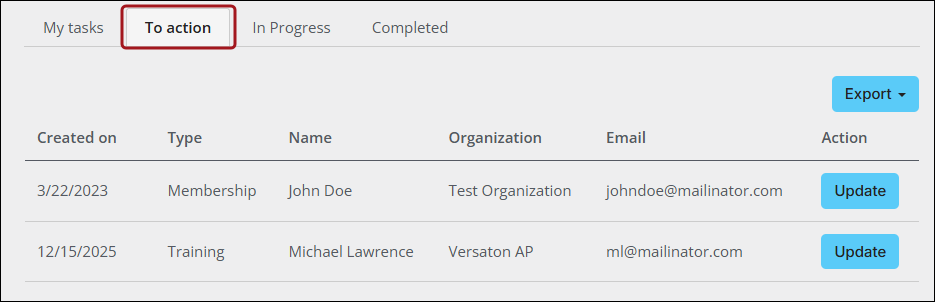
- Submitted to action - Used on the To action tab, displays all inquiries that have been submitted but not yet reviewed.
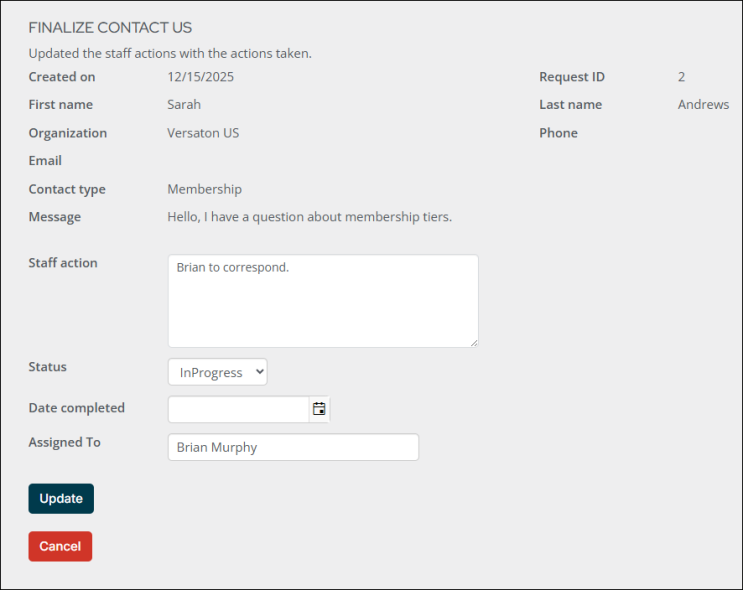
- Update Contact Us - Accessed by clicking the Update button against an inquiry on the My tasks or To action tabs. Displays the Staff - Update contact us form which is used to update an inquiry's status, assignee and any actions taken.
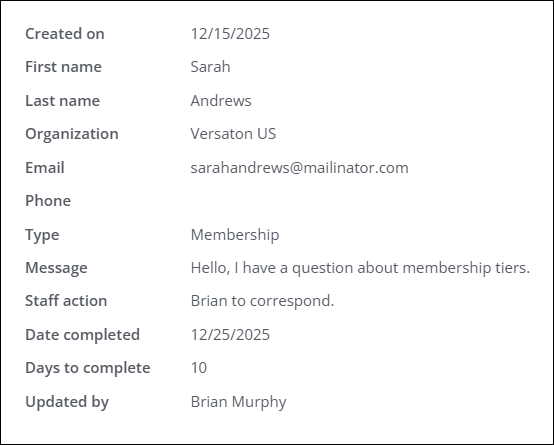
- View contacts us details - Accessed by clicking the View button against an inquiry on the Completed tab. Displays all the data recorded for an inquiry.
The content collection organizer uses the following content pages:
Forms
The Contact Us feature uses two forms; one to record the inquiry from the public website, and the other for staff to update the inquiry when actions are taken toward the inquiry. Go to RiSE > Form Builder > Form library > Quickstart:
- Web - Contact us - The form used to record the inquiry. When a user submits the form, they are taken to the Contact us thank you page, and the status of the inquiry is set to Submitted.
- Staff - Update contact us - The form used by staff to update an inquiry. The following statuses are available:
- In progress - An assignee must be selected.
- Completed - A completion data must be entered and the assignee and actions taken become read only.
Submitting the form takes the user back to the Contact us dashboard.
Panels
Go to RiSE > Panel Designer > Panel sources. The Contact Us feature utilizes the My_ContactUs panel source to store all data about inquiries. This panel stores all information submitted on an inquiry form as well as the status, assignee, actions and completed date used by staff. The following panel properties are available:
- AssignedTo
- ContactType
- CreatedByUserKey
- CreatedOn
- DateCompleted
- FirstName
- LastName
- Message
- Ordinal
- Organization
- Phone
- StaffAction
- Status
- UpdatedByUserKey
- UpdatedOn
General Lookup Tables
Go to Settings > General lookup tables. The following tables are available:
- CONTACTUS_CONTACTTYPE - Define different types of inquiries that the user can choose from a drop-down list on the Web - Contact us form. The standard options are: Membership, Other and Training.
- CONTACTUS_STATUS - Defines the statuses of inquiries. The standard statuses are: Submitted, In Progress, and Completed. Changes to these statuses will affect the queries used on the Contact Us Dashboard.
Queries
Go to RiSE > Intelligent Query Architect, and navigate to $/_MySystem/StaffSite/Dashboards/ContactUs. The following queries are used throughout the Contact Us Dashboard for progress trackers, graphs, lists, and tabs:
- Progress Tracker - Submitted to action - Counts the number of inquiries with a status of Submitted.
- Progress Tracker - In progress - Counts the number of inquiries with a status of In Progress.
- Progress Tracker - Submitted last 7 days - Counts the number of inquiries received in the last 7 days regardless of what the status of the inquiry currently is
- Progress Tracker - Submitted last 90 days - Counts the number of inquiries received in the last 90 days regardless of what the status of the inquiry currently is.
- Graph - Submitted last 90 days by type - Displays the number of submissions by contact type in a donut graph.
- List - In Progress to action assigned to logged in user - Used on the My tasks tab of the content collection organizer to display a list of inquiries with a status of In Progress which are assigned to the logged in user.
- List - In Progress to action - Used on the In Progress tab of the content collection organizer to display a list of all inquiries with a status of In Progress.
- List - Submitted to action - Used on the To action tab of the content collection organizer to display a list of inquiries with a status of Submitted.
- View - Completed contact us details - Used to display all the fields of a completed inquiry when the user clicks the View button against a row on the Completed tab of the content collection organizer.
- _List - Completed last 90 days - Used on the Completed tab of the content collection organizer to display a list of enquiries with a status of completed where the completion date is in the last 90 days. This query is located at $/_MySystem/StaffSite/Dashboards/ContactUs/Completed.
Logging form submissions to a contact record
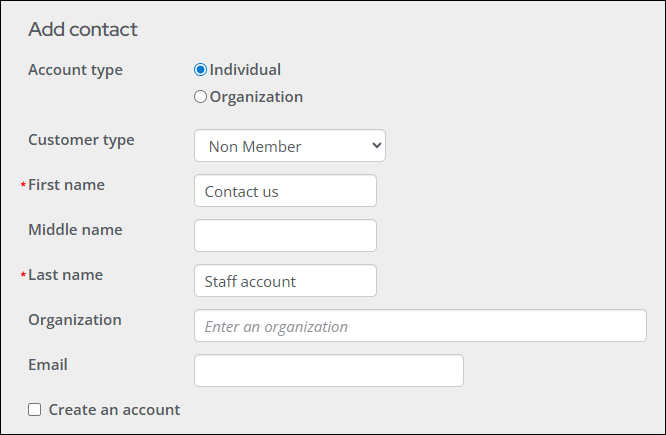
In some cases, staff may wish to create a single contact record that is assigned to all submission from the Contact us form. Do the following to create this contact record:
- Go to Community > Add contact.
- Create a contact record. Make sure to use a unique First and Last name such as Contact us Staff account.
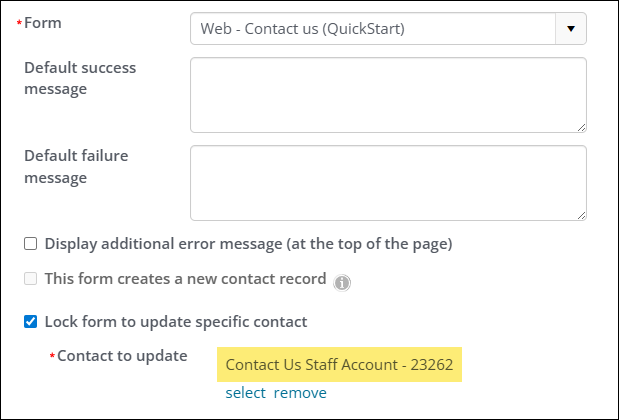
- Go to RiSE > Page Builder > Manage content. Open the Contact us content record located at @/Web/AboutUs.
- Select Configure on the Form content item.
- Scroll down and ensure the Lock form to update specific contact option is enabled. See Displaying a form for more details about this setting.
- From the Contact to update field, click select. Use the available search filters to locate the account you just made.
- Click OK, then Save & Publish.

All forms submitted will now be logged to this contact record.