iMIS Power Suite - Outlook Integration

iMIS Outlook Integration: Options

iMIS Outlook Integration can be customized and configured with Options.

To access the iMIS Outlook Integration Options, do the following:

  1. Log into iMIS Outlook Integration as a user with a SysAdmin role, such as Manager.
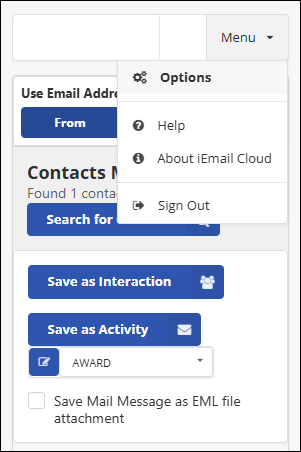
  2. Once logged in, select the Menu button.
  3. Choose Options from the dropdown.

This directs to the Options screen, where you can change iMIS Outlook Integration settings.

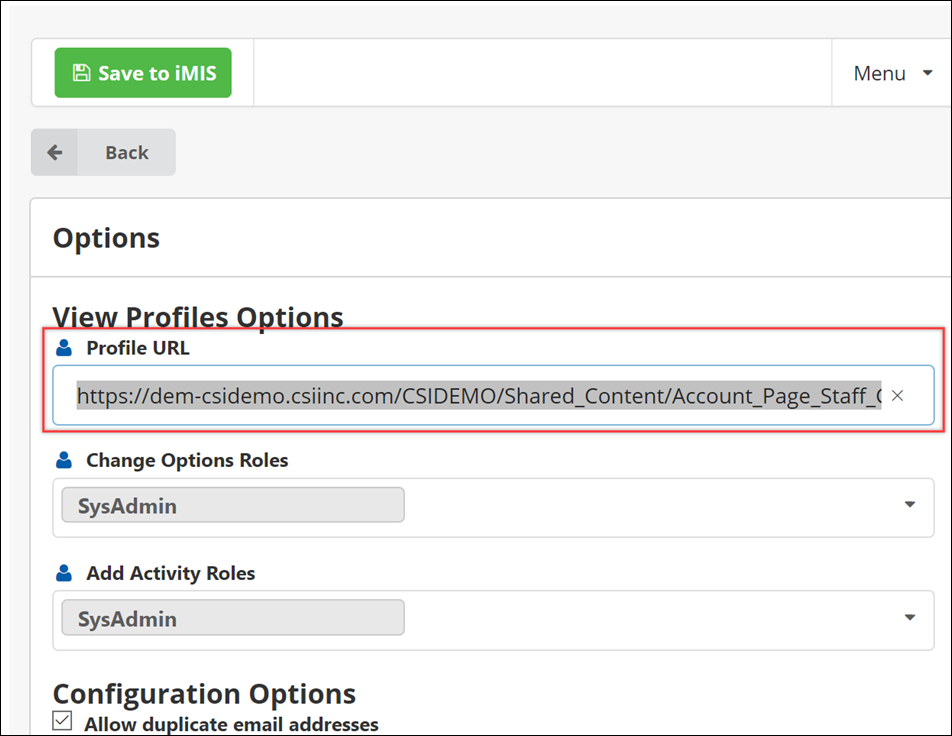
Profile URL

In the Profile URL field, enter the URL that points to the iMIS Staff page. This URL allow users of iMIS Outlook Integration to view iMIS member profiles. An example URL might be https://staff.myorganization.org/Account_Page_Staff.

To find the correct Profile URL to use, do the following:

  1. In the Staff site, go to Community > Find contacts.
  2. Find any contact to visit their profile.
  3. In the browser's navigation bar, delete the text string after .aspx in the URL.
  4. In the iMIS Outlook Integration pane in Outlook, go to Menu > Options.
  5. Past the URL into the Profile URL field.

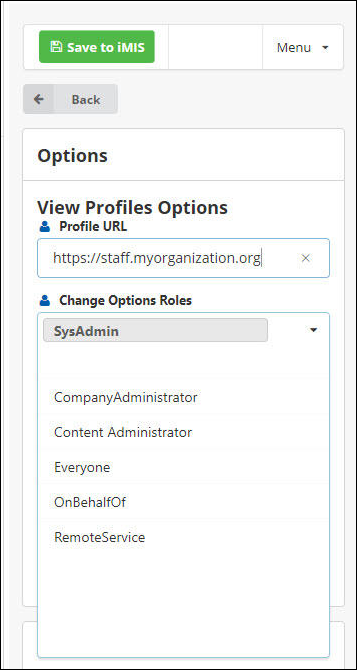
Change Options Roles

Contains a list of the roles that can view and change the Options in iMIS Outlook Integration. These roles are typically created in the Staff site ( Community > Security > Roles).

Note: By default, only an iMIS user that already has the Sysadmin role can view the Options in iMIS Outlook Integration. For all other users, the Options menu item is hidden. This controls what an organization's users are able to adjust.

Selecting a user role in the Change Options Roles will give users with the role the ability to change options in iMIS Outlook Integration. If a user's role is not in this list, the Options item is hidden from the dropdown Menu.

Add as many or as few roles as necessary. Remove roles by clicking the X button next to the role.

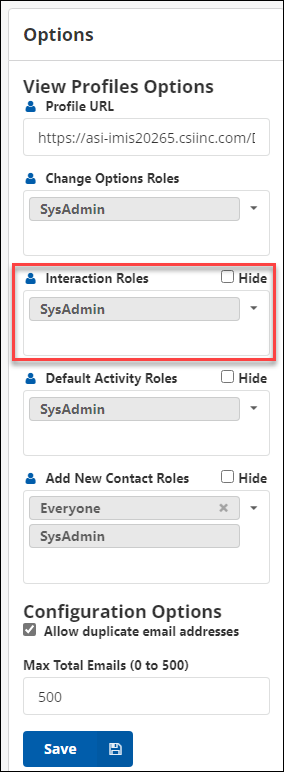
Interaction Roles

Contains the list of roles that have authority to add Interactions. The Hide checkbox will hide the button from showing up no matter what role is in the list. Clicking the Save button saves all changes.

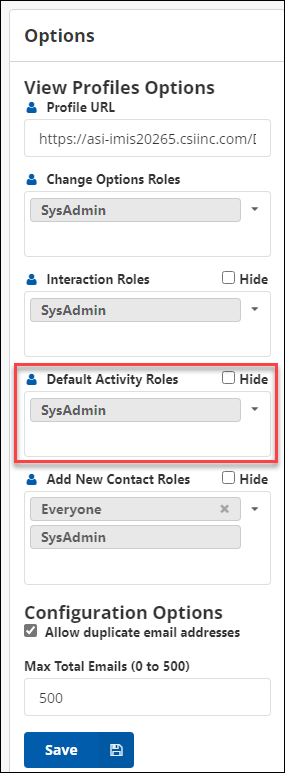
Default Activities Roles

Contains the default list of iMIS roles that have the authority to add email activities to iMIS. The Hide checkbox will hide the button from showing up no matter what role is in the list. The Save button at the bottom will save all changes to Options.

This default list is applied to each individual activity type that is setup under Setup Activity Types. These defaults remain in effect for all Activity Types that have not had their roles set at the individual level (see Activity Type Setup Options).

Add as many or as few roles as necessary. Remove roles by clicking the X button next to the role.

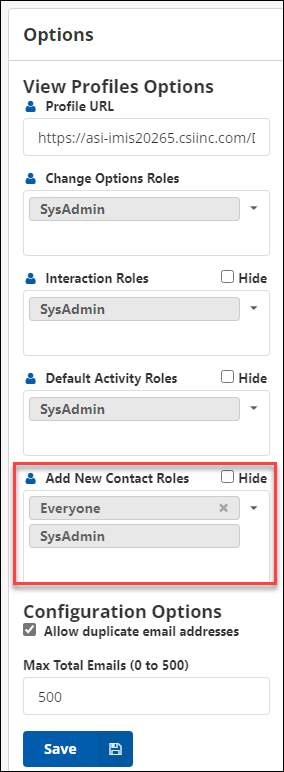
Add New Contact Roles

Contains the list of iMIS roles that have the authority to add New Contacts to iMIS. The Hide checkbox will disable the ability to add New Contacts no matter what role is in the list. The Save button at the bottom will save all changes to Options.

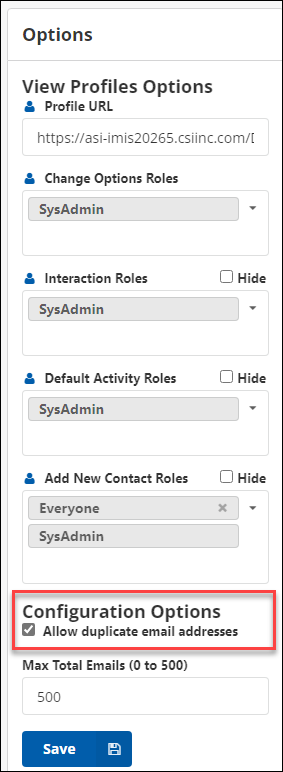
Allow duplicate emails

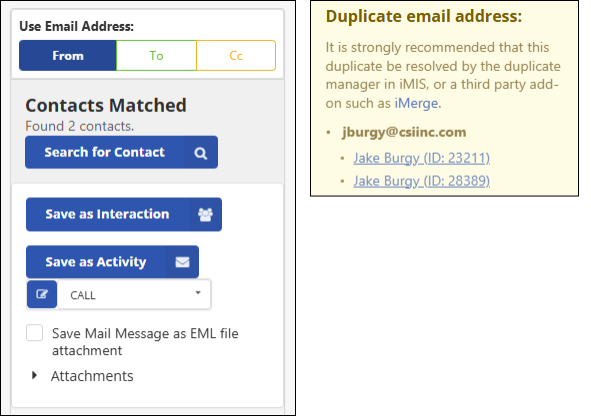
By checking this box, iMIS Outlook Integration will allow users to add email activities or recent interactions to records that have duplicate email addresses.

Example: Dan Johnson is the main contact for ABC Company, but he is also an individual in iMIS. Each record would have the same email address, therefore, the email must be written to both records.

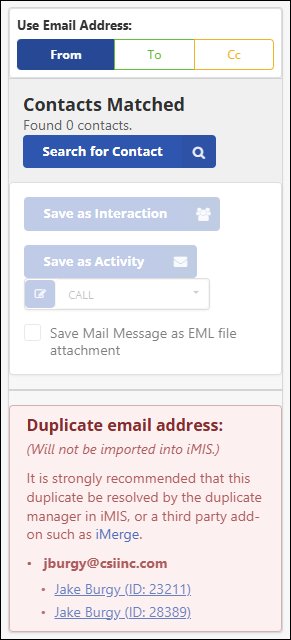
By default, the checkbox is unchecked, and a user will see the Save as Interactions and Save as Activities buttons as disabled. An error box shows records that were found to have duplicate emails. The records are shown as hyperlinks that direct to that user’s profile in iMIS to be corrected.

If checked, the option will allow users to create interactions or activities in iMIS by enabling the Save as Interactions and Save as Activities buttons. The error box also changes to a warning box showing the duplicate emails found. The records will be shown as hyperlinks to take you to that user’s profile in iMIS for you to easily correct.

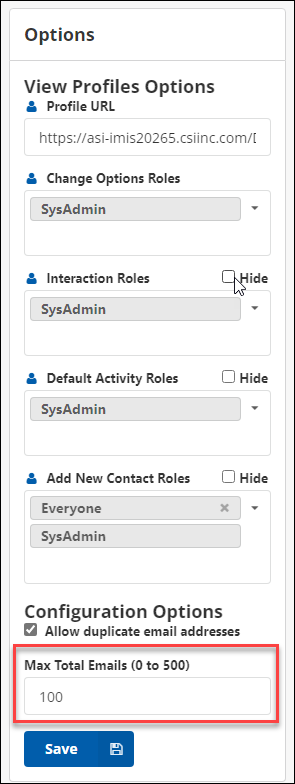
Max Total Emails (0 to 500)

The Max Total Emails limit is the maximum number of emails that are selected when a user selects the Select All button when adding recipients to an outgoing email.  

The allowable range is 0 to 500, as 500 is that maximum number or recipients that Outlook currently allows to be added to one email. In the following screenshot, the limit has been set to 100

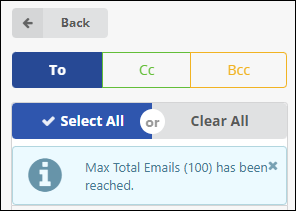
The following screenshot shows the result of clicking the Select All button on the results of a search containing more than 100 results. The Select All process stops when it reaches the limit defined in the Options.

Activity options

Setup Activity Types
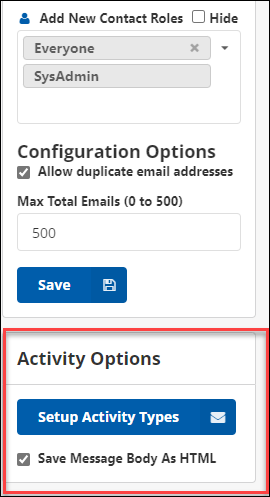
The Setup Activity Types allows administrators to configure how information is written for each activity type selected.

Note: If you are transitioning from iEmail Desktop to iMIS Outlook Integration, then your Activity Setup will transfer to iMIS Outlook Integration automatically.

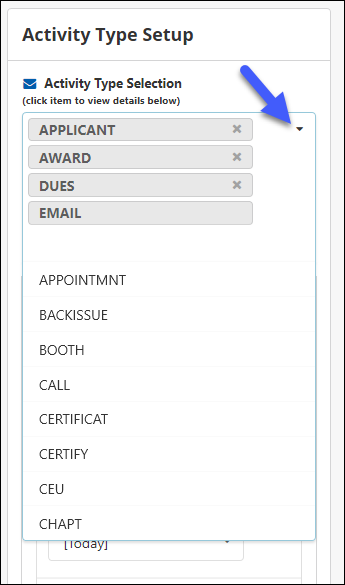
Activity Types are first selected from a drop-down list:

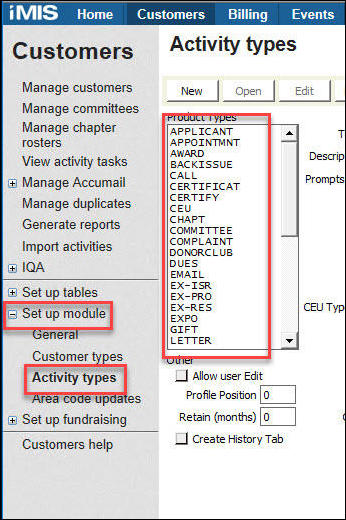
The list of available option are drawn from the Activity Types already contained in iMIS

For iMIS Desktop, the list of available Activities is drawn from the Customer > Set up module > Activity Type section.

For the Staff site, the list of available Activities will be the same as iMIS Desktop.

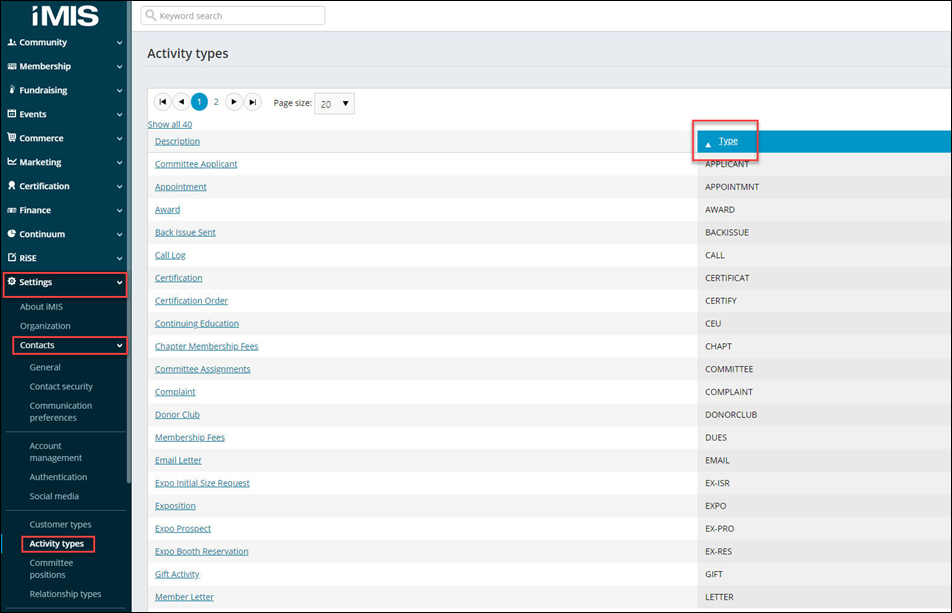
In EMS, the list of Activities shown in iMIS Outlook Integration is drawn from the Type setting in Activity types (Settings > Contacts > Activity types).

Note: Using System Default Activity Types is not recommended. This includes, but is not limited to, DUES, MEETING, ORDER, SALES, GIFT, PLEDGE, and more.

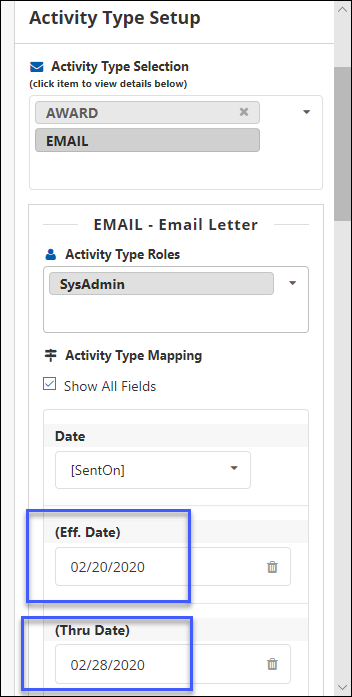
To adjust the fields to be saved to iMIS and/or modify roles for the respective Activity Type, click on each Activity Type.

Activity Type Roles 

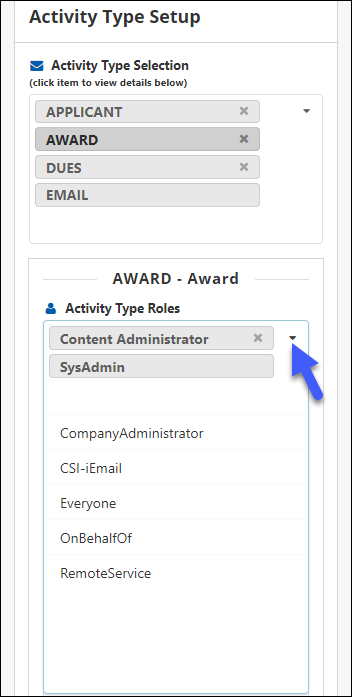
For each Activity Type, a role or a set of roles are displayed in the Activity Type Roles dropdown.

When a new Activity Type is added, the initial list of roles corresponds to the Default Activity Roles.

The individual Activity Type Roles may be modified as needed to allow users with specific roles the ability to add specific Activity Types. When a user logs into iMIS Outlook Integration, they will only see Activity Types that match their role(s) available for adding. If a user is not associated with any of the roles set up for any of the Activity Types, the Save as Activity button and the list of Activity Types are not visible.

Activity Type Mapping

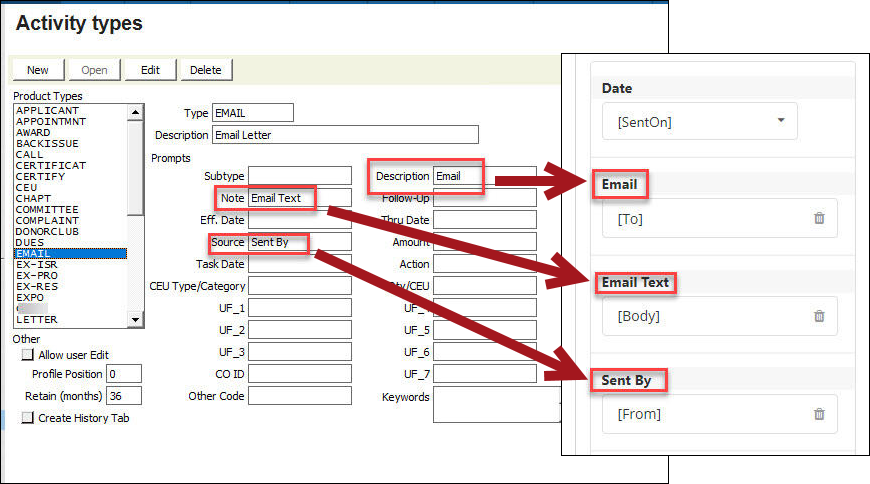
For each Activity Type, the Activity fields from iMIS will be displayed. Each field title (after the Date field) will correspond with what text was added to the Activity Type in iMIS.

Consider the following examples:

  1. If the Description field of the Email Activity type is described as Email, then Email is the field name in iMIS Outlook Integration.
  2. If the Note field is described as Email Text, then Email Text is the field name in iMIS Outlook Integration.
  3. If the Source field is described as Sent By, then Sent By is the field name in iMIS Outlook Integration.

If your iMIS Activity Types have additional fields, check the Show All Fields box in iMIS Outlook Integration. This displays all iMIS Activity type field descriptions. Each box has a predetermined set of choices to complete each time an email is sent.

Depending on the field configuration (text versus date), you will have different options to select. For example, the UF_5 field is usually a text field. These choices are typically available:

  • [SentOn]
  • [Subject]
  • [Body]
  • [Username]
  • [Recipients]
  • [From]
  • [To]
  • [Bcc]
  • [Today]
  • [Now]
  • [Meeting-Location]
  • [Meeting-StartDate]
  • [Meeting-EndDate]
  • [Meeting-Time]
  • [Meeting-Duration]

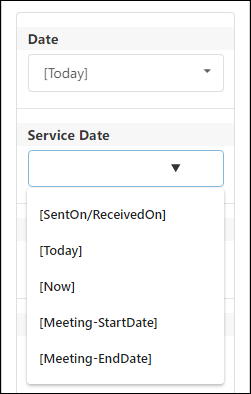
However, the UF_6 field is usually a Date field. As a result, these choices are available:

  • [SentOn]
  • [Today]
  • [Now]
  • [Meeting-StartDate]
  • [Meeting-EndDate]

The Field Configuration Results table shows the results of the field configuration choices:

Field Configuration Results

[SentOn]

Corresponds to the date the email message was sent on

[Subject]

Corresponds to the subject line of the email message

[Body]

Body section (entire message text) of the email message

[Username]

Corresponds to the logged in user name (from iMIS)

[Recipients]

Comma separated list of all recipients email addresses

[From]

Email address who has sent the email message

[To]

Email addresses the email message was sent to

[Cc]

Email addresses the email message was copied to

[Bcc]

Email addresses blind carbon copied

[Today]

Current date, for example: 4/12/2013 12:00 AM

[Now]

Current date and time, for example: 4/12/2013 9:30 AM

Note: The Allow user edit button at the bottom of the screen is never modifiable through iMIS Outlook Integration. This is set in the Staff site by going to Settings > Contacts > Activity types, selecting an Activity Type, and filling in the Allow user edit checkbox.

The Transaction Date field can only have two specific determined values:

[SentOn]

Corresponds to the date the email message was sent on

[Today]

The current date. For example, 4/12/2019 12:00 AM

Alternatively, the fields may be configured with static values entered in the setup.

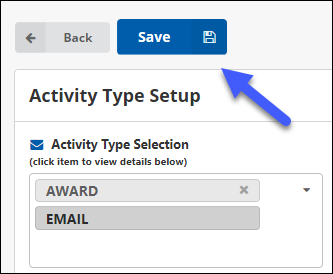
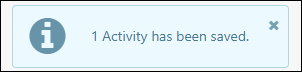
After all Activity Types have been configured, select the Save button to save the configuration.

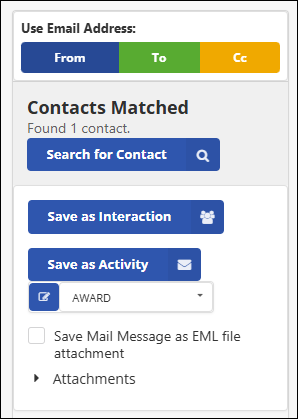
After the configuration has been saved, the Activity Types are available for selection from the Save to iMIS page.

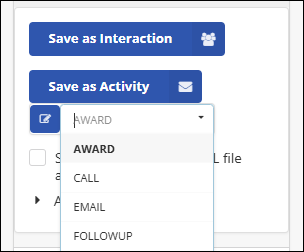
Clicking the dropdown following the Save as Activity button displays the available selection of Activity Types for this user.

Once the desired Activity Type has been selected, clicking the Save as Activity button will add that activity to iMIS for every contact in the list.

Activity Type Calculated Fields 

When mapping a date field in Activity Type Setup, you can append a calculation to the date option you selected.

All date options are eligible for appending a calculation.

The calculation must follow this pattern: [ + | - ] [ <number> ] [ <blank> | d | w | m | y ]

  • A plus (+) or minus (-) sign indicating adding to or subtracting from
  • A number indicating the number of date units being added or subtracted
  • An optional letter indicating the date unit:
    • d or blank = days
    • w = weeks
    • m = months
    • y = years

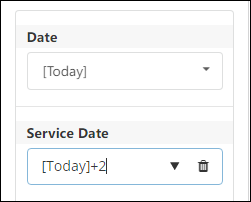
For example, inputting [Today]+2 calculates a Service Date of two days in the future.

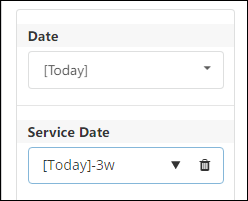
For another example, inputting [Today]-3w calculates a Service Date of three weeks in the past.

Saving Message Body As HTML

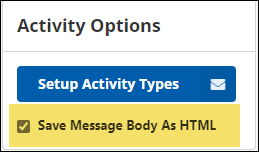
By filling in the Save Message Body as HTML checkbox, when saving an Activity, the email is saved with HTML formatting. If this option is not enabled, the email is saved without HTML formatting in regular text.

Purging cache

Sometimes, changes in iMIS do not immediately reflect within iMIS Outlook Integration. This is because the data is saved in a cache service that needs to be refreshed. The Clear Cache process within iMIS Outlook Integration can refresh the cache without going to the iMIS staff site.

To refresh the cache, do the following:

  1. In the iMIS Outlook Integration pane, go to Menu > About iMIS for Outlook.
  2. Select the Clear Cache button.

The Cache has been cleared notification appears if the cache clearing is successful.