Last updated on: June 23, 2026
Updating the iMIS Outlook Integration Icon
iMIS Outlook Integration now has a new icon, resembling the iMIS logo rather than an envelope.
To update to the new icon, do the following:
- Open the Run dialog box by pressing the Windows key + R.
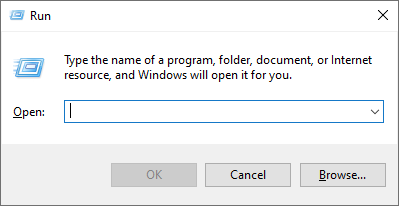
- Type
%LOCALAPPDATA%\Microsoft\Office\16.0\Wef(replace16.0with the version of Outlook that is installed) and press Enter. - Select all files and folders inside the Wef folder and delete them.
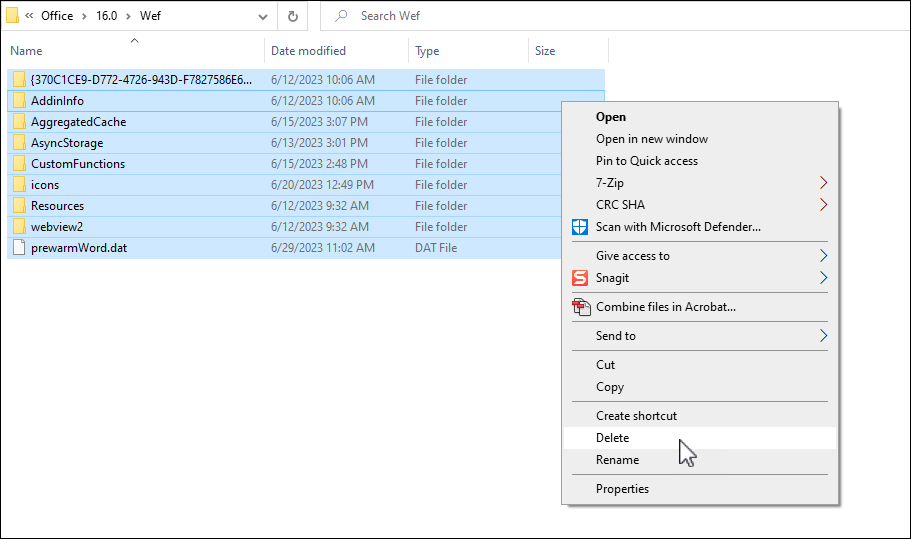
If the icon is not yet updated, the cache may have to be cleared.