Last updated on: June 23, 2026
Saving Outlook emails to iMIS
iMIS Outlook Integration allows you to capture both incoming and outgoing emails into iMIS.
Saving incoming email
When reading an email, click the iMIS Outlook Integration app icon in the upper-right corner.
Note: If you haven't logged into iMIS Outlook Integration for an extended period of time, you may be prompted for your credentials and Cloud ID.
After you are signed in, the Save to iMIS dialog displays and immediately retrieves any matching contacts from iMIS that appear on the email's To and Cc lines.
Reviewing matched contacts
A list of contacts will appear, including the sender (From), possibly including yourself (if listed on the To or Cc lines) and any other matched contacts on the To and Cc lines of the email.
To toggle which records to save to in iMIS, use the From/To/Cc filter. Alternatively, remove individual entries by clicking the X icon in the corner of each entry.
To restore a contact that was removed, toggle their respective category filter off and on at the top. (For example, if one contact was removed on the To line, click the To filter twice at the top to toggle it off and back on again.) This will restore all of the hidden contacts on the To line.
After reviewing and filtering the contacts to save records for, choose a method to store the outgoing email:
- Recent Interactions (Communication Log) - By clicking the Save as Interaction button, a communication log entry is written for each valid contact displayed on screen. The full rich-text body of the email is written to iMIS as a communication log entry for that contact. Users see the background credentials account as the Created By / Updated By account on the recent interaction, instead of the user that is currently using iMIS Outlook Integration.
- Email Activity - By clicking the Save as Activity button, an Activity record is written for each valid contact displayed on screen. Instead of selecting the Save as Activity button, click on the icon next to the name of the Activity to change the default fields that are setup in Options > Setup Activity Types.
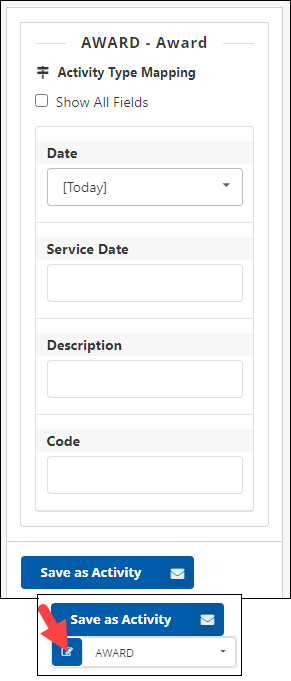
The Save as Activity button can be hidden from certain users and shown only to users with the correct iMIS roles. Change these settings in the options menu of iMIS Outlook Integration.
Note: Only the plain text version of the email is saved to the Activity record. Rich text and other formatting is not saved.
Saving Activities with gen_lookup table sub types
When saving an Activity, it is possible to set up a sub-type in a gen_lookup table to insert into the Activity.
Do the following:
- In the iMIS Staff site, go to Settings > Contacts > Activity types.
- Set up the Activity Type.
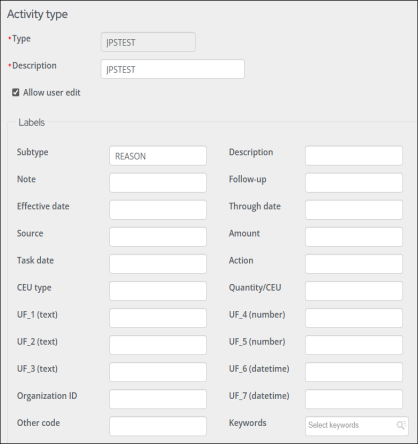
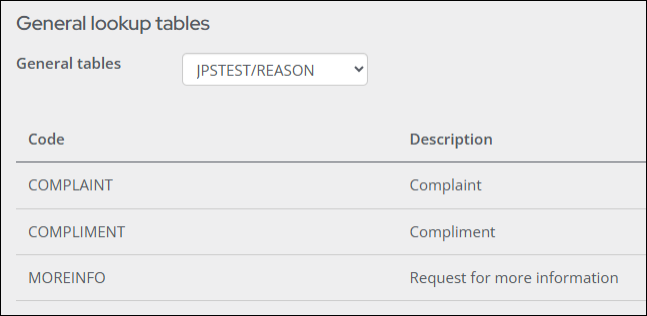
- Go to Settings > General lookup tables.
- Select Add new table.
- Set up a general lookup table with the sub types.
- In iMIS Outlook Integration, with an Activity selected, select the edit icon.
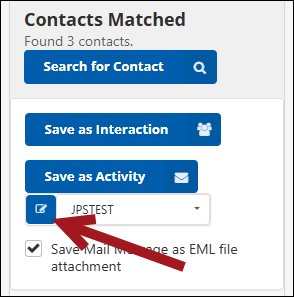
- Select the sub type to go into the Activity insert.
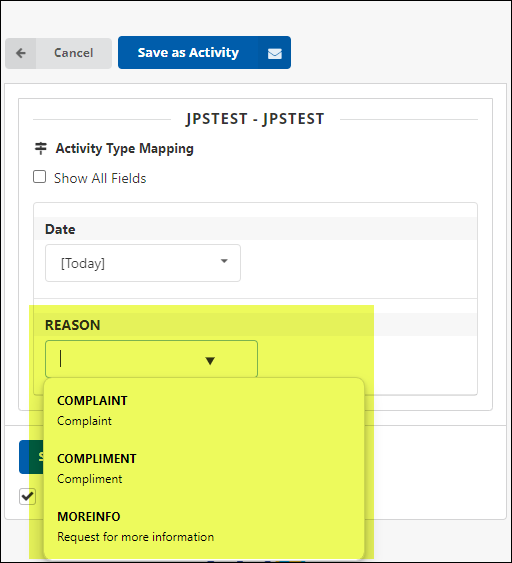
- Select Save as Activity.
Save as EML Attachment
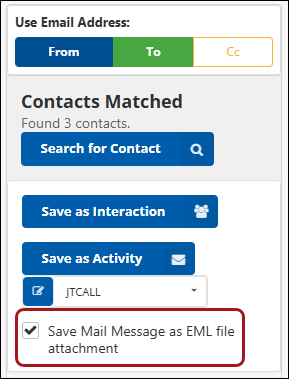
An EML file contains the content of the message, along with the subject, sender, recipient(s), and date of the message. EML files may also store one or more email attachments, which are files sent with the message. When Save Mail Message as EML file attachment is enabled, if an Interaction or Activity is saved, the email is saved as an attached .EML file.
Choose which attachments are saved
If the email contains attachments, the Attachments section will appear collapsed just below the Save Mail Message as EML file attachment checkbox. Clicking on the arrow or the Attachments title will expand the section and display all attachments selected within the email. Exclude specific attachments from being saved to iMIS by unselecting them before clicking the Save as Interaction or Save as Activity buttons.
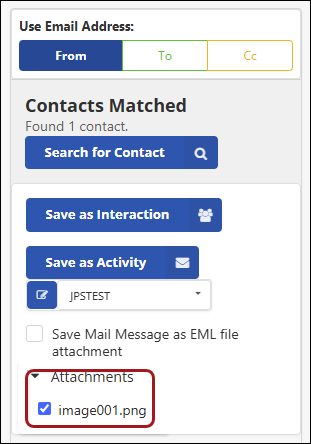
Note: If the Save Mail Message as EML file attachment option is enabled, the Attachments section is automatically hidden even if there are attachments. It is not possible to exclude specific attachments from being saved with the EML file format.
Conditions and caveats
The following Interaction limitations exist:
- The Email to field will be truncated if it is longer than 100 characters. iMIS limits the Email to field to 100 characters.
- Attachment file names will be truncated if they are longer than 50 characters. iMIS limits attachment file names to 50 characters.
- Empty file attachments will not be saved to iMIS, because they are empty, which causes an error when trying to download the attachment from the staff site.
- Attachments on emails being composed may not be saved. To ensure that attachments are saved, send the email, open the email from the Sent folder, and Save as Interaction.
Interactions and Activities will not save in the following cases:
- There is no contact in iMIS matching the email address in Outlook.
- Two or more contacts share the specified email address. Merge these contacts and try again.
Important! As with any email, the BCC field is only available when writing an email (compose mode). iMIS Outlook Integration is not able to write BCC data to iMIS when reading an email (read mode).
Saving outgoing email
When in Compose mode, after writing the email and filled out the To, Cc, and Subject fields, and before selecting Send, open iMIS Outlook Integration.
To save outgoing email, from the home screen, select the Save to iMIS button. Remember to fully draft the email, including To, Cc, Subject, and Body before clicking Save to iMIS.
Using BCC with iMIS Outlook Integration is only possible in the Compose screen. It is not possible to save to recipients' records in iMIS that are BCC'd from the Sent folder in Outlook. This is due to a Microsoft limitation.
Important! At this time, attachments can not be saved while composing an email. If an email has attachments that you would like to save to iMIS, send the email. Then go to the Sent folder in Outlook and save an iMIS Interaction.
Reviewing Matched Contacts
After drafting the email and clicking Save to iMIS, a list of contacts will appear. These include yourself (the From), and any matched contacts on the To and Cc lines of the email.
To toggle which records to save to in iMIS, use the From/To/Cc filter. Alternately, remove individual entries by clicking the X icon in the corner of each entry.
To restore a contact that was removed, toggle their respective category filter off and on at the top. (For example, if one contact was removed on the To line, click the To filter twice at the top to toggle it off and back on again.) This restores all of the hidden contacts on the To line.
After reviewing and filtering the contacts to save records for, choose a method to store the outgoing email:
Recent Interactions (communication log)
By clicking the Add Recent Interactions button, a communication log entry is written for each valid contact displayed on screen. The full rich-text body of the email is written to iMIS as a communication log entry for that contact.
Users see the background credentials account as the Created By / Updated By account on the recent interaction, instead of the user that is currently using iMIS Outlook Integration.
Email Activity
By clicking the Add Email Activities button, an Activity record is written for each valid contact displayed on screen.
The Add Email Activities button can be hidden from certain users and shown only to users with the correct iMIS roles. Change these settings in the Options menu of iMIS Outlook Integration.
Note: Only the plain text version of the email is saved to the Activity record. Rich text and other formatting is not saved.
Conditions and caveats
Interactions and Activities will not save in the following cases:
- There is no contact in iMIS matching the email address in Outlook.
- Two or more contacts share the specified email address. Merge these contacts and try again.