Last updated on: June 29, 2026
Payment processing
This page outlines the overall payment processing steps that Donate Now - Premium takes, as well as troubleshooting tips and best practices for when a donor receives an error during payment processing.
Note: This page applies only when the payment service is set to BluePay.
Terminology
- AUTH — An initial credit card authorization.
- Can be for a specified amount, in which case, it will check if those funds are available. Funds are also reserved (a "hold") in anticipation of a CAPTURE (see below).
- Can be for $0.00, in which case, it will only check if the credit card information itself is valid.
- Returns an Authorization Code or Authorization ID.
- CAPTURE — Takes a previous AUTH's Authorization Code and finalizes the transaction, initiating the transfer of funds.
- Cannot be performed without a prior AUTH.
- Must occur within (typically) 1-2 days, or the AUTH will expire.
- If the AUTH expires, no funds are transferred, and the hold is removed from the account.
- VOID — Reverses an AUTH.
- You cannot VOID a CAPTURE if it has been settled. In this case, issue a refund instead.
Read more about the Authorization process here.
Processing steps
Do the following to process payments:
Payment steps
As it pertains to BluePay payment processing, the following steps are performed:
- A $0 AUTH is issued directly from the user's browser using the BluePay.js library.
- The result of this transaction is that the sensitive payment information is exchanged for a transaction ID that can be used for a subsequent payment.
- For CVV2 checking / verification to work, the client account must be on the BluePay North/8583 Platform or Nashville/DLHost platform, and Real $0 AUTHs must be enabled. Migrating to the North or Nashville DL Host Platforms does not incur a fee on the account.
- An AUTH for the dollar amount of the donation is issued, using the previous transaction ID as the MasterID.
- If successful, the gift information is written to iMIS – see below.
- A CAPTURE for the previous AUTH is issued.
Each of the above steps represents a separate transaction in BluePay. When reviewing transactions for reconciliation purposes, you should look in BluePay at either the CAPTURE transaction, or the AUTH (Captured) transaction. (Disregard the first $0 AUTH transaction.) See below for an example of a single Donate Now - Premium donation which incurs three separate transactions in BluePay.

Custom fields in BluePay
Donate Now - Premium writes the following custom fields onto the CAPTURE (or SALE) transaction in BluePay:
- Custom ID 1: iMIS Invoice Reference #
- Custom ID 2: Batch Number
Detailed steps
Donate Now - Premium performs the following steps when a donation is made:
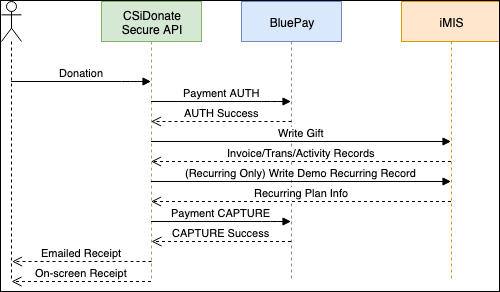
- The credit card information is sent via the donor's browser window directly to BluePay to validate and exchange it for a temporary Authorization ID. (Referred to as a $0 AUTH)
- This process is 100% PCI compliant. No sensitive credit card / account information is sent to, or stored on the web server or iMIS server.
- The resulting temporary auth code is sent to the Donate Now - Premium endpoint as a replacement/alternative for sensitive credit card/ACH details.
- The donor is matched to a contact in iMIS, or a new donor contact record is created in iMIS.
- An AUTH request is made to BluePay with the Authorization ID from Step 1, for the donation amount.
- A new iMIS Fundraising Gift is built with the following settings:
- Basic information like the amount and donor's iMIS ID are set.
- The Cash Account is determined based on the Financial Account settings and type of donation.
- The Distribution, Appeal, and Campaign codes are set based on the template settings.
- The Merge Code is set based on if the donor added a Tribute to the donation form.
- The Payment Type is set to "Cash" (because BluePay processes the credit card directly, iMIS gifts are entered as "Cash" gifts).
- A current, open batch is looked up, or a new batch is created based on the current Financial Account settings.
- The gift information is held in memory, and has not been written into the iMIS database yet.
- The Gateway Ref # is set to the BluePay Transaction ID
- UF_2 is set to the BluePay Transaction ID
- If this is a new recurring donation, UF_3 is set to the BluePay Rebilling ID
- The gift is saved into the database.
- This process touches the following tables: Activity, Trans, Invoice, Batch, GiftReport.
- The batch control cash and control count are updated, and the batch is saved.
- (Recurring start payments only) The recurring plan information is written to the Demo_Recurring_Gift table.
- A CAPTURE request is made to BluePay to finalize the transaction and initiate the transfer of funds.
- A receipt is generated, e-mailed, and displayed on-screen.
Failure do's and don'ts
During a failed donation, or when manually modifying donations, be sure to follow these guidelines:
Don't: Delete just the gift activity from iMIS in the Customers module.
Note: If you need to delete a gift, always delete a gift using the Fundraising module. Check the table below before deleting the gift.
Don't: Use the BluePay Secure Console to manually issue a CAPTURE to an AUTH made by Donate Now - Premium.
Do: VOID a failed Donate Now - Premium payment that has an AUTH but no CAPTURE. This can sometimes speed up the removal of the temporary hold from the donor's account.
Don't: Use the BluePay Secure Console to manually process a donor's credit card based on a gift that already exists in iMIS.
Note: Reconciliation will be difficult or impossible as the Gateway Ref # and BluePay Transaction ID will be different.
Don't: Issue a refund in BluePay without also deleting the gift from iMIS, or vice versa.
Note: Reconciliation will not match if both steps are not performed.
Do: Encourage donors to attempt their donation again after a short period of time (5-15 minutes) if a failure occurs.
Do: Contact support if you have any discrepancies between BluePay payments and iMIS gifts / transactions – we can help!
Failures during processing
The Donate Now - Premium process is designed to minimize the amount of data discrepancy between BluePay and iMIS when a failure occurs. However, some unforeseen errors can occur during processing. See below for troubleshooting steps during each of these steps.
|
Problem Step |
Actions Taken So Far |
Actions Not Taken |
Notes |
Suggested Actions |
|---|---|---|---|---|
|
Step 1 – Initial Payment Info Exchange (in browser) |
|
|
If an error occurs in the browser, it is likely that the payment information is invalid (invalid account number, CVV2, etc). |
|
|
Step 2 – Donor Lookup / Contact Creation |
|
|
An error may occur here if one of the contact lookup queries failed due to a SQL server timeout or deadlock. |
|
|
Step 3 – AUTH Request |
|
|
If an error occurs here, it is likely either an Insufficient Funds error, or a BluePay account settings issue. |
|
|
Step 4 – Building the Gift Object |
|
|
If an error occurs here, it is likely an iMIS or Donate Now - Premium settings / configuration error. |
|
|
Step 5 – Saving the Gift |
|
|
If an error occurs here, it is likely either a SQL timeout or SQL deadlock issue. Both issues are unavoidable and result from high demand or other scripts / jobs running simultaneously on the SQL server. |
|
|
Step 6 – Batch Control Updates |
|
|
If an error occurs here, it is likely either a SQL timeout or SQL deadlock issue. Both issues are unavoidable and result from high demand or other scripts / jobs running simultaneously on the SQL server. |
|
|
Step 7 — Recurring Plan Setup |
|
|
If an error occurs during this step, it is possible that the recurring plan record was not written to the Demo_Recurring_Gift table correctly. |
|
|
Step 8 – CAPTURE Request |
|
|
If an error occurs here, funds may or may not be captured. |
|
|
Step 9 – Receipts |
|
|
If an error occurs here, the donation was complete but the donor did not receive a receipt. |
|