Last updated on: June 29, 2026
Text to Give
Note: This is a Donate Now - Premium PLUS edition feature, powered by Twilio.
Text to Give is a new feature in Donate Now - Premium 2.10. Text to Give allows you to link a Twilio account to Donate Now - Premium. This enables donors to text your Twilio SMS-enabled phone number and receive links to specific templates in order to donate directly on their mobile devices.
This feature also allows donors to pre-fill the desired donation amount, and will automatically look up and load the correct contact information if mobile phone number matching is enabled.
Do the following to set up Text to Give:
Twilio checklist
In order to set up Text to Give with Donate Now - Premium, you'll need to ensure the following items have been completed. More detailed instructions for each of these items can be found below.
- Create a Twilio account (if you don't already have one).
- Set up auto-recharge on the account.
- Lease a Toll-Free number that has SMS capabilities. (We recommend searching for a phone number that has numbers or letters that have meaning to your organization!)
- Get your toll-free number verified by Twilio and the carriers by submitting a verification request to Twilio via a new support ticket.
- Create a TwiML bin that contains a voice response for if someone calls your number. (Donate Now - Premium does not handle voice calls, so this is simply an auto-response message.)
- Configure the number using the TwiML bin as a voice response, and the Donate Now - Premium reply URL found in your System Overview page as the Messaging response.
- Activate Text to Give in your Donate Now - Premium system settings using your Twilio Account Key and Secret.
- Configure at least one Donate Now - Premium template with a valid Text to Give code.
- Test your number by texting your code to your toll-free number.
- Your test may fail if your toll-free number has not been verified yet - you can check your Twilio logs to confirm the reason that a message was not delivered.
Twilio Account Best Practices
It is recommended to enable auto-recharge of your account balance in order to avoid SMS service interruptions and failed text to give requests.
You can set up auto-recharge by setting a recharge trigger on your Twilio account.
Account setup
First, sign up for Twilio! Set up any additional users (each user should have their own login because Twilio enforces MFA via text codes). Also be sure to set up auto-recharge under Billing > Payment Settings > Auto Recharge.
Leasing a Toll-Free Number
Do the following to lease a toll-free number:
- Go to Explore Products > Phone Numbers.
- Click Buy a Number.
- Expand Advanced Search and enable Toll-free.
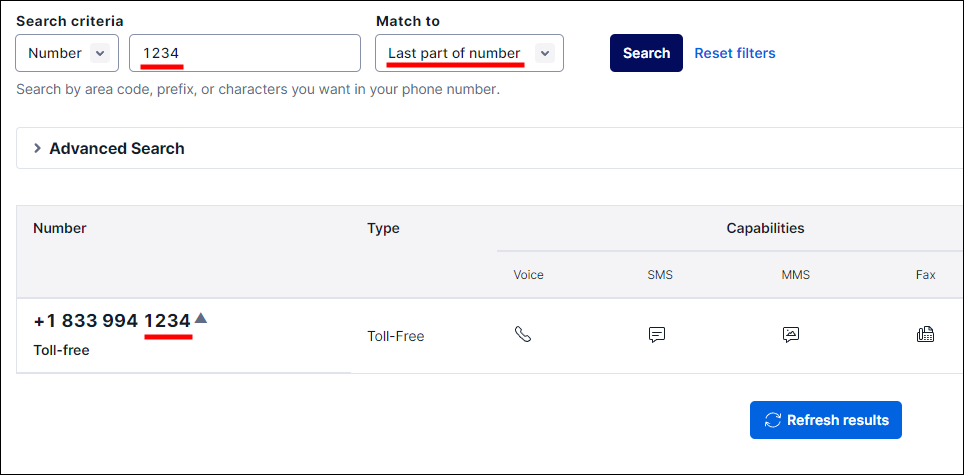
- Enter some search criteria - for example, to find numbers that end with 1234, you can change the "Match to" value, and enter the criteria.
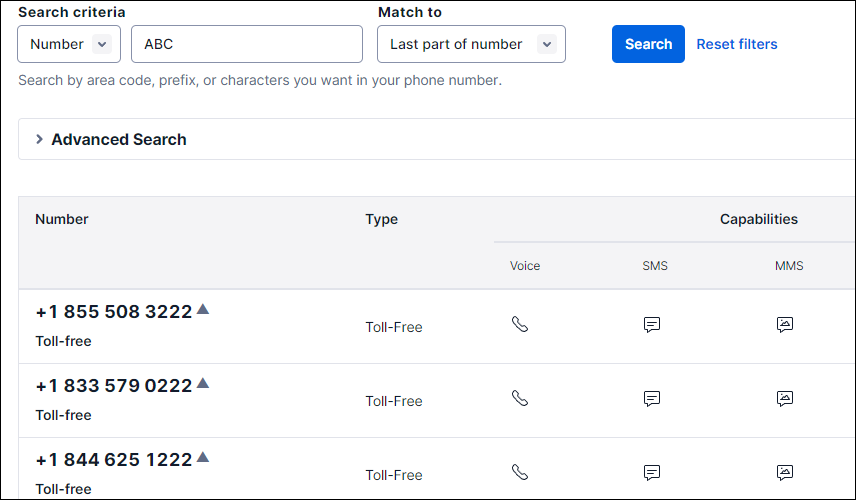
- You can also search for letters - if you want to find numbers that end with "ABC" (which is "222" on T9 dialing) for example:
- Once you find a number you want, click Buy.
- Confirm that the number supports "SMS" capabilities.
Important! Do not use local numbers, as they do not have the same throughput or reliability as toll-free numbers do. Toll-free numbers always start with 8xx and have two repeating digits, e.g. 800, 888, 866, etc.
Phone number verification
Warning! Without completing this step, Twilio will block outgoing messages from being sent on your phone number.
This process can take anywhere from 3-6 weeks to complete.
You will need to submit verification information to Twilio in order for them to verify your phone number is being used for legitimate purposes.
Create a support ticket with Twilio (in the lower-left corner, click Docs and Support > Support Center > Submit a Ticket) and ask to begin the process of verifying your new toll-free number.
You'll need to include screenshots showing an opt-in checkbox on your public-facing member profile edit page and/or account creation page, next to where your mobile number field is.
While this checkbox will not apply to Donate Now - Premium, since these are considered direct replies, saving the communication preferences / opt-in status of your contacts/members is beneficial for potential future SMS integrations.
Obtaining API keys
Do the following to obtain the API keys:
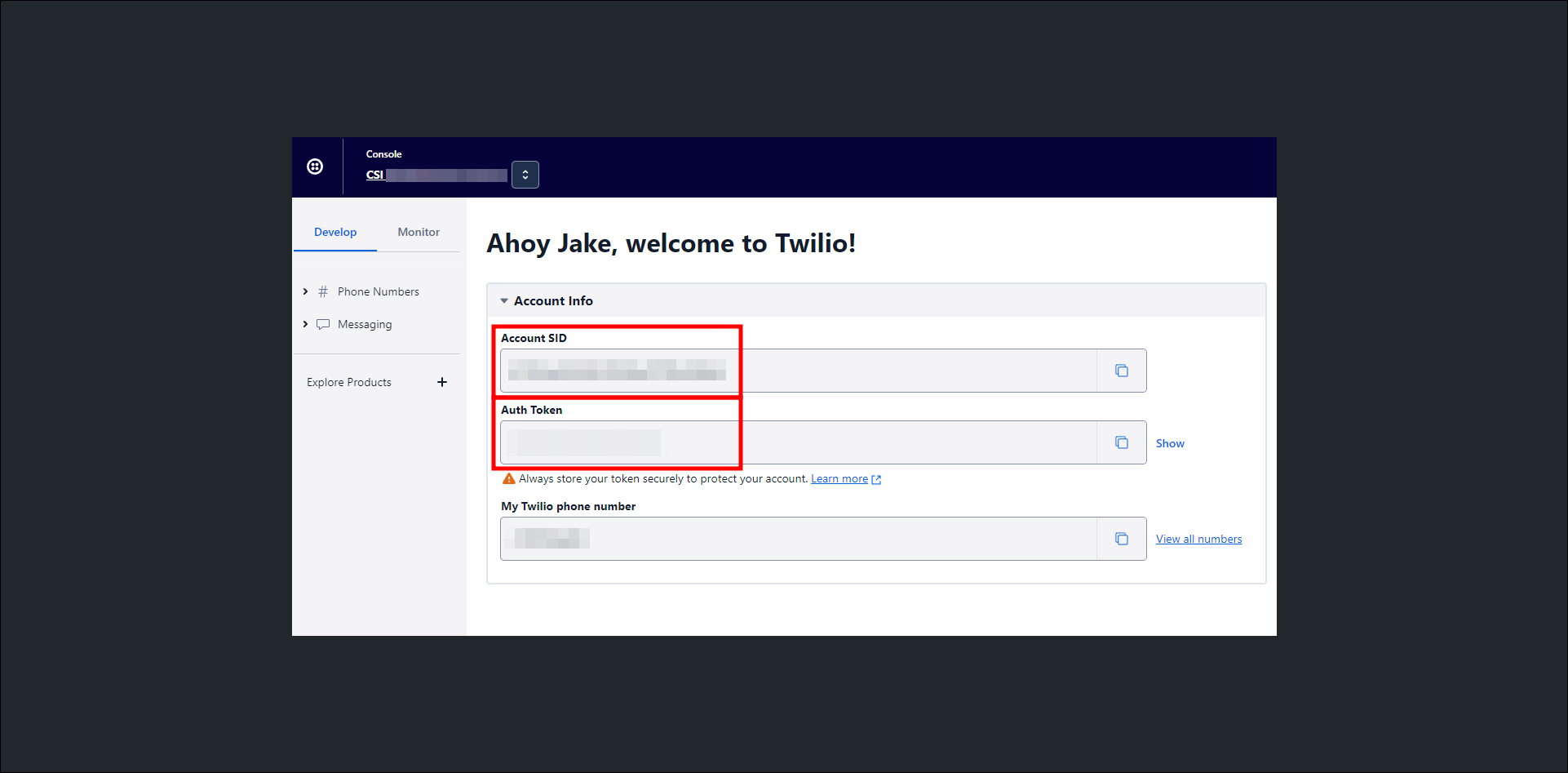
- Go to your console homepage by going to https://console.twilio.com or clicking your account name in the upper-left corner.
- Under Account Info, copy your Twilio Account SID and Twilio Auth Token (click "SHOW" in the box to see it if you need to verify it), and store these values temporarily for later.
- You also need to make note of the phone number that you leased. Use E.164 notation, so if your phone number is +1 (234) 567-8910, jot down: +12345678910
-
Add a TwiML bin for a voice response
Do the following to add a Twiml bin for a voice response:
- Set up this entry in Twilio now so we can refer to it later.
- Under Explore Products, scroll near the bottom to find TwiML Bins. Click the blue "+" icon to create a new one.
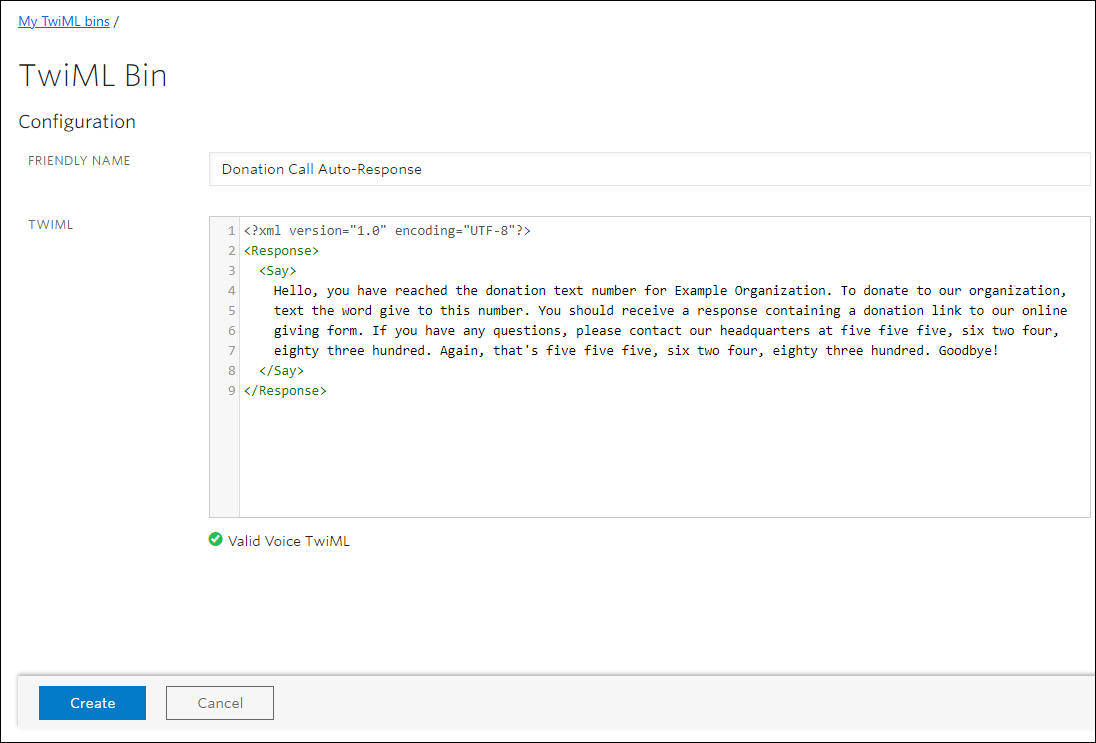
- For Friendly Name, enter: Donation Call Auto-Response
- Then, in the TwiML field, copy and paste the following code, replacing this sample with your own customized message.
-
Copy
<?xml version="1.0" encoding="UTF-8"?><Response>  <Say>    Hello, you have reached the donation text number for Example Organization. To donate to our organization,
    text the word give to this number. You should receive a response containing a donation link to our online
    giving form. If you have any questions, please contact our headquarters at five five five, six two four,
    eighty three hundred. Again, that's five five five, six two four, eighty three hundred. Goodbye!
  </Say></Response>
Note: The speech engine that "reads" this text will read the text verbatim, and is only (mostly) capable of reading dictionary words. For example, if you type "iMIS", it will not pronounce it correctly, so you must type "eye miss" instead. Similarly, for digits, typing out a phone number like 555-1234 will result in "Five hundred and fifty five..." etc. To work around this, type each number out by hand - "five five five, one two three four".
You may also choose to instead record a response using a microphone and upload it to Twilio to play for a caller, however, instructions for accomplishing that are outside the scope of this documentation page.
SMS number configuration
You must now instruct Twilio what to do when someone texts your donation number.
To configure the behavior for your number, go to Explore Products > Phone Numbers > Select your phone number.
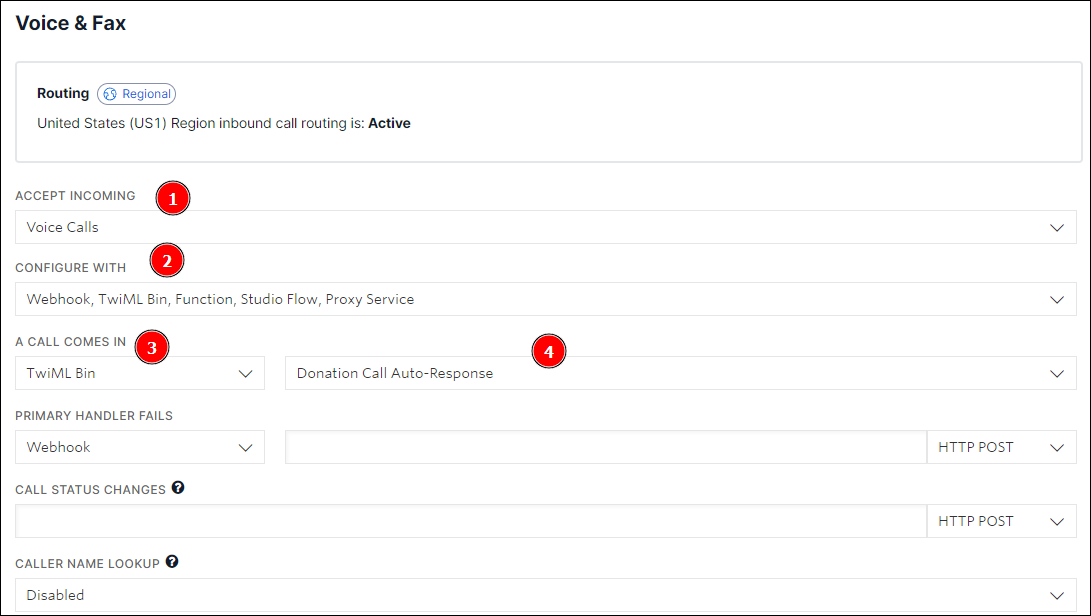
Voice & Fax
Do the following to configure the behavior for your number:
- Under Voice & Fax section, select Accept Incoming: Voice Calls
- Under Configure With choose Webhook, TwiML Bin, ....
- Finally, under A Call Comes In, select TwiML Bin from the first dropdown, and then select the Donation Call Auto-Response from the second dropdown.
Messaging
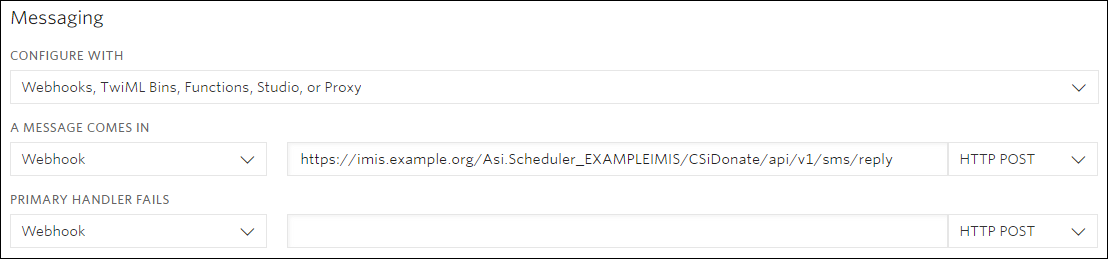
- Under the Messaging section, under Configure with Other Handlers, choose Webhook, TwiML Bin, ....
- Under A Message Comes In, select Webhook, and paste in the SMS Reply URL found in the Donate Now - Premium System Overview page.
- Verify the URL that you are using ends with /api/v1/sms/reply. Do not use the Messaging Service URL (the one that ends with msreply), as this should only be used in special circumstances and requires additional setup in Twilio.
- Finally, ensure the dropdown to the right of the URL is set to HTTP POST.
- Leave the Primary Handler Fails field blank.
- If there is a box labeled Messaging Service, also leave that field blank.
- Click Save at the bottom of the screen to apply the number configuration.
Donate Now - Premium system settings
In Donate Now - Premium, go to System Settings > Text to Give. Ensure the following settings are set correctly:
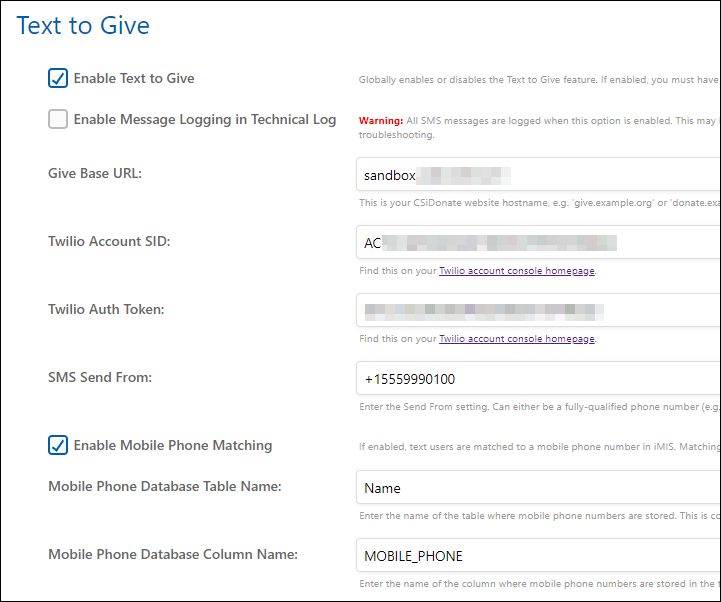
- Enable Text to Give: Yes
- Enable Message Logging: No (Only use for temporary testing purposes, as this generates a lot of log entries in your database!)
- Give Base URL: Should be automatically populated. Set to your Donate Now - Premium domain name, e.g. "give.example.org". Do not include https:// .
- Twilio Account SID: See above in this article for where to get this from Twilio. This value starts with AC...
- Twilio Auth Token: See above in this article for where to get this from Twilio.
- SMS Send From: Enter the fully-qualified phone number that you are using with Donate Now - Premium, starting with +1 (e.g. +12345678910)
Mobile Phone Matching
Donate Now - Premium can match a text message's phone number to the iMIS database and, if a match is found, include a code that will pre-fill the user's information when they click on the Donate feature. This can save the donor a lot of time on their mobile device.
Lookups are performed with a WHERE ID = 'xxxxx' clause, so the table that you select for lookups must have an ID field.
If zero, or two or more records is returned from the lookup, Donate Now - Premium considers this a non-match and will not send the donor's unique code via text. Exactly one record must be returned from the lookup.
Setting up this feature requires mobile numbers to be stored in a single field in iMIS.
- Enable Mobile Phone Matching: Yes to enable the lookup feature.
- Mobile Phone Database Table Name: Enter just the table name of the iMIS table where your mobile phone numbers are stored (for example, Name or Demo_Communication)
- Mobile Phone Database Column Name: Enter just the column name from the table above where your mobile phone numbers are stored (for example, MOBILE_PHONE or TOLL_FREE)
Donation template setup
After your Twilio account is set up, and you have correctly set all of the Donate Now - Premium System Settings on the Text to Give tab, you can now enable Text to Give on one or more donation forms.
Do the following to enable Text to Give on donation forms:
- Edit a donation template, and on the General tab, add a short alphanumeric text code to the Text to Give Code field.
- After you have entered your text to give code for this template, click Save Template. Changes are reflected immediately.
Note: Good examples of text codes are short, memorable words or abbreviations, such as GIVE, FOUNDERS, GIVINGTUES, or CONV19.
Important! Only one unique text code can be used on a single donation template. Two templates cannot share the same code.
Warning! The following codes are reserved by Twilio in accordance with industry standards and can not be used as text to give codes: STOP, STOPALL, UNSUBSCRIBE, CANCEL, END, QUIT, HELP, INFO, START, YES, and UNSTOP. For more information, refer to this Twilio help article.
Using Text to Give
You are now ready to text your Text to Give number!
You can send one of two types of requests to your Text to Give number: "<TEXTCODE>" or "<TEXTCODE> <AMOUNT>".
See the following examples:
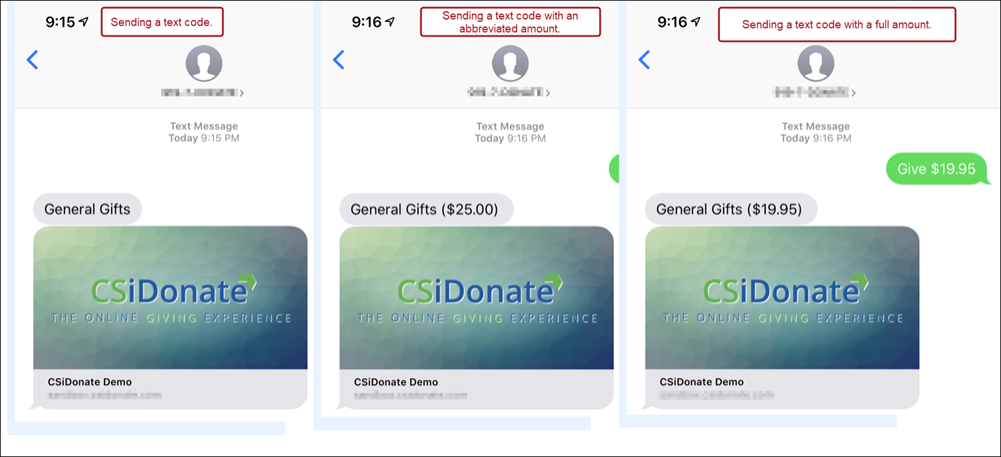
Certain messaging platforms can display a preview window when the donation link is texted. You have probably seen this in the real world already – if you text someone a link, or share a link on Facebook, the link turns into a preview box with an image, title, and short description. This is known as OpenGraph Metadata.
Donate Now - Premium already has support for this metadata. In System Settings > Social, you can customize the image, title, and description of the OpenGraph preview window for your donation forms. These same settings also affect the preview box when texting the donation link via Text to Give.
Important! Link previews are device-specific and cannot be controlled by Donate Now - Premium or Twilio. Various factors go into if a link preview shows, including if the number texting you is in your address book or not. Please refer to the Twilio support article How do SMS and MMS URL Link Previews Work for more information and troubleshooting of link previews. Additionally, iOS may display a Tap to Load Preview box that the user must tap before the actual preview will display. This is also standard iOS behavior and there is currently no workaround for this requirement.
If a user sends an invalid text code, the system responds with the following message by default:
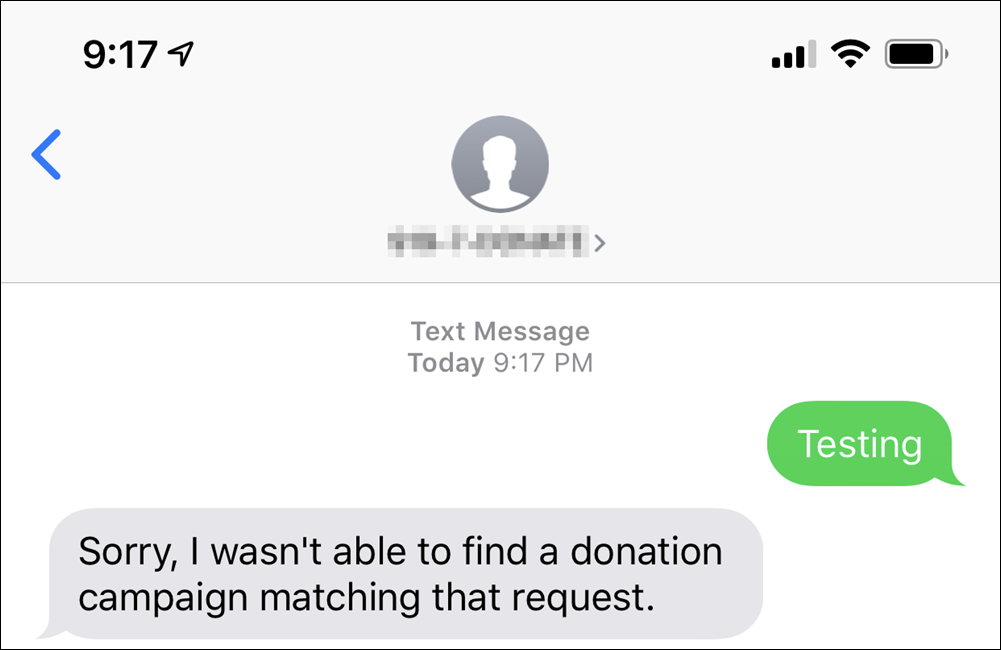
This text can be changed in the Text and Content > Donation Form > General section, under the field Text Reply For No Match.
It is recommended to include your default giving page as a suggestion in the customized response. For example:
Sorry, I didn't understand that request. Try texting the word "GIVE" to make a donation.
Important! Be conscious of the 160-character SMS limit – if your error message exceeds 160 characters, you will be charged for 2 (or more) SMS messages by Twilio each time the system replies with this error message.