Last updated on: June 29, 2026
- iMIS (Credit cards are run through iMIS, uses an iMIS "Credit Card" cash account and payment gateway)
- BluePay (Credit cards are run externally (PCI compliant) through BluePay, and a "Cash" cash account is used to enter gifts into iMIS)
- NoAuth - DO NOT USE except for rare testing cases. Does not charge any credit cards, approves any transactions using a valid test credit card.
- BluePay (Credit cards are run externally (PCI compliant) through BluePay, and a "Cash" cash account is used to enter gifts into iMIS)
- NoAuth - DO NOT USE except for rare testing cases. Does not charge any credit cards, approves any transactions using a valid test credit card.
- Login URL - The login page to redirect to during optional member login.
- Login query string - The query string to append to the login URL. An absolute Donate Now - Premium path is automatically appended to this.
- Enter a comma-separated list of cookie names to clear when the user clicks "Not Me" to sign out of the donation form.
- Or, enter an asterisk to clear all cookies readable by Donate Now - Premium.
- Enter a comma-separated list of session variable names to clear. Or,
- Enter an asterisk to clear all session variables readable by Donate Now - Premium. (Effectively calls Session.Clear().)
- New member type code - The member type to use for new contacts that are created via the donation form. The dropdown retrieves member types from the Member_Types table.
- New tribute member type code - The member type to use for new tribute contacts that are created. If not specified, uses the new member type code above. The dropdown retrieves member types from the Member_Typestable.
- Chapter selection lookup query - The query to use for retrieving the chapter names for the chapter dropdown. Must return two columns, the first is the value and the second is the display text (for example, SELECT DISTINCT ID, COMPANY FROM Name WHERE Company_Record = 1)
- Show maiden name field - Whether or not to use the "Maiden Name" field on the donation form.
- Maiden name lookup query - The query to use to retrieve the member's maiden name. Include the @id parameter for the iMIS ID of the user. Default query is: SELECT MAJOR_KEY FROM Name WHERE ID = @id
- Show informal / nickname field - Whether or not to show the "nickname" field on the donation form.
- Enable maiden name on tributes - Enables the maiden name field on the tribute notification contact form.
- Tribute search lookup IQA path CROWDFUNDING - Specify the path to an IQA that should be used to search for tribute contacts.
- Tribute search results limit CROWDFUNDING - Specify the maximum number of records that should be displayed in the tribute member search results.
- Enable multiple tribute contact matching CROWDFUNDING - If enabled, tributes entered via the multiple tribute interface will attempt to be matched by their last name and e-mail address. Regardless of if matching was successful, all tribute information is stored in a table for later retrieval and review.
- Tribute 1-5 Code - The merge code to add into the tribute section that the donor can choose (for example, "RECOG" or "HONOR"). Merge codes can be added via the MERGE_CODEgeneral lookup table.
- Tribute 1-5 Title - The display name for the code above that the user will select (for example, "In recognition of" or "In honor of")
- Default merge code - Select an iMIS merge code that will be written onto any donations that do not already have a tribute.
- Enable Text to Give - Enables the text to give service within Donate Now - Premium.
- Enable Message Logging in Technical Log - Enables full trace logging of the Text to Give platform in the Technical Log for debugging purposes.
- Give Base URL - Enter just the fully qualified domain that Donate Now - Premium is hosted on, e.g. "give.example.org". Do not include https://.
- Twilio Account SID - Enter your Twilio Account SID. Refer to the Text to Give article for more information.
- Twilio Auth Token - Enter your Twilio Auth Token. Refer to the Text to Give article for more information.
- SMS Phone Number - Enter the fully-qualified E.164 telephone number that is registered to your Twilio account that you would like to use for Text to Give (e.g. +19895551234).
- Enable Mobile Phone Matching - Enables lookup and matching of incoming texts to members. Refer to the Text to Give article for more information. If this is enabled, the next two settings (Database Table and Column Names) must be set correctly.
- Mobile Phone Database Table Name - Enter the name of an iMIS table where your members' mobile phone numbers are stored. Typical values are "Name", "Name_Demo", or "Demo_Individual", for example.
- Mobile Phone Database Column Name - Enter the name of the column in the table you specified above where the mobile phone data is stored for each contact. Typical values are "TOLL_FREE" or "MOBILE_PHONE".
-
Last Name + Email (Donate Now - Premium default)
-
Company Name (Name.COMPANY, or Name.FULL_NAME, a dash character (-), and Name.COMPANY), and Company_Record = 1
-
Company Address (Name_Address.ADDRESS_1) and Company_Record = 1
-
If a company name was provided in the gift, matching is halted after this point - all matches below only pertain to individuals.
-
-
Email Only (Name.EMAIL or Name_Address.EMAIL)
-
Full Name + Full Address (Name.FIRST_NAME, Name.LAST_NAME, Name_Address.ADDRESS_1 (First 10 chars), Name_Address.ZIP (First 5 chars))
-
Full Name + Phone (Name.FIRST_NAME, Name.LAST_NAME, and one of Name.WORK_PHONE, Name.HOME_PHONE, Name.TOLL_FREE, Name_Address.TOLL_FREE, Name_Address.PHONE, or Name_Address.FAX – special characters like ( ) - are removed.)
System Settings
The System Settings page allows you to manage the global, product-wide settings that apply to all templates and pages uniformly.
Some settings are hidden behind an Advanced Settings checkbox. These settings are typically set up by support during implementations and upgrades, and are not usually modified by customers directly. These advanced settings are therefore not documented here. If you have a question about an advanced setting, please do not hesitate to reach out to us.
System
Administrative e-mail
Enter a single e-mail address where you would like to receive notifications regarding the status of the Donate Now - Premium system. This e-mail address is typically the iMIS administrator at an organization.
Currently, these e-mails include a notification if a BluePay recurring gift fails to automatically write into iMIS, with a link to retry the gift insert.
Other notification emails may be added in future versions.
Default template
If no template information is provided, which template should load?
Usually this is set to an annual fund or a general giving page.
This is also the template that will load at the root of the website, so if a donor visits donate.example.org, this template will load.
MANAGER Username
Provide a username with full sysadmin rights in iMIS. This is usually MANAGER.
MANAGER Password
Provide the password for the account above.
Warning! If your MANAGER password is set to expire every X days, you will need to make sure to update it in Donate Now - Premium as well. Failure to do so will cause donations to stop working.
Advanced Settings
Warning! Modifying advanced settings can have an adverse effect on the Donate Now - Premium system. Please exercise caution when changing these settings.
Single payment service
Sets the payment service for one-time gifts. Select one of:
Recurring payment service
Sets the payment service for recurring gifts. Select one of:
Load default template at site root (/)
If checked, when visitors load "https://give.example.org/" (the root of your Donate Now - Premium installation), they will be automatically redirected to the donation template specified in the Default template system setting above.
Load Giving Dashboard at site root (/) CROWDFUNDING
If checked, when visitors load "https://give.example.org/" (the root of your Donate Now - Premium installation), they will be automatically redirected to the Giving Dashboard.
Webservices URL
Sets the URL to use for the back-end Donate Now - Premium webservices.
This is typically set to: https://imis.example.org/Asi.Scheduler_IMIS/Donate Now - Premium/api/v1
Audit record retention days
Sets the number of days to retain audit log records. Defaults to 366. Minimum is 180.
Is live iMIS
Enable for live iMIS and credit card processing installations, disable for test and demo installations.
Single sign-on
Click to show advanced settings
Advanced Settings
Modifying advanced settings can have an adverse effect on the Donate Now - Premium system. Please exercise caution when changing these settings.
Cookies to clear
Note: The current iMIS forms auth cookie is always cleared, and does not need to be in this list.
Session variables to clear
Only used for legacy or non-standard CMSes which may store current user information inside a session variable.
Contacts and Members
Profile Update Link
Optional. If provided, and a user is signed in to Donate Now - Premium, a button to "Update My Profile" is displayed. Specify the link destination here.
For example, you may enter https://my.example.org/profile/update or https://members.example.org/Members/EditMyProfile.aspx.
Important! At this time, you must link to a profile update page that will take into account the user that is currently signed in. It is not possible to append the iMIS ID to the URL for security reasons.
Financial
Default single financial account
Specify the default financial account profile for single, one-time donations, to be used when creating new templates. The value here is the default value of the dropdown on the template editor, and can still be changed per-template.
Default recurring financial account
Specify the default financial account profile for recurring donations, to be used when creating new templates. The value here is the default value of the dropdown on the template editor, and can still be changed per-template.
Minimum allowed donation amount
Enter a positive whole number (1 or higher) that should be the minimum allowed donation amount (inclusive). Donations below this amount will get a "minimum donation amount" error which is customizable in the Text and Content settings.
Max number of pledge years
A value from 1 to 5 specifying the number of years that donors should be able to pledge through.
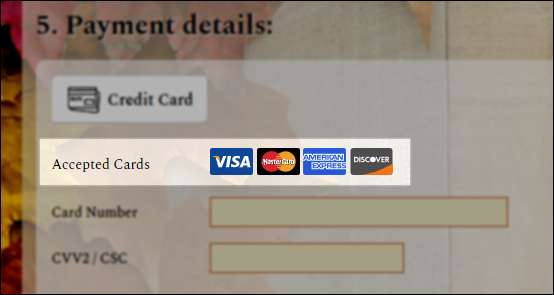
Accept Visa / MasterCard / American Express / Discover
Check these boxes to match what your payment gateway has set up. For example, if you have discussed with your payment processor and you are not taking Discover, un-check this option.
This option WILL prevent donations fom being entered using cards that are not enabled, even if your payment processor accepts those cards.
These settings also affect the card logo display in the payment details section here:
Tributes
Warning! Due to security concerns, the system maximum limit for this value is 100 records
Advanced Settings
Warning! Modifying advanced settings can have an adverse effect on the Donate Now - Premium system. Please exercise caution when changing these settings.
For example, selecting "DONATION" here will apply the "DONATION" merge code to all Donate Now - Premium donations, except if the donor elects to do a tribute, such as "HON / In honor of", in which case, the "HON" merge code would be applied to the gift instead.
Text to Give PLUS
Important! Enabling this option can have an adverse impact on system performance and the Technical Log. Only enable this setting during troubleshooting, and always disable it when finished.
Note: This setting is automatically populated the first time the System Settings screen is navigated to after an upgrade to Donate Now - Premium 2.10. It should not be necessary to set this value manually.
Security
Google reCAPTCHA public key - The public key for the reCAPTCHA account that should be used on the donation form. Obtained from Google.
Google reCAPTCHA private key - The private key for the reCAPTCHA account that should be used on the donation form. Obtained from Google.
reCAPTCHA is required on all donation forms for security measures. CSI will generate these keys for you and install them during a Donate Now - Premium implementation (or upgrade, if necessary), however, if you need to generate them yourself, you will need to generate a reCaptcha V2 > Invisible key pair.
Click to show advanced settings
Advanced Settings
Modifying advanced settings can have an adverse effect on the Donate Now - Premium system. Please exercise caution when changing these settings.
Disable reCAPTCHA functionality
Disables the reCAPTCHA system. NEVER DISABLE THE RECAPTCHA SYSTEM, EXCEPT IN TEST OR UNLESS EXPLICITLY TOLD TO DO SO BY CSI – DOING SO OPENS UP YOUR SITE TO FRAUD ATTACKS BY MALICIOUS THIRD PARTIES.
Send e-mail receipts
Enable or disable e-mail receipt sending globally.
From address
The e-mail address that is specified as the from address in the emails sent from Donate Now - Premium.
Your SMTP settings / mail account must have permission to send from this e-mail address, or Donate Now - Premium e-mail receipts will fail to send.
From display name
If your from address is not descriptive, you can specify a "Display Name" that some e-mail providers may show instead of the email address.
For example, if your from address is foundation@abc.org, you may elect to enter the display name ABC Foundation.
BCC address
Optional. If you would like to receive a copy of all Donate Now - Premium e-mail receipts that are sent out, enter an e-mail address here.
The donor will not see this e-mail address when they receive their e-mail receipt.
Multiple addresses are supported - separate each with a comma (,).
Click to show advanced settings
Advanced Settings
Modifying advanced settings can have an adverse effect on the Donate Now - Premium system. Please exercise caution when changing these settings.
SMTP Server Address
Enter the SMTP server name or IP address to use when sending e-mail.
SMTP Server Port
Typically 25 if Enable SSL is off, or 465 or 587 if Enable SSL is on.
Enable SSL
Enables SMTP over SSL.
SMTP Username
If your SMTP server or relay has implicit security / trust (via IP whitelisting or some other means), you may not need to enter a username or password.
Otherwise, enter the username to use for the SMTP server. This user / address must be able to send email as the e-mail address listed in the From Address setting above.
SMTP Password
If a username was entered above, specify the password for the user account.
Social
Donation form page title
The title to insert into the <title>...</title> tags on the donation form.
Favicon file name
Enter the name of an icon file to use as the favicon. This file MUST exist in the relative installation folder /Donate Now - Premium/images/.
OpenGraph preview title
This field sets the title of the share preview block.
This preview appears when any Donate Now - Premium link is shared via social media, text message, or other supported communication platforms.
Learn more about OpenGraph tags.
OpenGraph preview description
This field sets the description of the share preview block.
This preview appears when any Donate Now - Premium link is shared via social media, text message, or other supported communication platforms.
Learn more about OpenGraph tags.
OpenGraph preview image URL
This field sets the image URL of the preview image on the share preview block. This value must be a fully-qualified, public URL (not relative).
This preview appears when any Donate Now - Premium link is shared via social media, text message, or other supported communication platforms.
Learn more about OpenGraph tags.
Facebook app ID
Sets the Facebook App ID which is required if the "Like" button is being used on the receipt page.
Styling
Logo Link URL
Enter a fully-qualified URL to link to when someone clicks your organization's logo at the top of the donation form.
Show Internet Explorer Warning
If checked, the donation form will display a yellow warning at the top of the page indicating that the current browser is not supported. It provides recommendations to use Chrome or Firefox instead.
Here is a sample of the warning that is displayed to Internet Explorer users if the option is enabled:
Additional CSS / Additional JavaScript
You may enter custom CSS and JavaScript into these fields. Any custom code entered here will be served on every donation form and on-screen receipt page.
So if you are making modifications to only one template, be sure to check what the current page is in your custom code.
External Gift Imports
This section is only if you are set up to use Donate Now - Premium's external gift import API. These settings do not apply to standard Donate Now - Premium donation forms.
If you are not using this feature, please disregard this Settings section.
API Key
The API key which allows access to the external gift import API.
The API key must be at least 10 characters. It is recommended to use a GUID for this value.
Match contacts by member type
If enabled, contact matching will be limited by the member type codes added to the whitelist in the gen table IDONATE_MBR_TYPES.
Perform advanced contact matching
In addition to the standard last name + email contact matching, Donate Now - Premium will perform a series of additional match attempts when an external gift is imported.
Contact matching is performed in this order. If a match is found during any step, the process is halted and the gift will go onto the record found.
BluePay
Processing mode
Set to "Test" for test / sandbox / dev environments, and to only accept test transactions.
Set to "Live" for production / live environments, and to process live payments.
Store payment tokens
If checked, Donate Now - Premium will create a BluePay Payment Token every time a recurring donation is made. Tokens are stored in the csi_iDonate_Tokens table, and can be used by other applications that also make use of the BluePay Payments API.
Tokens are secure, PCI compliant alphanumeric codes that can be used as a substitute for payment information, to re-use a customer's credit card information without actually storing the card information.
Tokens are not considered private or sensitive information because they are useless without the BluePay account number and API secret key.
Click to show advanced settings
Advanced Settings
Modifying advanced settings can have an adverse effect on the Donate Now - Premium system. Please exercise caution when changing these settings.
Send contact address as billing address
If checked, Donate Now - Premium will send the contact's address as the billing address to BluePay.
Only enable this option if address verification is enabled in BluePay. Most BluePay accounts do not have this setting enabled.
Enabling this setting prevents donors from donating if the contact address they enter is different from their billing address, or if using a spouse's or company's credit card. Donate Now - Premium does not distinguish a contact's main address from a separate billing address. Therefore, the payment will fail in these situations.