Last updated on: January 27, 2026
Do the following to create a workflow from scratch:
- From the Cloud Dashboard, click iWorkflow.
- Click + New workflow... and choose Blank Workflow.
- Select a trigger.For more information on the different triggers, see Triggers.
- Select one or multiple actions. For more information on the different actions, see Actions.
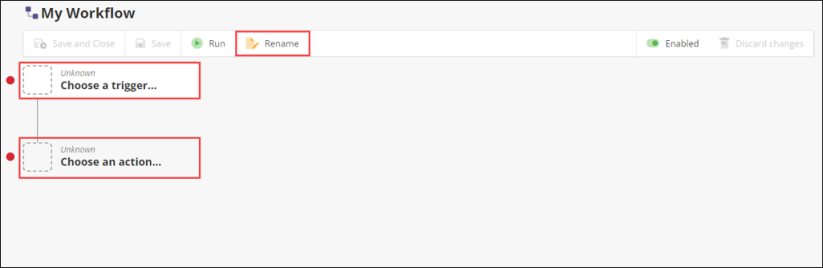
- Triggers and actions may need to have fields filled out. This will be denoted by a red dot next to their icon.
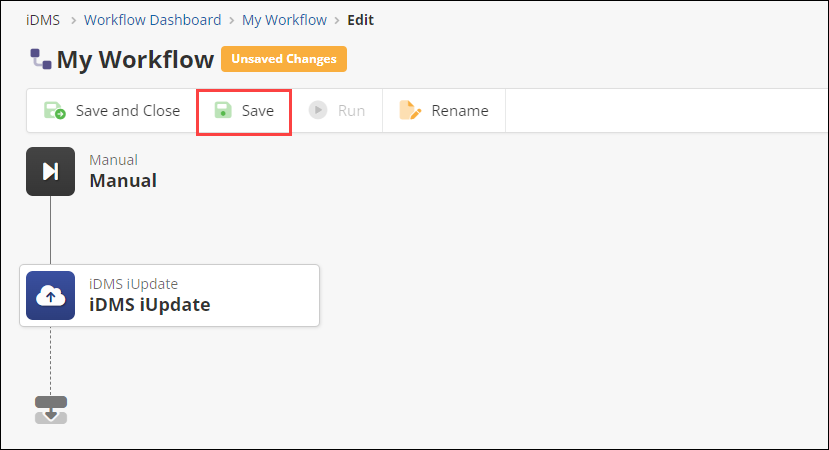
- A yellow dot next to an icon and/or Unsaved Changes near the banner means that there are changes that need to be saved.
- Optionally, rename the workflow from My Workflow.
- Once you have filled out all required fields in the workflow, click Save.