Last updated on: June 08, 2026
Multi-factor authentication
Multi-factor authentication (MFA) adds a second layer of verification to the login process, requiring staff users to confirm their identity with a security code in addition to their password.
Before you enable multi-factor authentication
Before you enable multi-factor authentication, there are several items you need to be aware of:
- Multi-factor Authentication is required for staff users.
- All staff and system administrators must have a valid email address:
- If Name.Email and Name_Address.Email are populated, Name.Email is used. If only Name_Address.Email is populated, then Name_Address.Email is used.
- If your staff and system administrators do not specify an appropriate email address, they will be unable to receive an authentication security code and will be unable to log in to iMIS.
- Ensure The default email address for the site (Settings > Organization) is populated with a valid email address.
- Staff users must perform the initial multi-factor setup through the I don’t have a security code link in the Contact Sign In content item.
- Staff users will not be able to sign in to your website using social media accounts or OIDC if multi-factor authentication has been enabled.
- When multi-factor authentication is enabled, iMIS will prompt staff users for a security code every time they log in to iMIS. This also applies to iMIS Quick Start Sites.
- Multi-factor authentication is performed through a public standard for time-based one-time password (TOTP) (IETF RFC 6238). Many authentication tools use this standard, such as:
- Google Authenticator. If you do not have immediate access to Google Authenticator on your phone, you can use a Google Chrome plug-in to access your Google Authenticator through a Chrome browser.
- Microsoft Authenticator
- ZoHo
- 1Password
You must have access to the authenticator on your phone or a similar device.
Enable multi-factor authentication for staff users
To enable MFA, do the following:
- Go to Settings > Contacts > Authentication.
- The Enable multi-factor authentication for staff users setting is disabled by default. When enabled, staff users (including system administrators) are required to input a security code during login to access all iMIS sites. Delivery of this authentication information requires a valid email address associated with all staff user accounts.
Note: If the Enable multi-factor authentication for staff users setting is enabled, staff users will not be able to use a social media login to access iMIS sites and must use their iMIS credentials to log in to iMIS sites.
Logging in for the first time
As a staff user, do the following to log in with MFA for the first time:
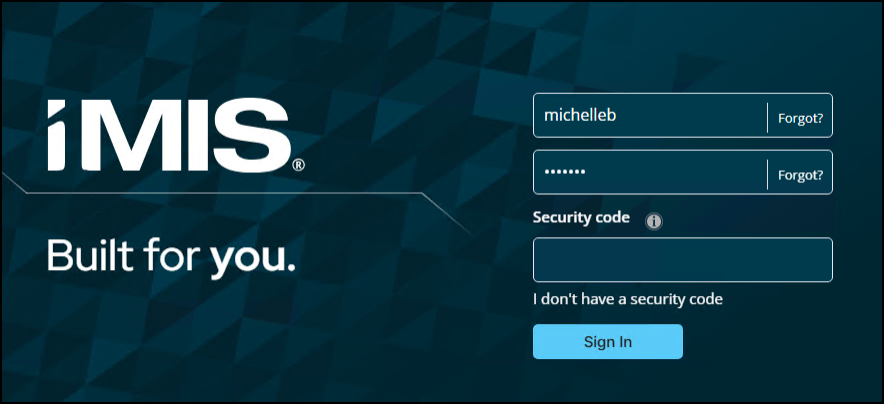
- From the Staff site login page, enter your username and password.
- Click Sign In.
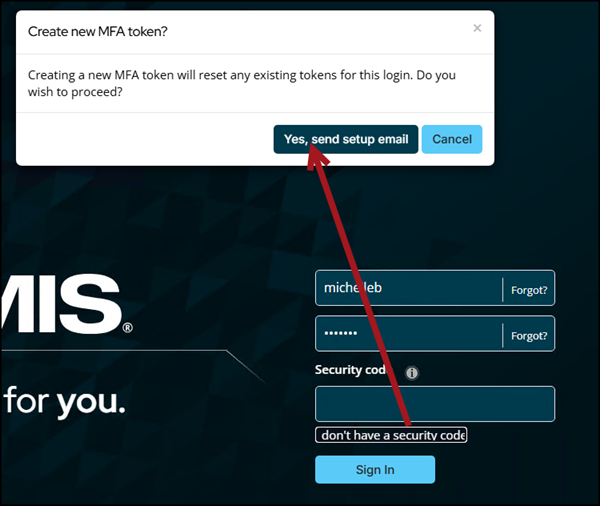
- Select the I don't have a security code link.
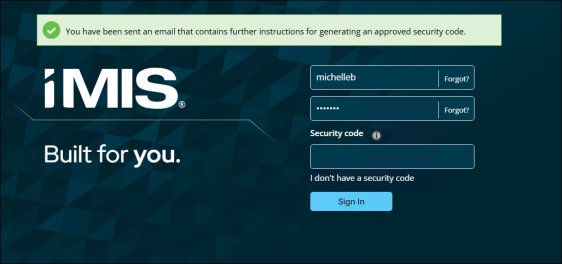
- Click Yes, send setup email.
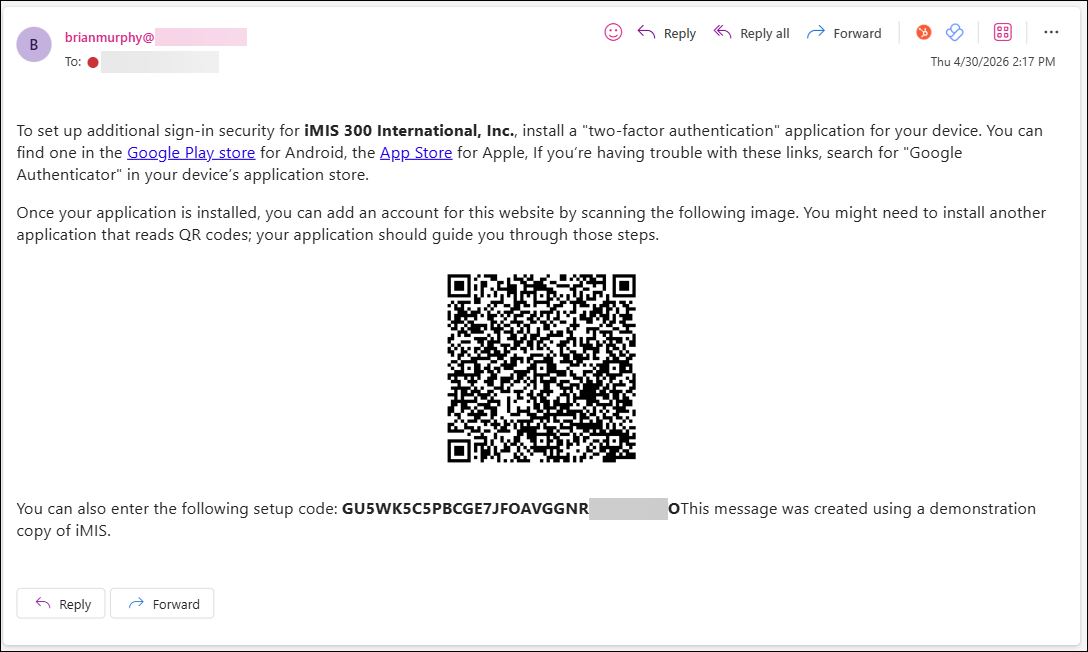
- Check your email. The email is sent to the email address associated with your account.
- Follow the instructions outlined in the email:
- After you have connected MFA with your desired app, go back to the iMIS Staff site sign-in page.
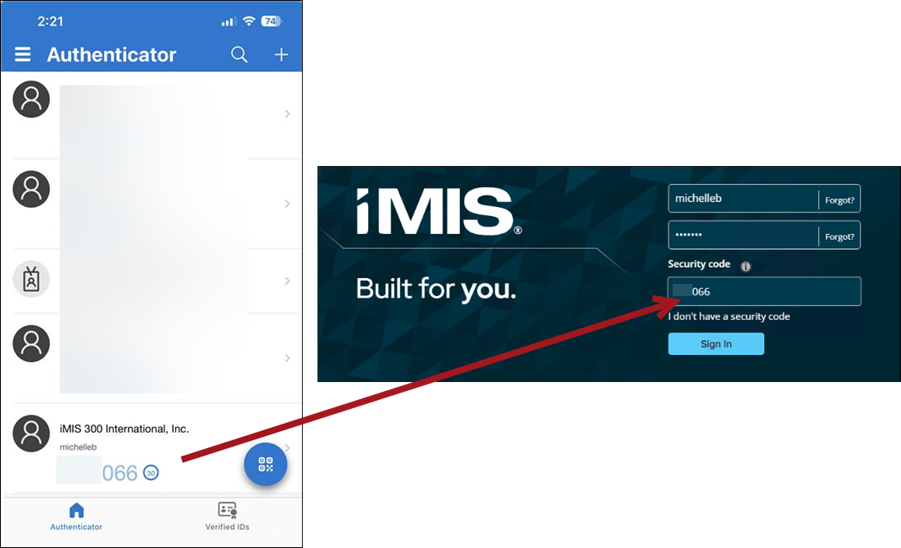
- Make note of the security code within the app, then enter the code in the Security code field.
- Click Sign In.
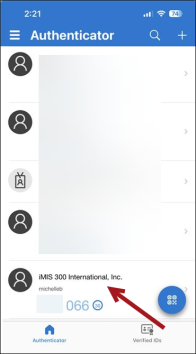
This is an example of the finished configuration using Microsoft Authenticator:
MFA and OpenID Connect (OIDC)
If your organization authenticates users through OpenID Connect (OIDC), iMIS MFA enforcement will not impact your users.
The following information details why MFA enforcement will not impact those who use OIDC:
- When OIDC is enabled, authentication (including any MFA requirements) is handled by your external identity provider, not by iMIS.
- Enabling MFA within iMIS applies only to users who authenticate directly through iMIS. OIDC users bypass iMIS authentication entirely.
- Any MFA policies for your OIDC users should be configured within your identity provider (e.g., Azure AD, Okta, or similar).
Important! When MFA is eventually enforced organization-wide, ASI will ensure in advance that this enforcement does not negatively impact clients using OIDC. OIDC users will continue to be governed by their identity provider’s authentication settings.
FAQ
Do I need to configure anything to display the "I don't have a security code" link on the Sign In page? No. This link appears on the Sign In page out of the box, and no additional configuration is required. Staff users can click it to complete their initial MFA setup the first time they log in after MFA is enabled.
Does MFA affect API users or third-party integrations? No. MFA only applies to users who log in to iMIS directly through the Sign In page. API users and third-party integrations are not affected.
Can I receive my security code by email? No. Security codes cannot be delivered by email. You must use an authenticator app on your phone (such as Google Authenticator, Microsoft Authenticator, ZoHo OneAuth, or 1Password) or a browser extension such as the Google Authenticator Chrome plug-in. If you attempt to use email to receive your code, you will not receive one.
Do MANAGER accounts (AiSPs) need to use MFA? Yes. Manager accounts are full staff users with system administrator access, so MFA applies to them in the same way it does for all other staff users. System accounts are not excluded from MFA requirements.