Last updated on: June 23, 2026
Chapter List Management
Do the following to manage chapter lists:
Group by chapter type
To create groupings for the chapter list in the Jump-To control in ICE, create a view that will have the following items:
- iMIS ID of the chapter.
- Field Value to be used as a method for grouping (organizing) chapters.
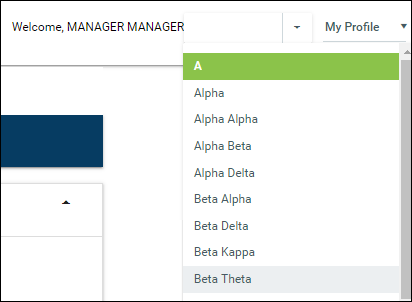
If you add this "Grouping" as a demographic and name it "GroupRank," the chapter Jump-To control will then subdivide the chapters based on the value defined in the view.
Setup
Do the following to set up chapter list management:
- Log into ICE admin.
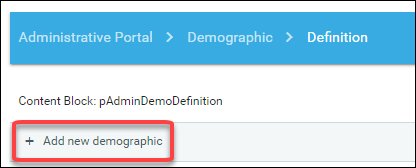
- Select Demographic > Definition.
- Click the Add new record button.
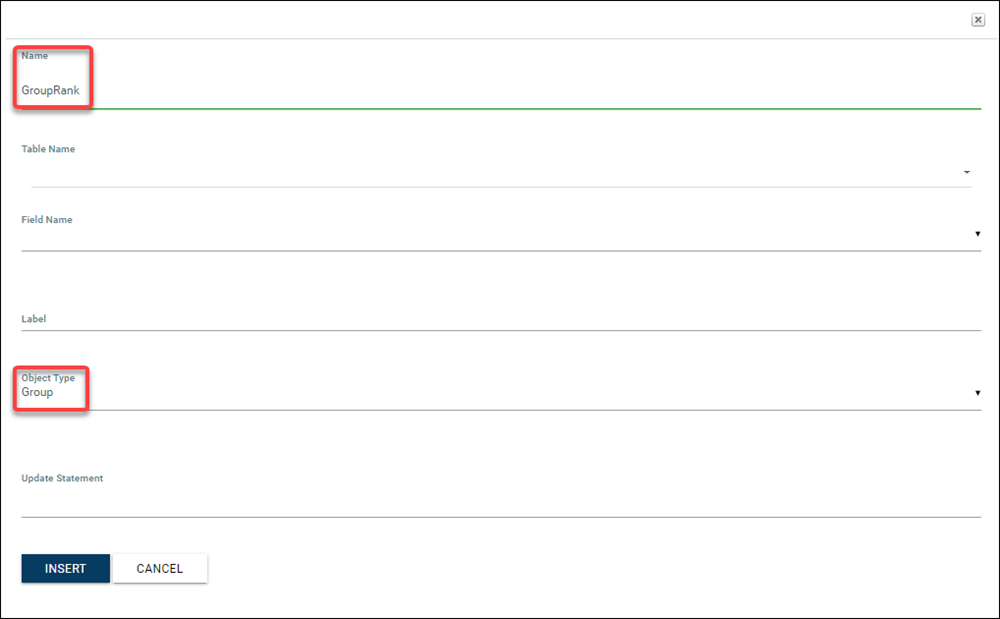
- Add the new demographic settings:
- Name: Must be named GroupRank
- Table Name: Name of the table or view
- Field Name: Name of the column that defines the grouping
- Label: User friendly name for the field
- Object Type: Must be Group
- Click Insert to save the demographic.
- The Chapter drop-down list (Jump-To) will now be grouped by the new demographic.
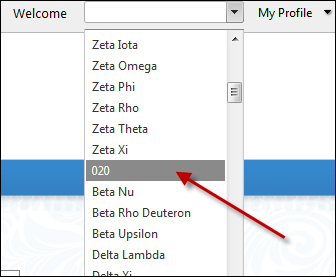
Note: The drop-down list is cached and is refreshed upon login. To see your updates, logout and login.